Access management
Afi Amazon Web Services backup has a flexible and granular role model that allows you to:
- delegate backup administration to a group of trusted users (referred to as Backup Operators);
- assign administrators with a limited access scope to manage and access specific resource groups.
Role model granularity allows an administrator to grant only a limited set of permissions tailored to their specific security and business needs. For example, the Backup Operator group can be configured to supervise backup progress and health, as well as perform data recovery operations per user request, but without access to volume or database table content preview.
Afi access model
Afi adopts a multi-tenant organizational and access model, allowing you to add and manage multiple tenants (e.g., AWS, Microsoft 365) under a single Afi account (organization). The Afi access model is fully explicit and enables granular configuration of access at any level, whether for an entire organization, specific tenants, resource groups, or selected resources within a tenant, adhering to the principle of least privilege.
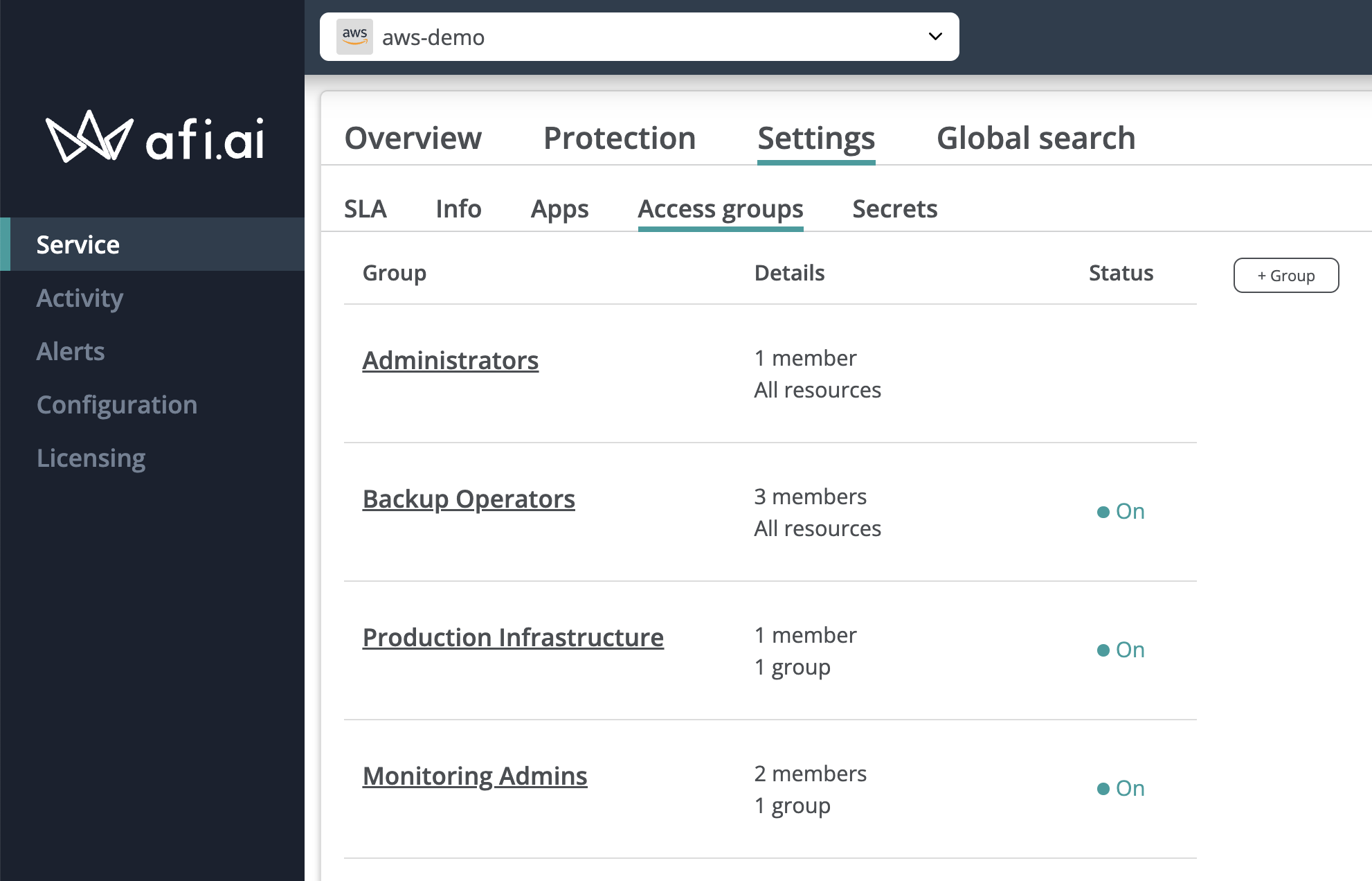
Organizational access settings are managed on the Configuration → Admins tab, granting access to the entire Afi organization and all tenants within it. Per-tenant access settings are managed on the Service → Settings → Access groups tab.
By default, an Afi organization account is created with a single administrator, the user who set up the account. Organization administrators can be added or removed on the Configuration → Admins tab (see the Organization Administrators group) and have full access to the organization and all its tenants. Organization-level settings are described in the following article, while this article focuses on tenant-level access settings specific to AWS tenants.
Access groups
To manage access to resources and settings within a tenant, you can either use the default access groups (Administrators and Backup operators) or configure custom access groups with limited access scope based on your use cases. The below sections describe access group types and available configuration options.
An administrator can invite any Microsoft 365 or Google (business or personal) user account as an access group member and, after accepting the invitation, they will be able to access the tenant and resources that they were granted access to.
How to invite a member to a group?
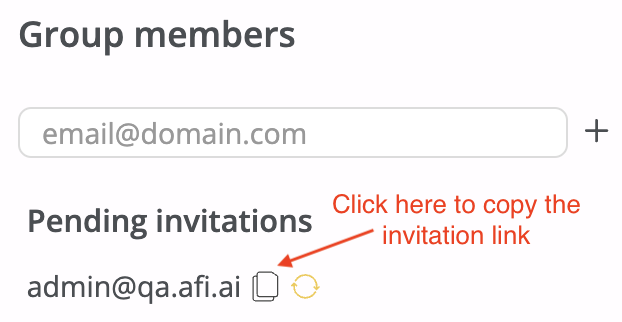
An Afi administrator with access management permission can invite a user to an access group by clicking on the group tile, posting the primary user email in the input field in the Group members section, clicking on the + icon, and then pressing Save.
After a user is invited, the Afi service will send an email invitation to this user to join the corresponding access group by the link provided in the email. Each link is valid for 7 days and, once you delete and add a user to this group again, the old invitation link becomes no longer valid. To join the group, the user should follow the link and log in to the Afi portal with an account specified in the invitation.
Administrators group
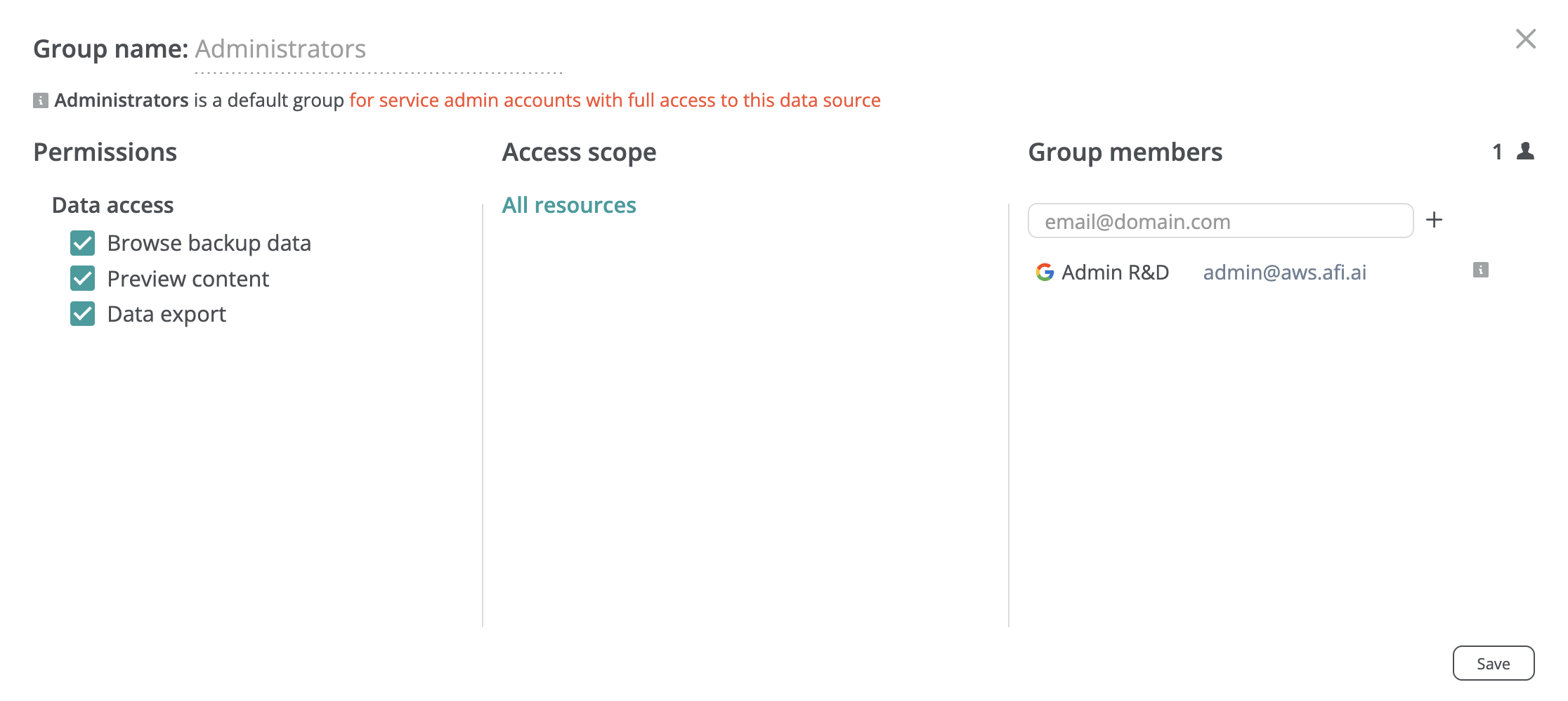
Tenant Administrators have full access to the tenant; however, even in a single-tenant Afi organization, they do not have access to organization-level settings such as licensing, organization-level access management, or the organization-level Afi audit log.
Info
Organization and tenant administrator access to backup data can be restricted either entirely by disabling the data browse permission for a tenant or partially by limiting volume content preview and/or data download.
Backup operators group
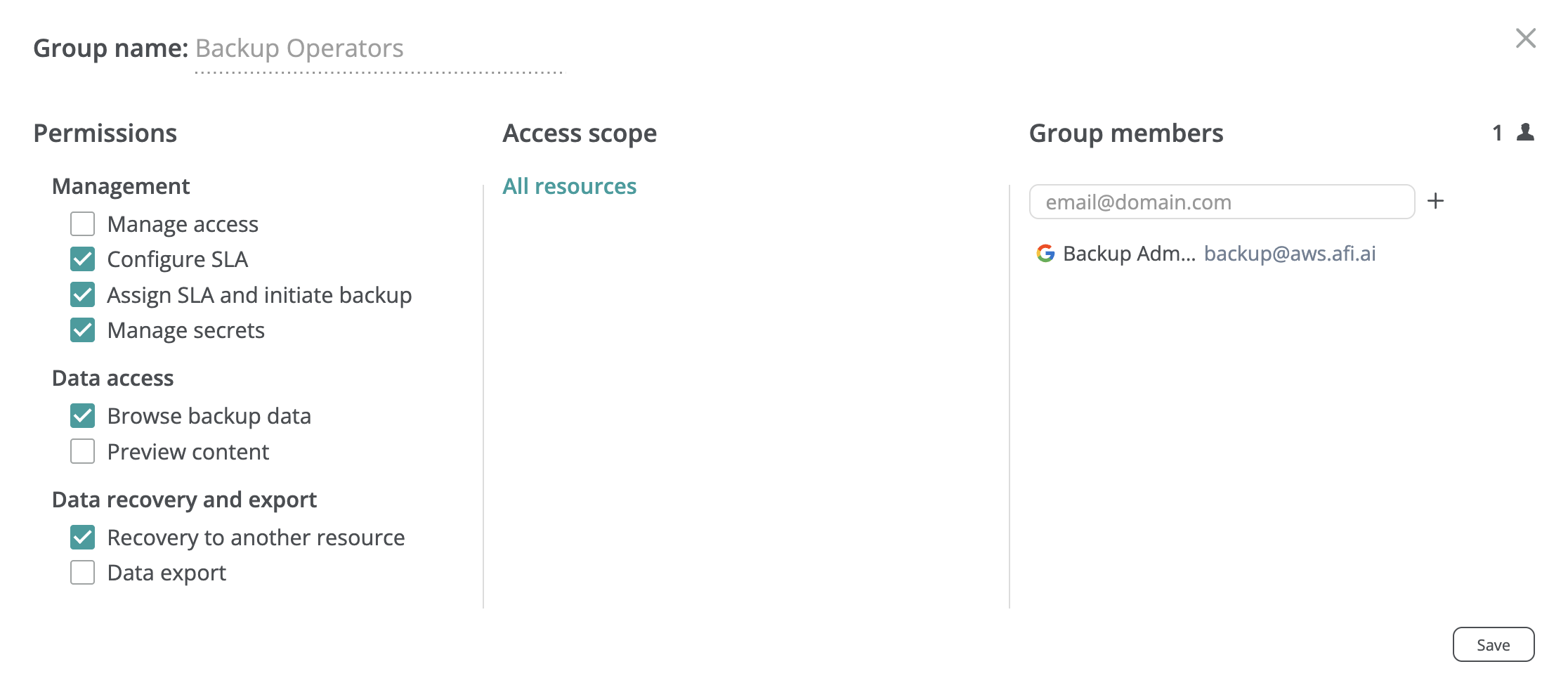
The Backup Operators group is a default access group for each Afi tenant and can be used to provide limited tenant-wide access to backup management, data access, recovery, and export. The screenshot below shows the Backup Operators group with a single member who can manage backups and backup SLA policies, browse backup data, and perform data recovery.
Custom access groups
Custom access groups allow the creation of multiple administrator groups with limited permissions for a tenant, as well as the ability to grant granular access to resources that belong to a specific resource group or a manually selected set of resources (virtual machines). Custom access groups can also be configured to have a fixed lifetime, which is unlimited by default.
To configure a custom access group, please follow these steps:
- Go to Service → Settings → Access groups tab.
- Click + Group to add a new group, or select an existing group to edit its settings.
- In the dialog that appears, choose the access scope (i.e., which resources group members can access). The following access scopes are available:
- All resources: Grants access to all resources and the corresponding settings within the tenant.
- Dynamic groups: Grants access to resources in the selected dynamic resource groups, which are populated based on configured criteria (e.g., region, tags).
- Custom: Grants access only to the specific resources you select.
- Choose the group members who should have access to the resources within the selected scope.
- Configure the permissions to grant to those members for the resources in scope.
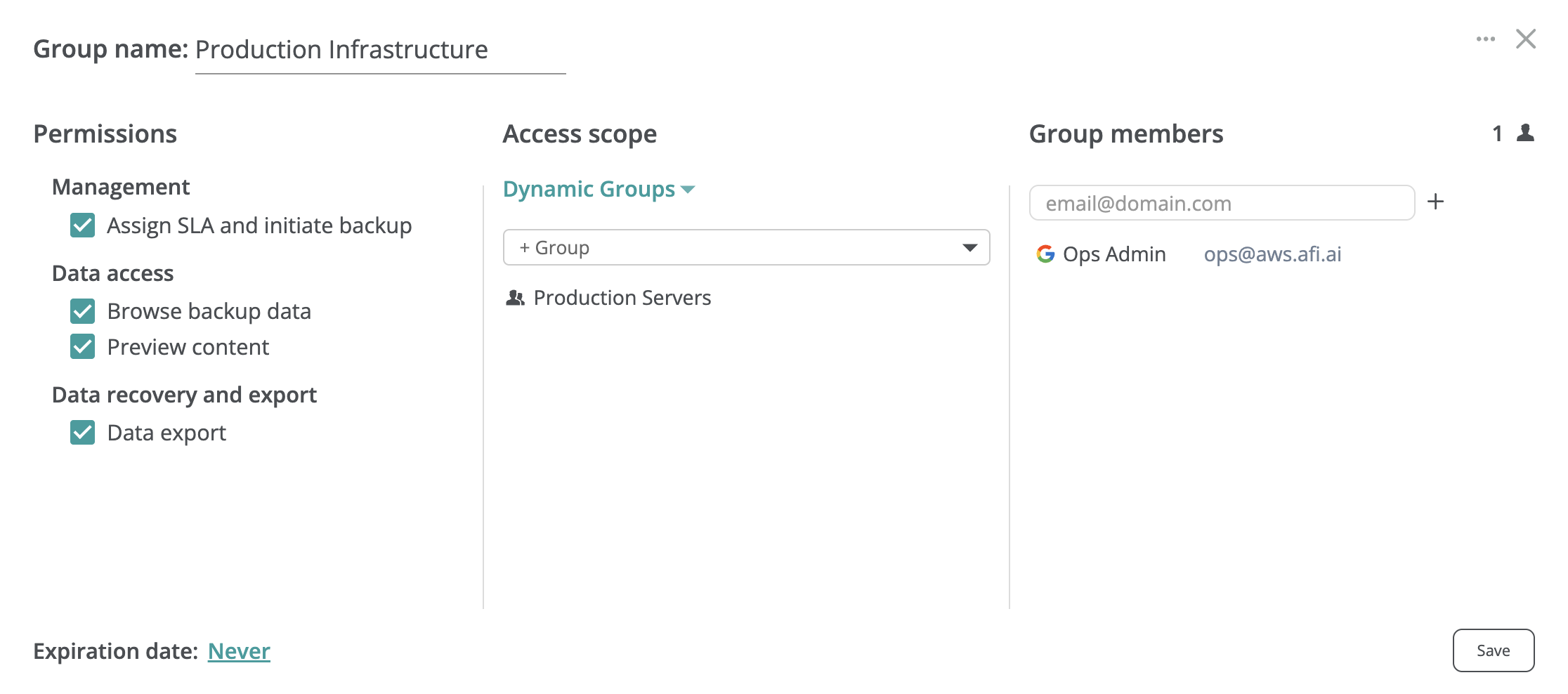
Access groups with limited lifetime
In some cases, it is useful to configure an access group with a limited lifespan to provide access only for a specified time period. For example, you might want to grant temporary access to a set of resources during an internal investigation or audit. The lifespan of an access group can be modified using the Expiration date control at the bottom of the access group configuration dialog.
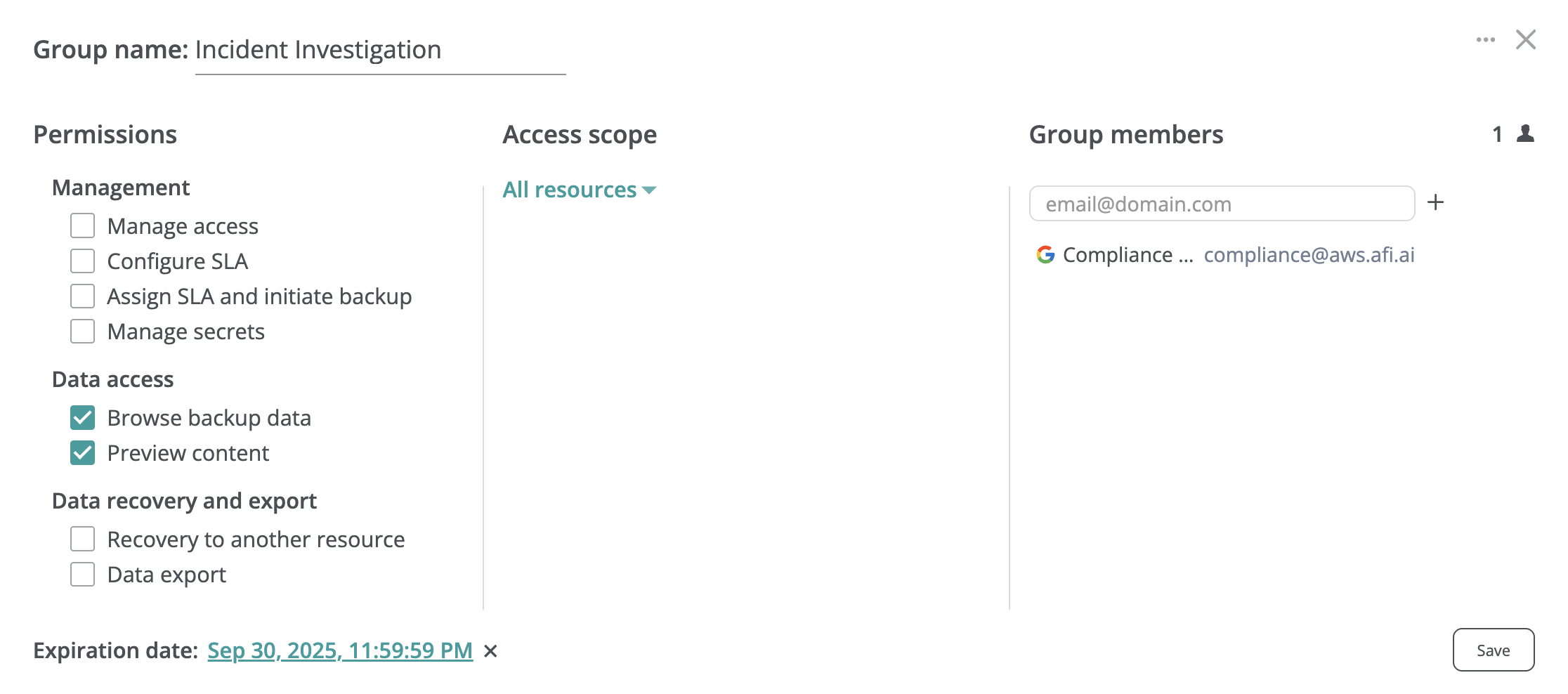
Permissions explained
| Permission | Description |
|---|---|
| Manage access | Any access group member is able to change access settings within the tenant by creating new access groups or editing settings and members for existing ones. |
| Configure SLA | Any access group member is able to create, modify or delete backup SLA policies within the tenant on the Service → Settings → SLA tab. |
| Assign SLA and initiate backup | An access group member is able to assign backup SLA policies to resources within the group's access scope and configure auto-protection settings. |
| Browse backup data | An access group member is able to browse backup data for all backups within the group's access scope, but can't export the data or preview volume or database table content without additional permissions. |
| Preview content | An access group member is able to preview volume content and database tables for all backups in the group's access scope. |
| Recovery to another resource | An access group member is able to recover a virtual machine or a database from backup. |
| Data export | An access group member is able to download backup data from all backups in the group's access scope. |