OneLogin SAML SSO
This guide provides a step-by-step guide for configuring SAML SSO using OneLogin as the identity provider (IdP) for integration with Afi.
Prerequisites
Before configuring SAML SSO with OneLogin, ensure you have:
- An active administrator account in OneLogin with permissions to manage SSO applications
- Access to the OneLogin Admin Portal
- An Afi organization account with administrator privileges
Configure SAML connector in OneLogin
Create a new SAML application
Follow these steps to create a custom SAML SSO application in OneLogin:
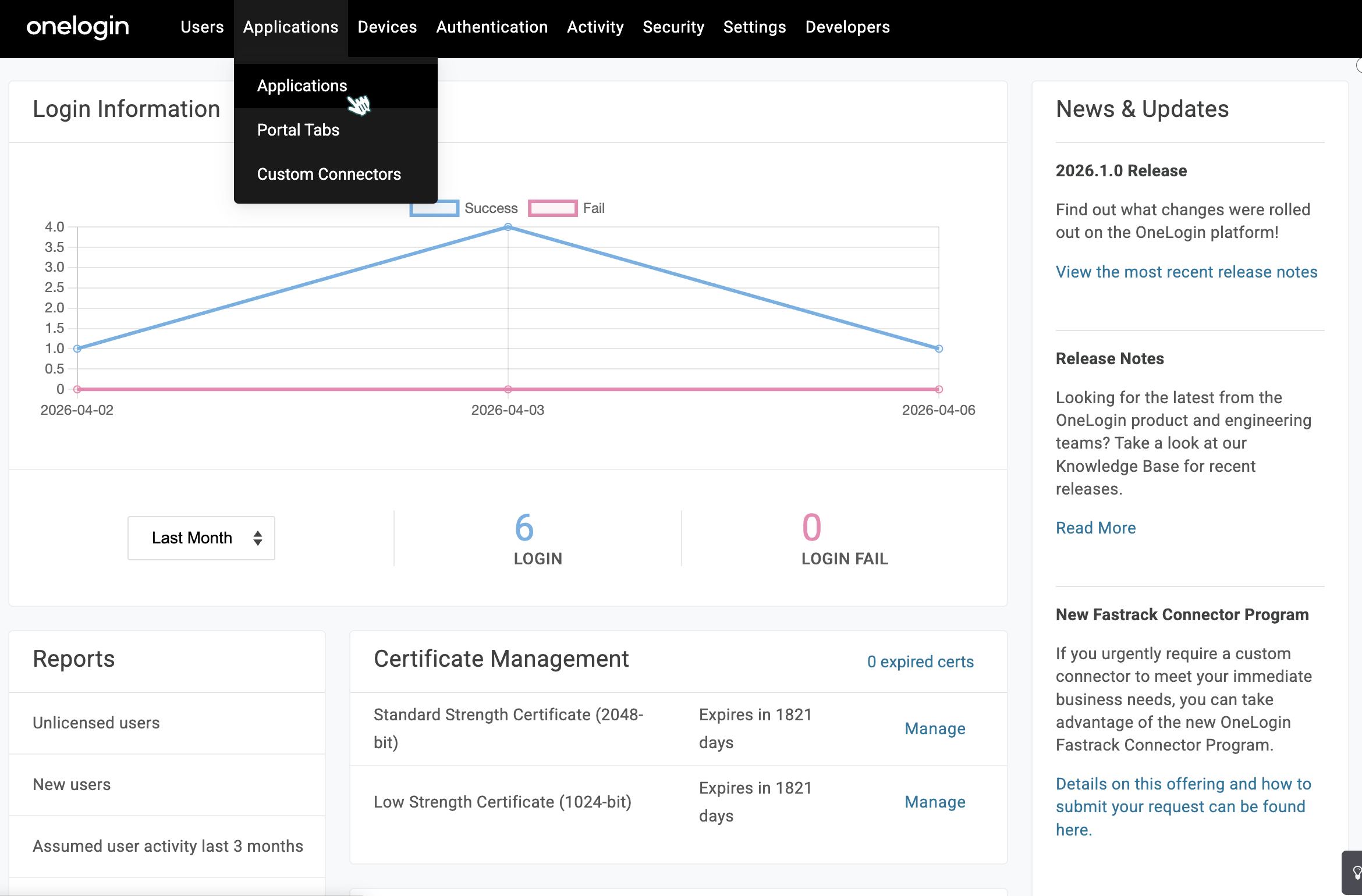
1. Navigate to SSO Applications
From the top navigation bar of the OneLogin Admin Portal, go to Applications → Applications.
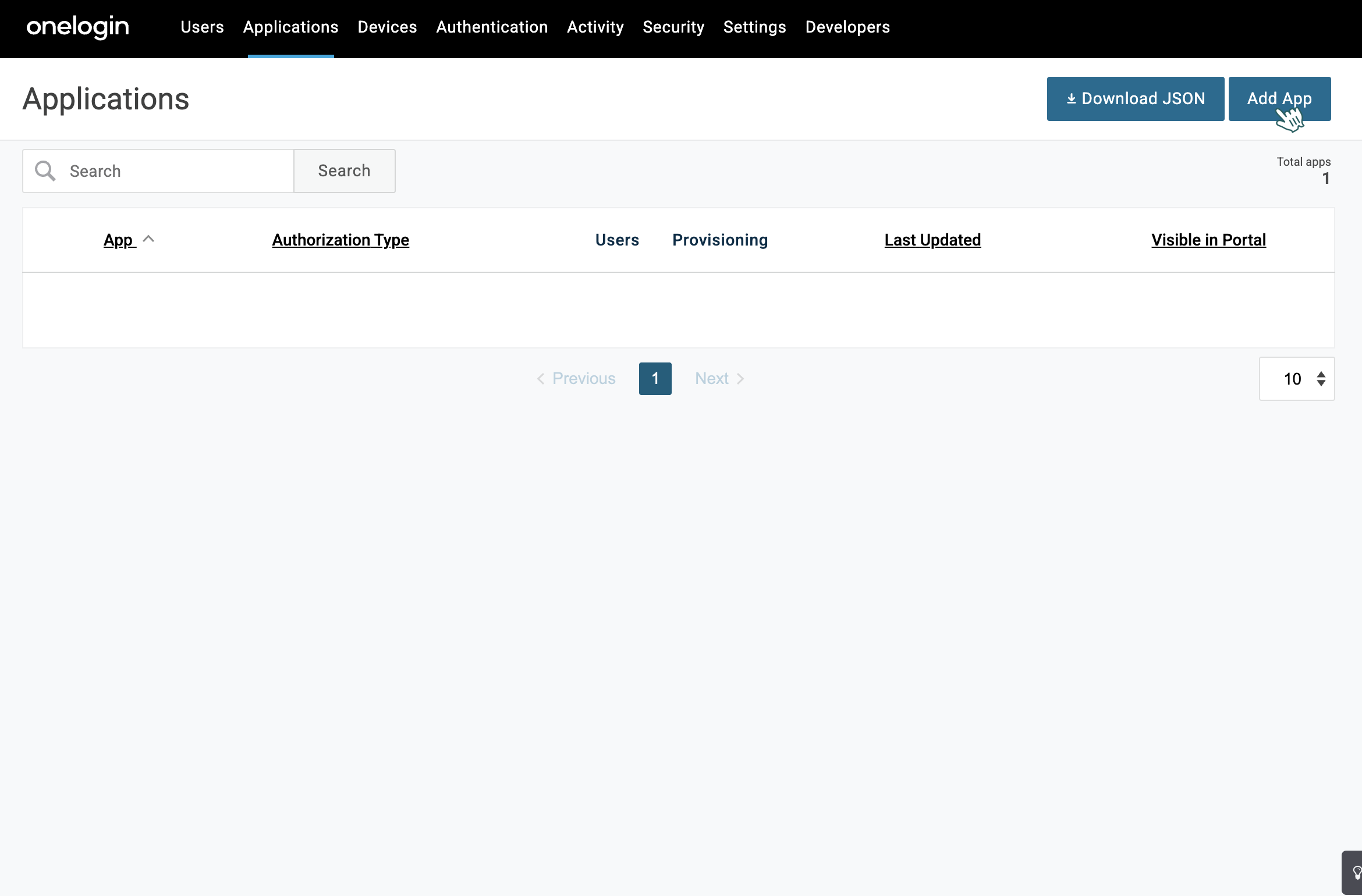
2. Add a new custom application
Click the Add App button to open the application catalog.
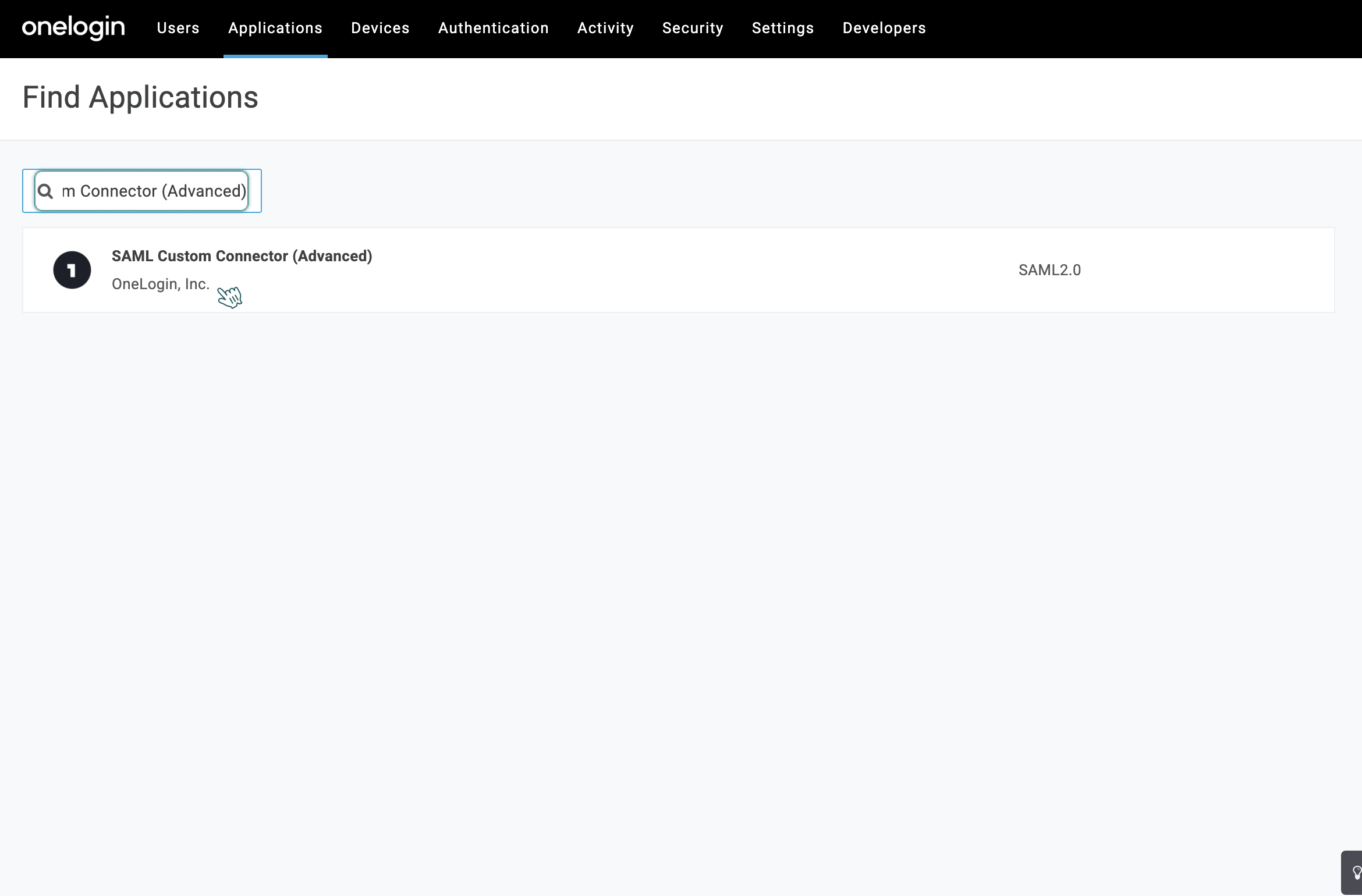
3. Select SAML Custom Connector
In the search field, type SAML Custom Connector (Advanced) and select the application from the results.
4. Configure general application information
Enter the Display Name (for example, Afi Backup). This is the name users will see when using the Identity provider flow. Optionally, configure the description and icon.
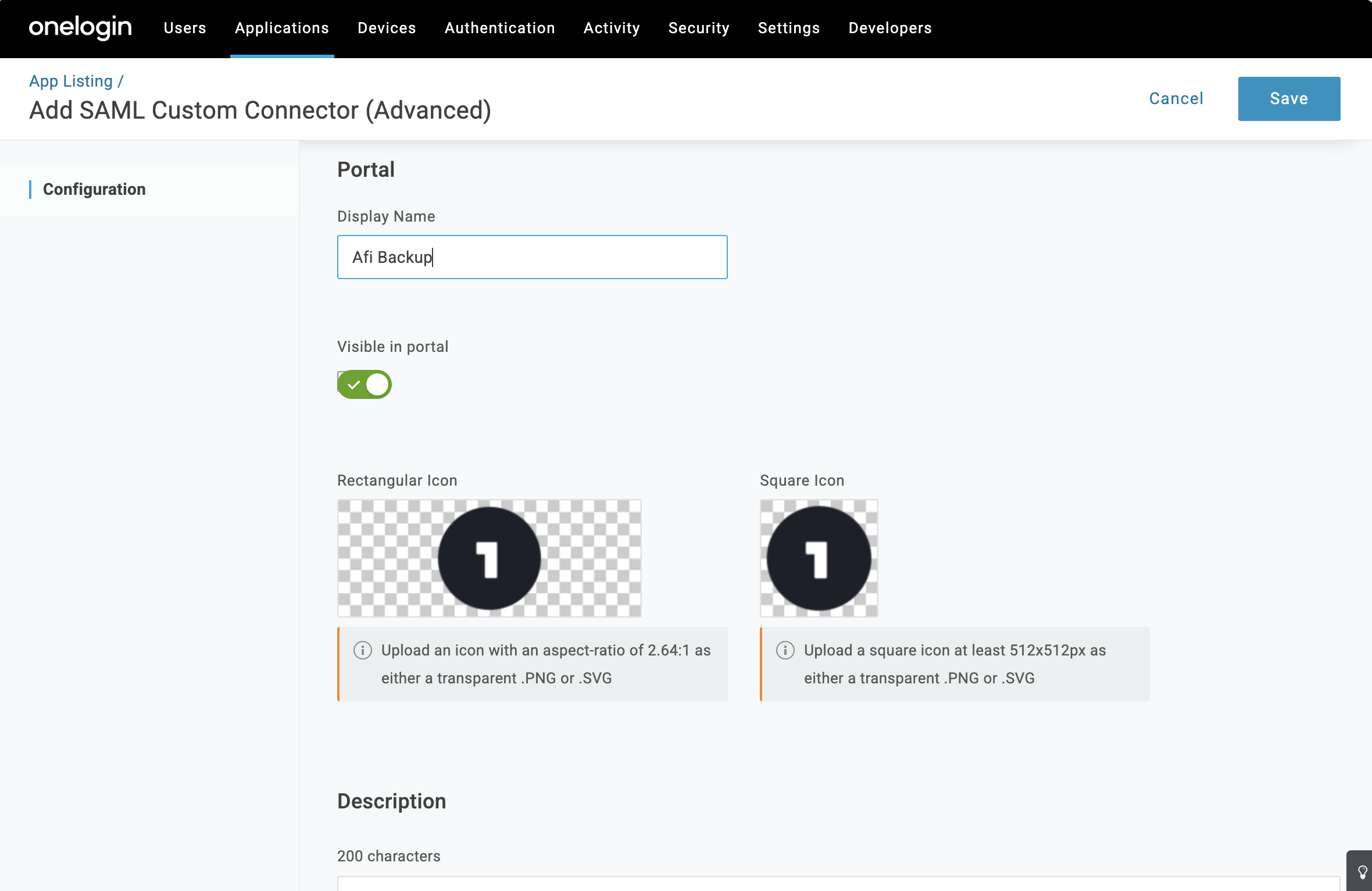
5. Save and proceed to configuration
Click Save to proceed. You will be taken to the application's configuration page.
Configure application settings
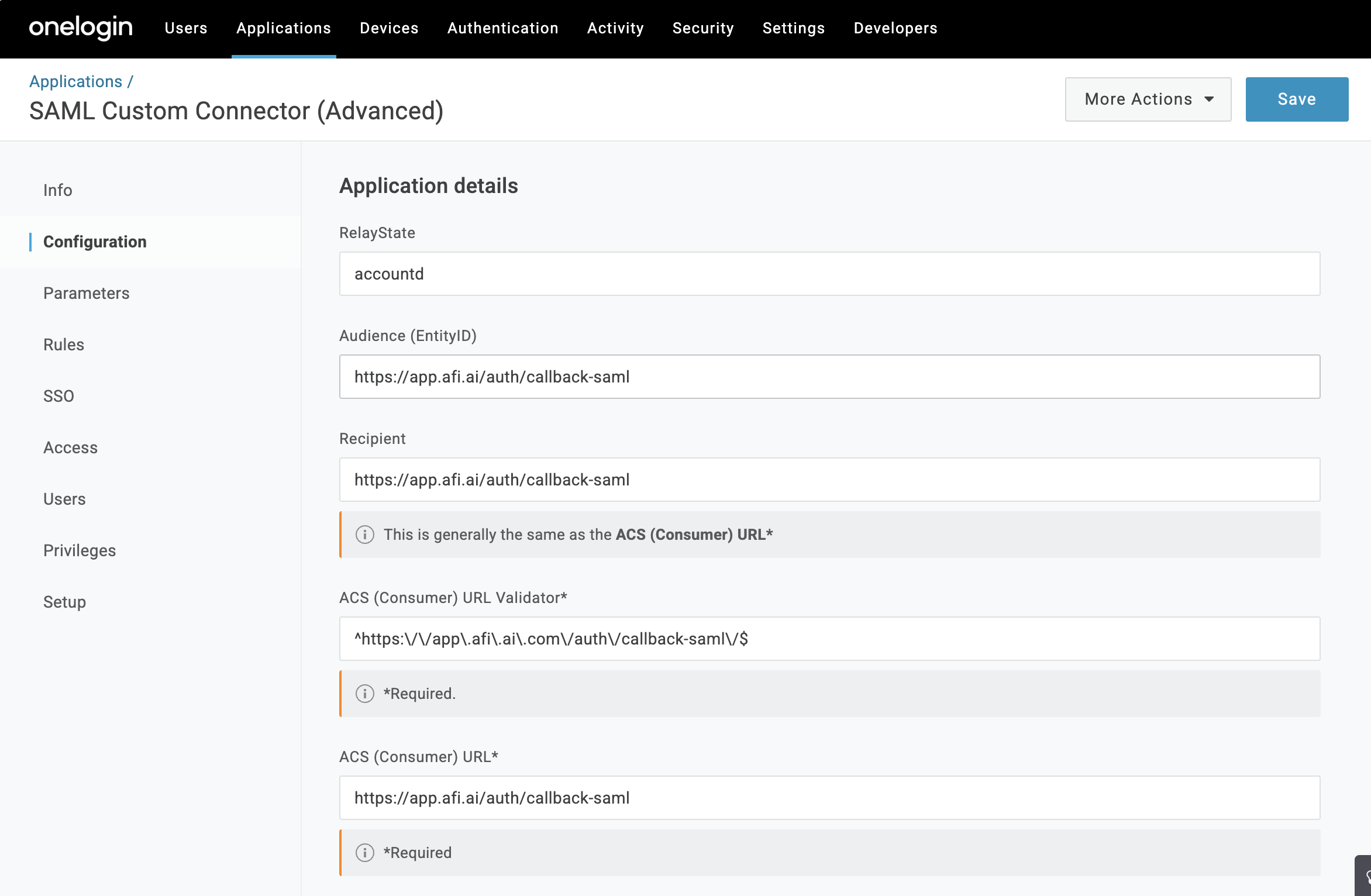
On the left sidebar, navigate to Configuration and fill in the Application details with the following values:
Application details
- RelayState:
accountd - Audience (EntityID):
https://app.afi.ai/auth/callback-saml - Recipient:
https://app.afi.ai/auth/callback-saml - ACS (Consumer) URL Validator:
^https:\/\/app\.afi\.ai\/auth\/callback-saml\/$ - ACS (Consumer) URL:
https://app.afi.ai/auth/callback-saml - Login URL:
https://app.afi.ai/login-saml

User attributes mapping
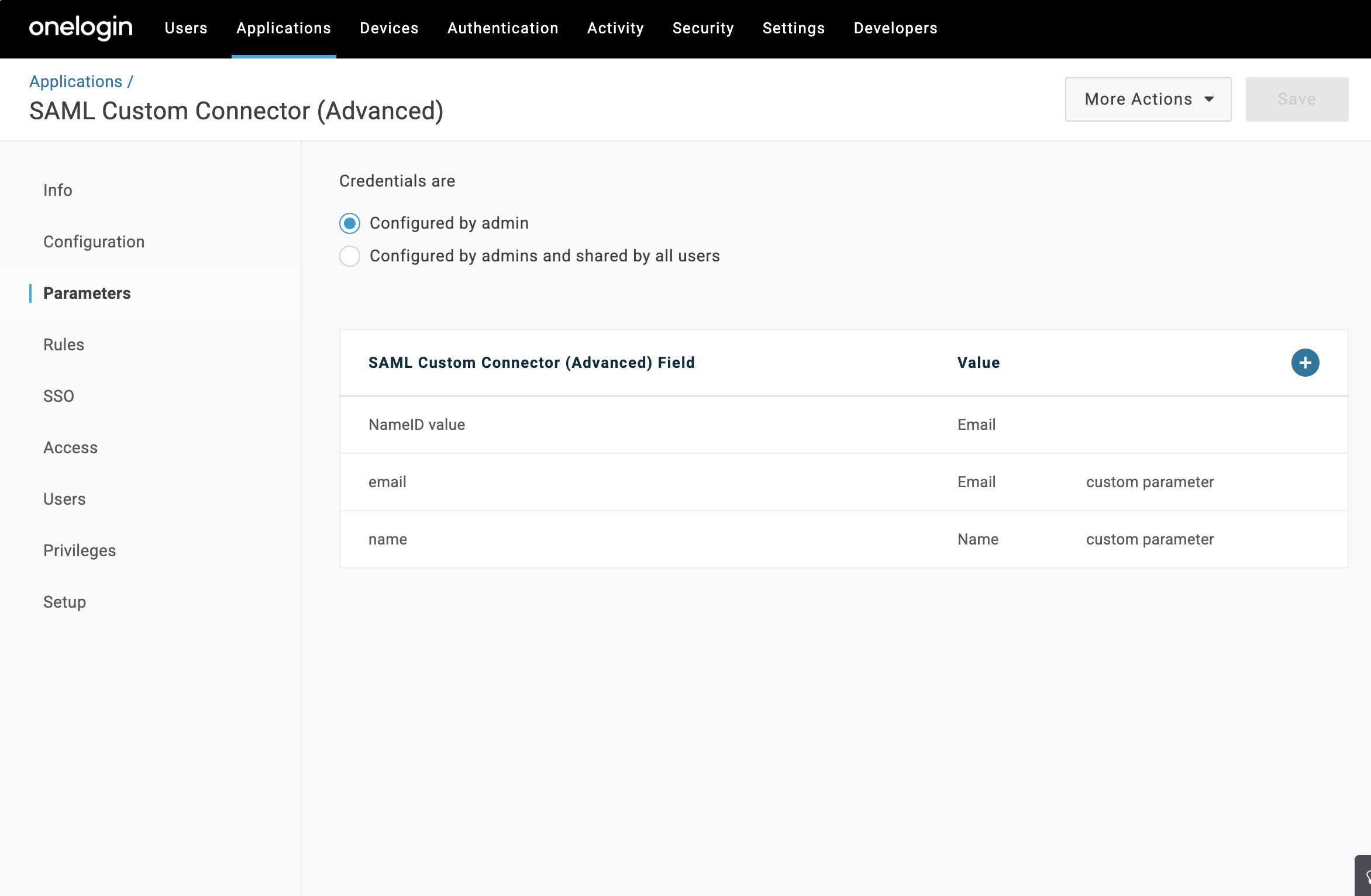
On the left sidebar, navigate to Parameters. Add two new fields to the SAML Custom Connector (Advanced) Field table by clicking the + button.
-
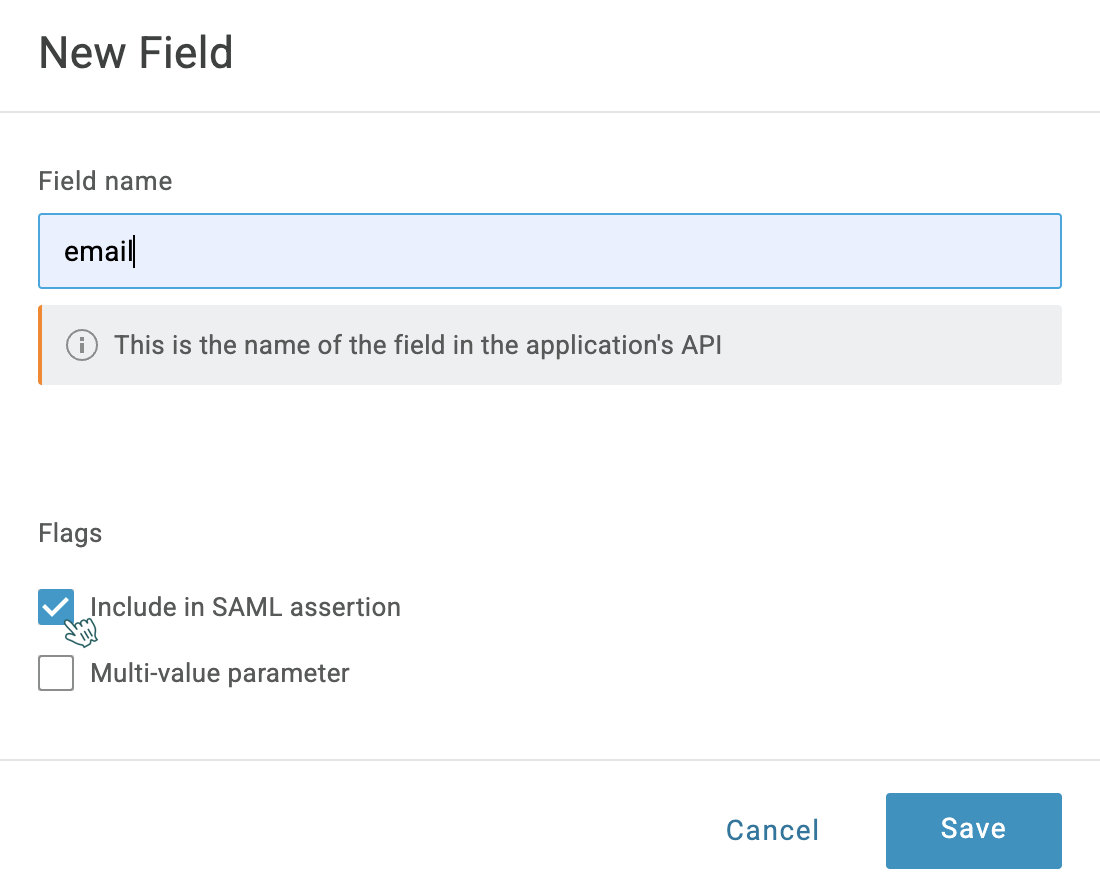
Field 1 (Email):
- In the modal window, set Field name to
email. - Check the Include in SAML assertion box.
- Click Save.
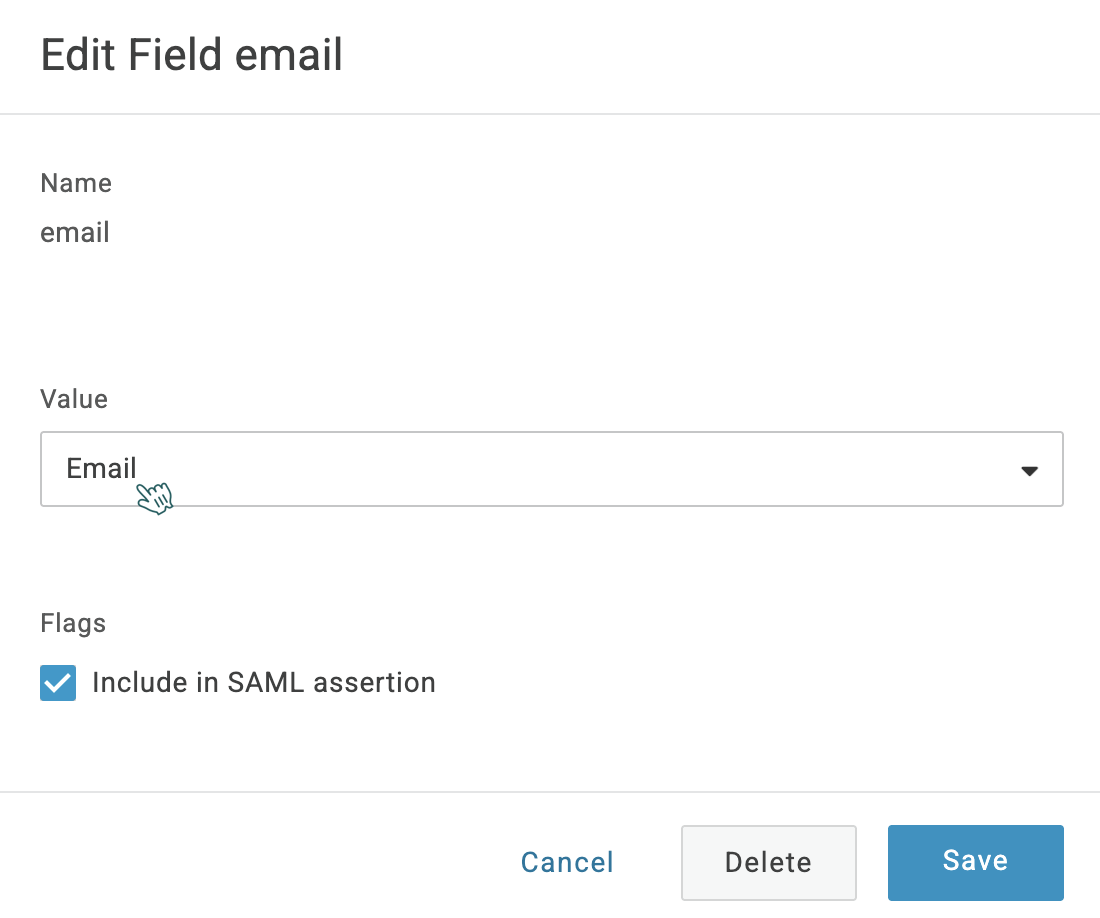
- When prompted to choose a value, select Email and click Save again.
- In the modal window, set Field name to
-
Field 2 (Name):
- In the modal window, set Field name to
name. - Check the Include in SAML assertion box.
- Click Save.
- When prompted to choose a value, select Name and click Save again.
- In the modal window, set Field name to
Info
Identity provider emails of the users accessing the Afi application via SAML SSO must match the corresponding Microsoft 365 or Google Workspace primary emails in the Afi tenant where SAML SSO authentication is configured.
Download application certificate
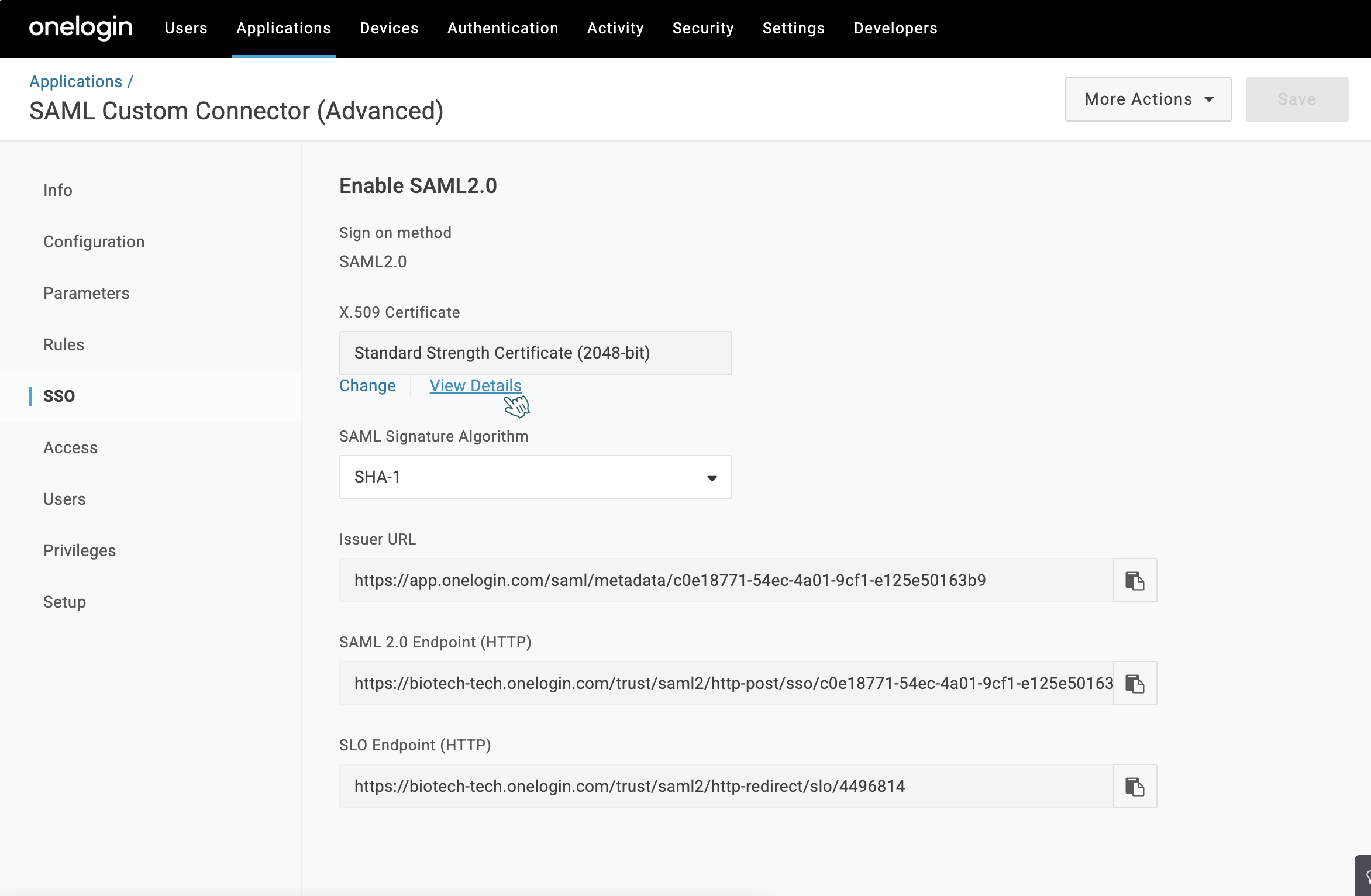
On the left sidebar, navigate to SSO. You will need to save this certificate for the Afi-side configuration.
- Go to X.509 Certificate and click View Details.
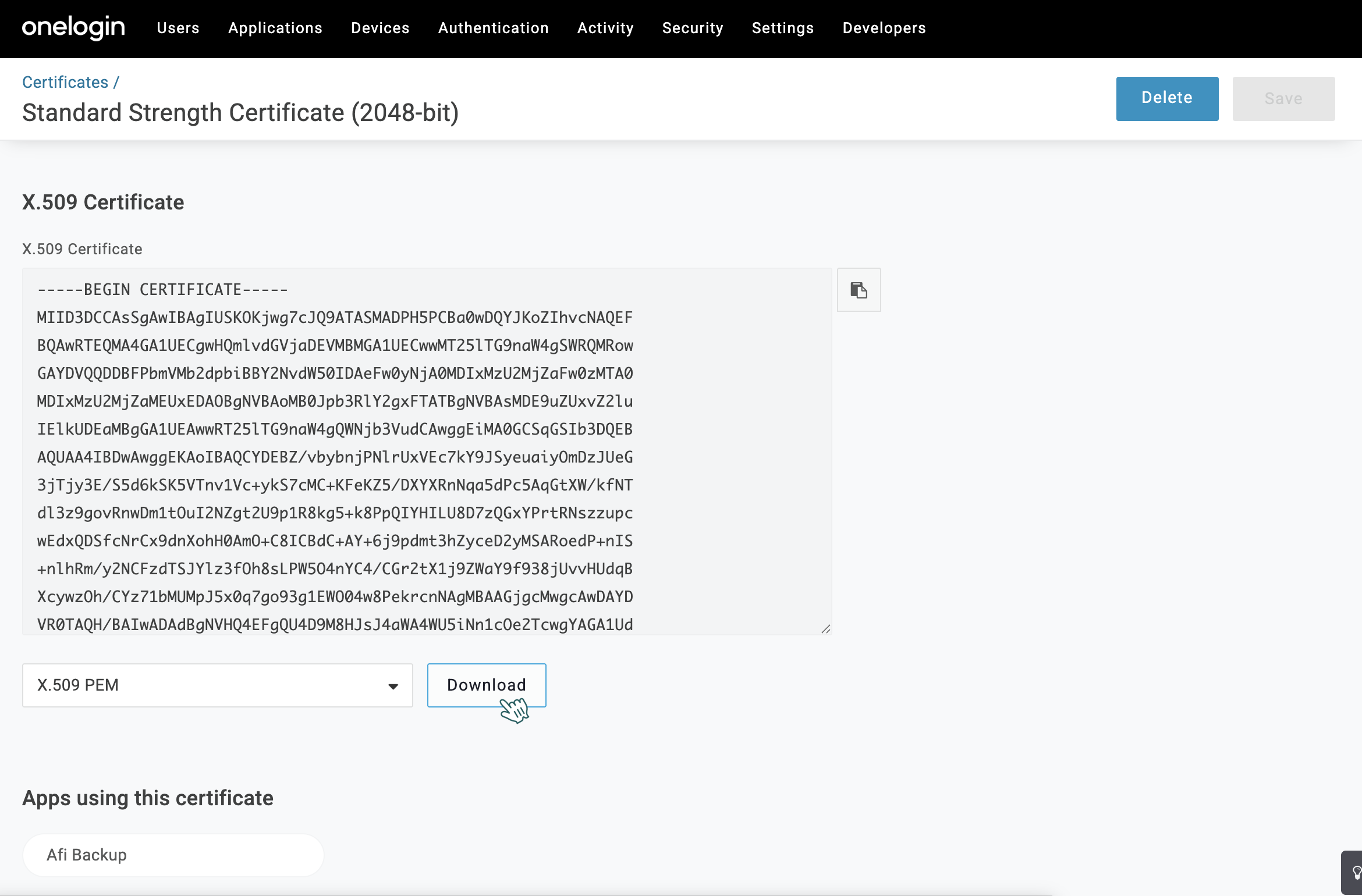
- In the details window, scroll down and click Download to save the certificate file.
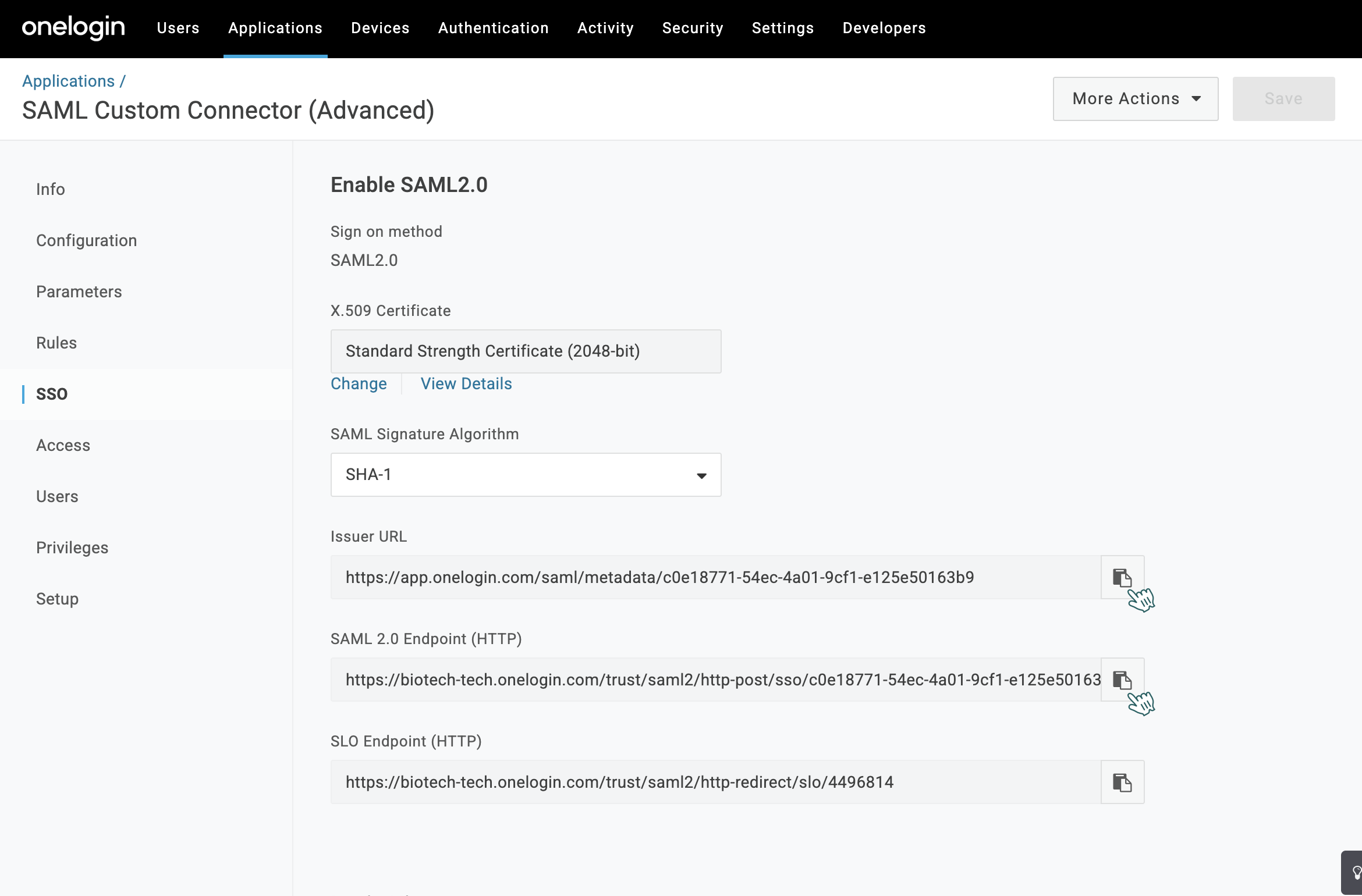
The Issuer URL and SAML 2.0 Endpoint (HTTP) will be required later for the Afi-side integration configuration.
Click Save in the top right corner to complete the OneLogin configuration.
Assign users to the application
After configuring the SAML application, assign users or user groups to enable authentication:
- On the left sidebar, navigate to Users.
- Assign the relevant users or roles who should have access to the Afi Backup application.
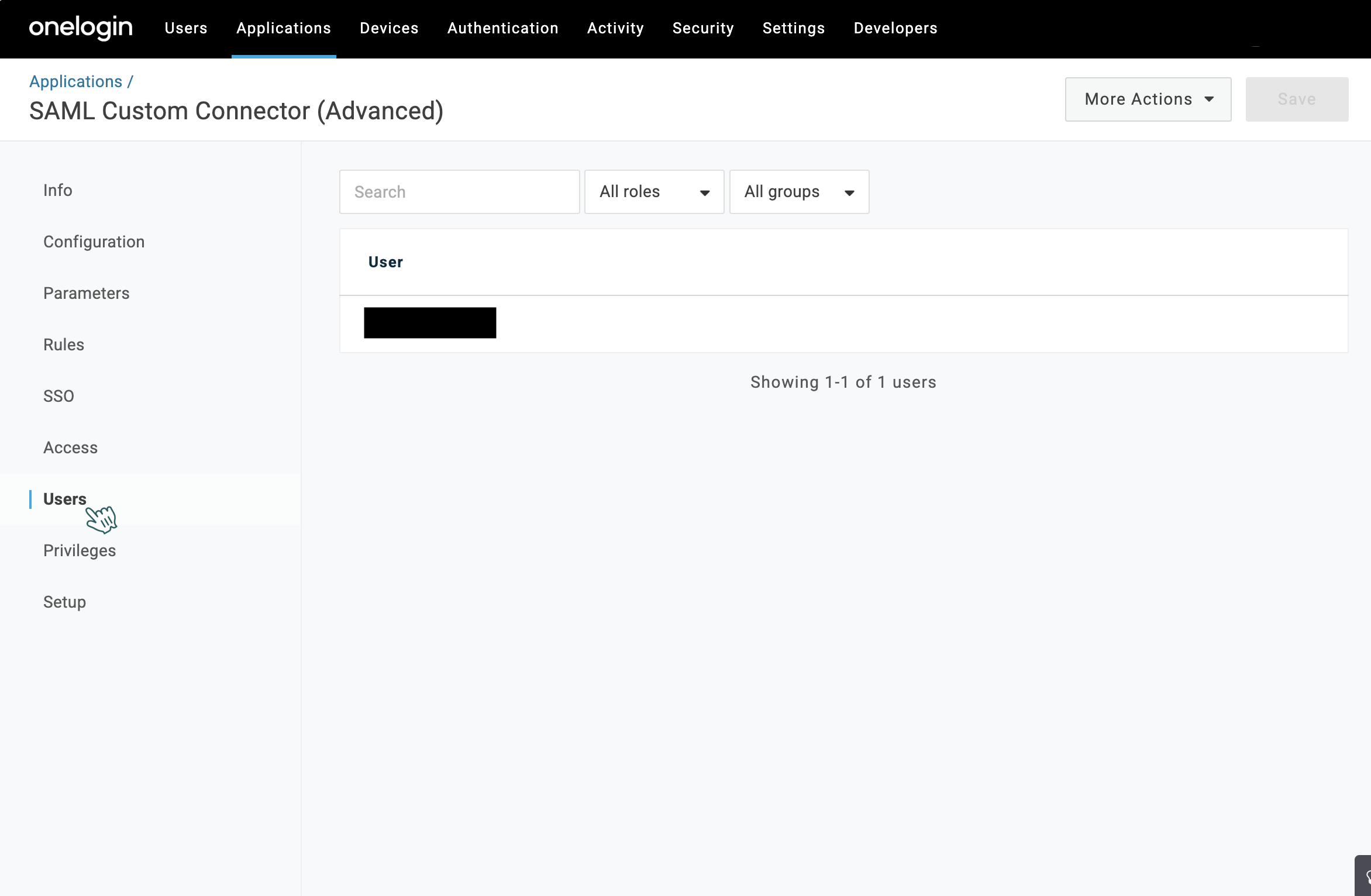
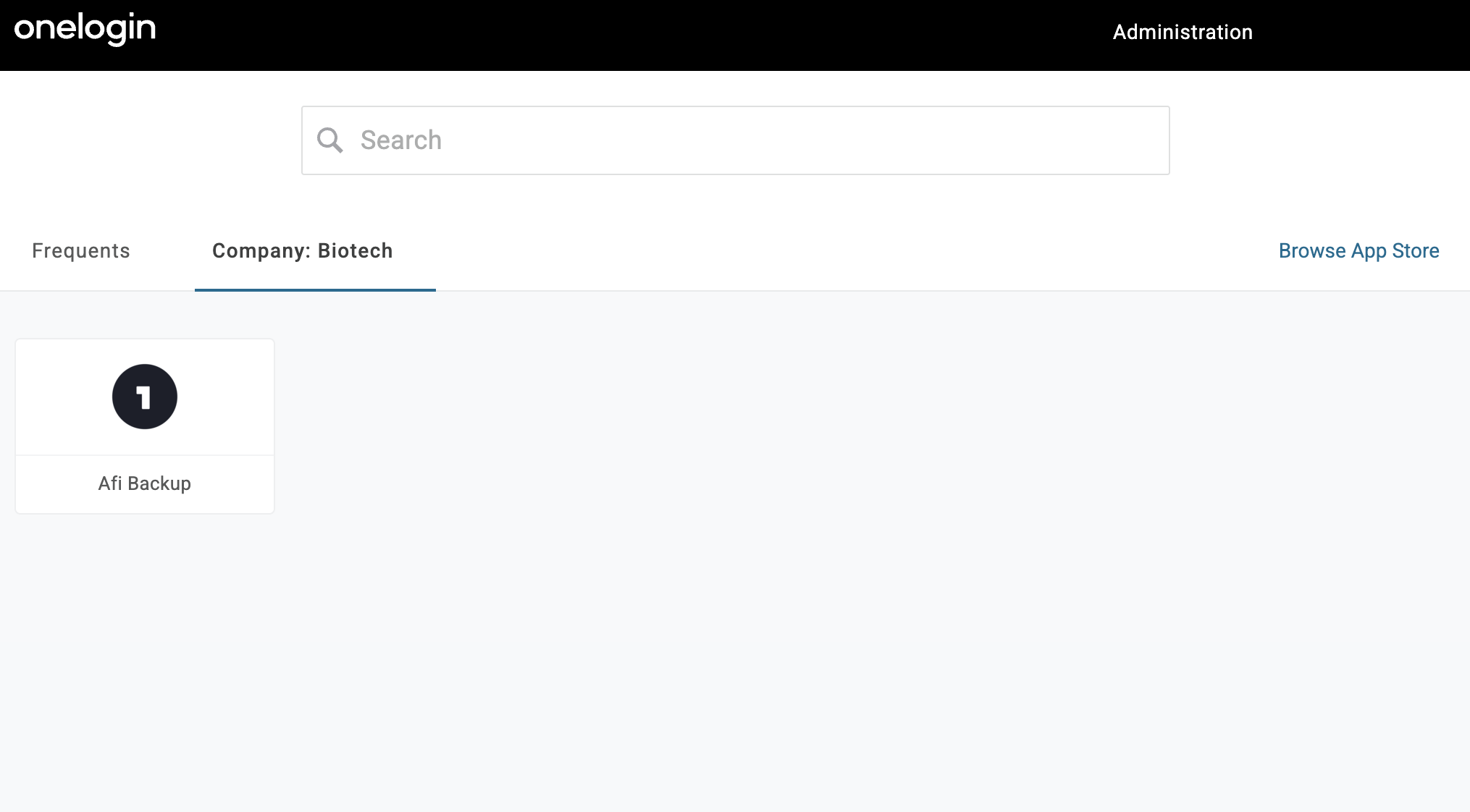
Once assigned, the Afi Backup application will appear in the User Portal for these users in OneLogin.
Enable SAML SSO on the Afi-side
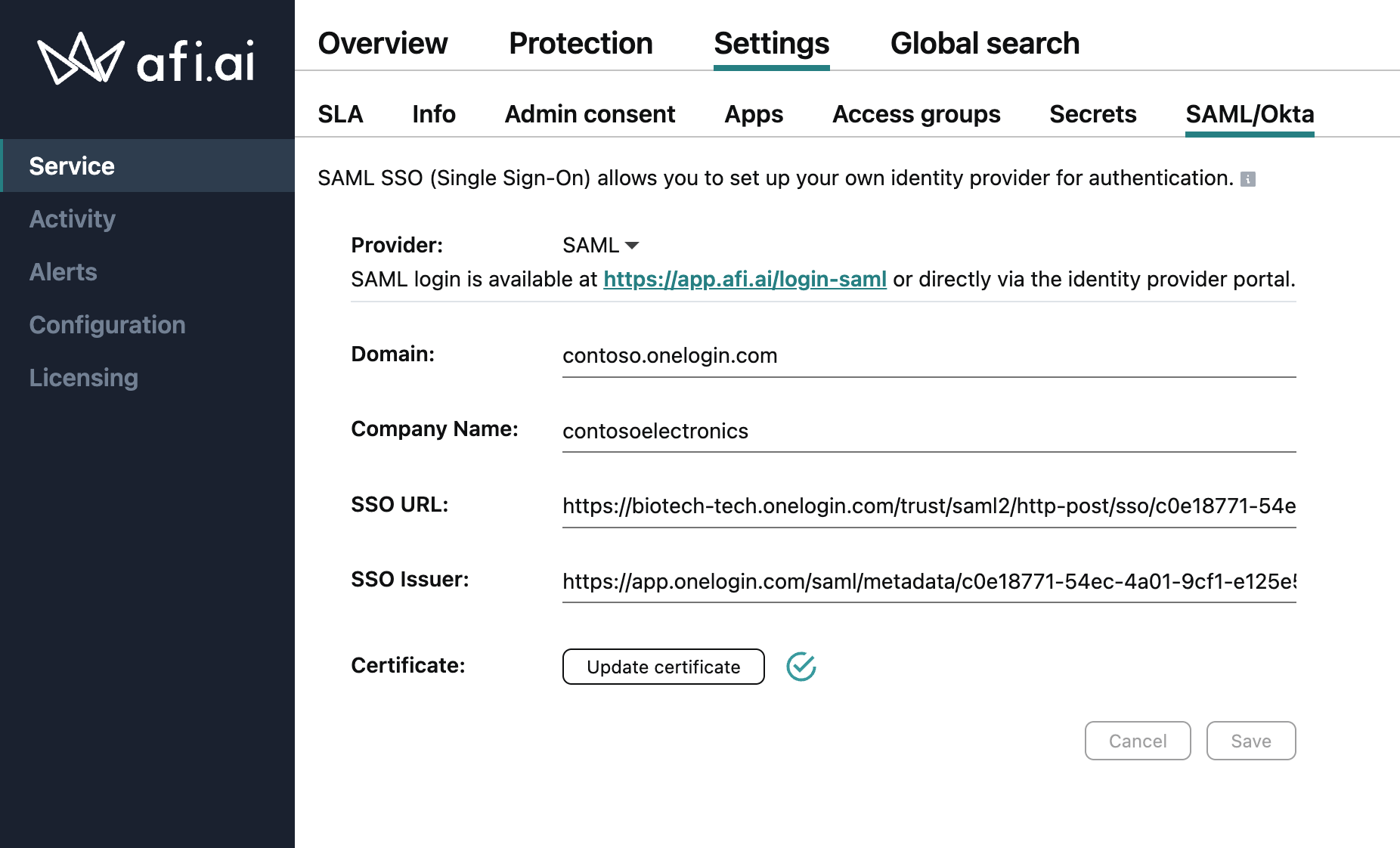
To complete SAML configuration on the Afi side, please go to the Service → Settings → SAML/Okta tab, select the SAML provider option, and fill out the following fields:
- Domain: Your organization's identity provider domain name (for example,
<company-name>.onelogin.com). - Company name: Your company name.
- SSO URL: The SAML 2.0 Endpoint (HTTP) from the OneLogin SSO configuration.
- SSO Issuer: The Issuer URL from the OneLogin SSO configuration.
- Certificate: Upload the SAML certificate file you downloaded from the OneLogin application settings.
Authenticate in Afi with SAML SSO
Afi supports both service provider-initiated and identity provider-initiated SAML authentication flows.
Service provider-initiated flow
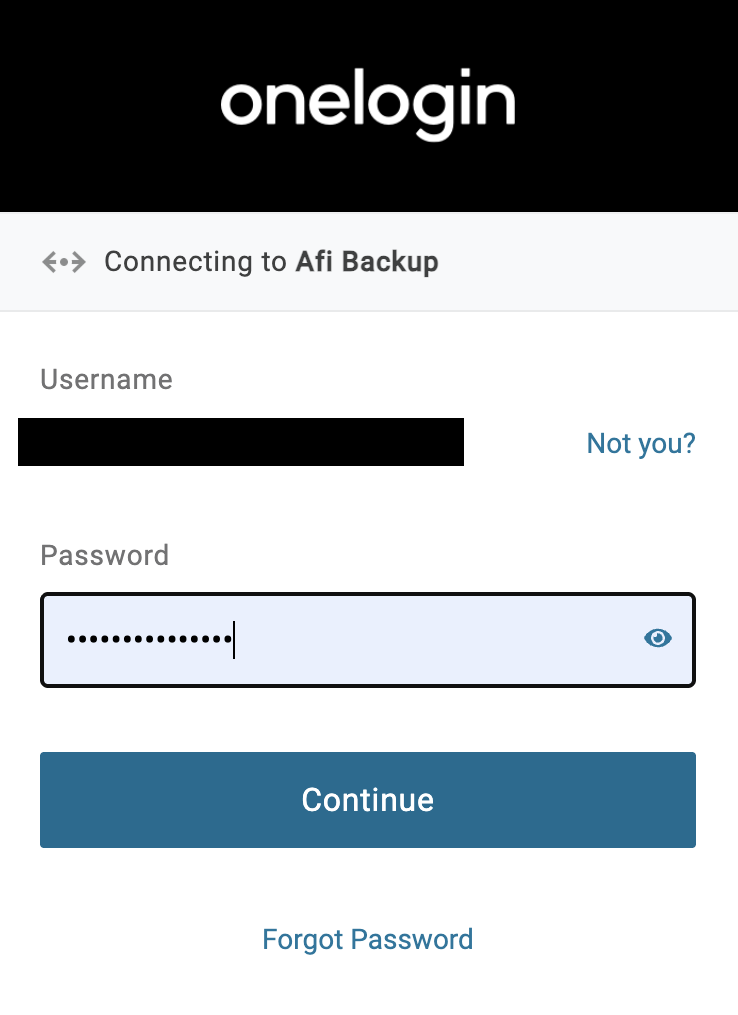
The service provider-initiated flow starts on the custom Afi login screen for SAML SSO. Users are prompted to enter their connector ID (identity provider domain) and then proceed with authentication. Upon successful authentication, users will be redirected to the Afi portal.

Identity provider-initiated flow
To access the Afi portal via the OneLogin User Portal, click the Afi application tile to be redirected there.