Azure PostgreSQL databases
Afi provides comprehensive backup and recovery support for Azure Database for PostgreSQL flexible servers, including online preview and export of database data and metadata.
Browse
Azure PostgreSQL server backup includes all databases that reside on that server, and you can browse configuration, schema, and table data for each database.
Configuration
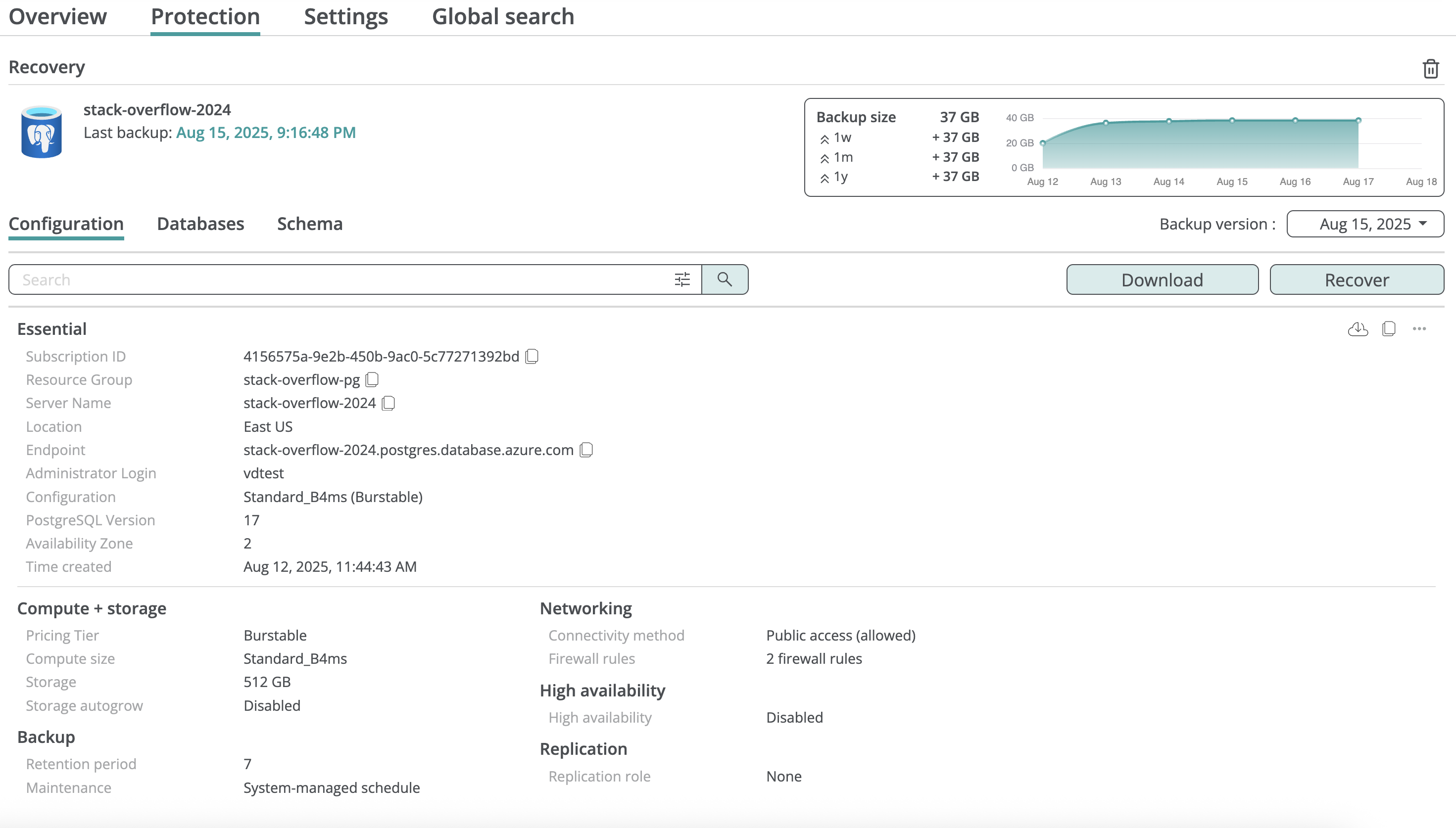
On the Configuration tab inside the backup browse view, Afi shows the PostgreSQL server configuration captured in the selected backup snapshot.
Databases
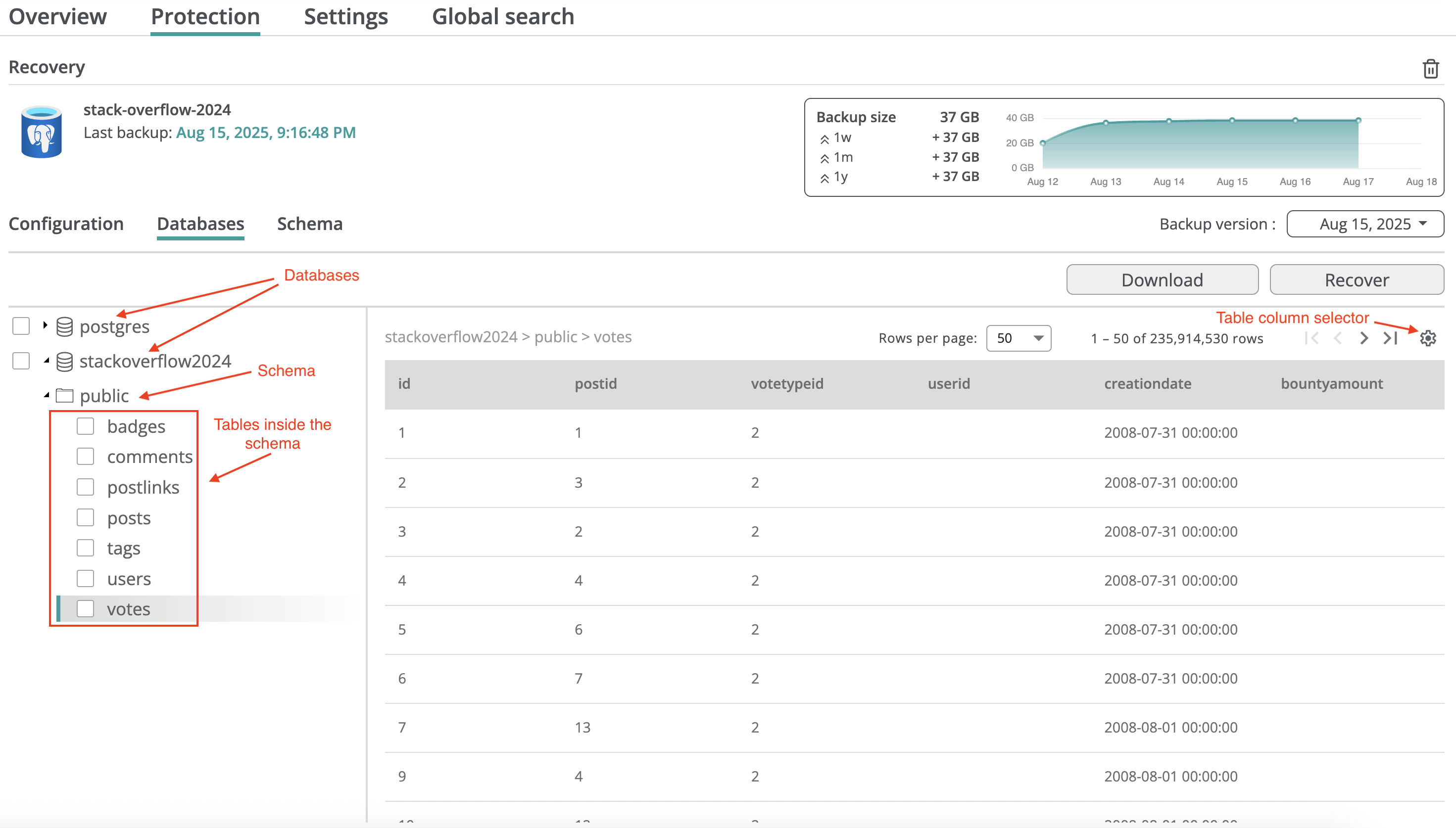
On the Databases tab, you can preview table data by selecting the database, schema, and table in the tree on the left. Use the controls above the table to move between pages, set the page size, and choose which columns are displayed.

To view all cell values for a specific row, click that row in the table:

Restrict table content preview
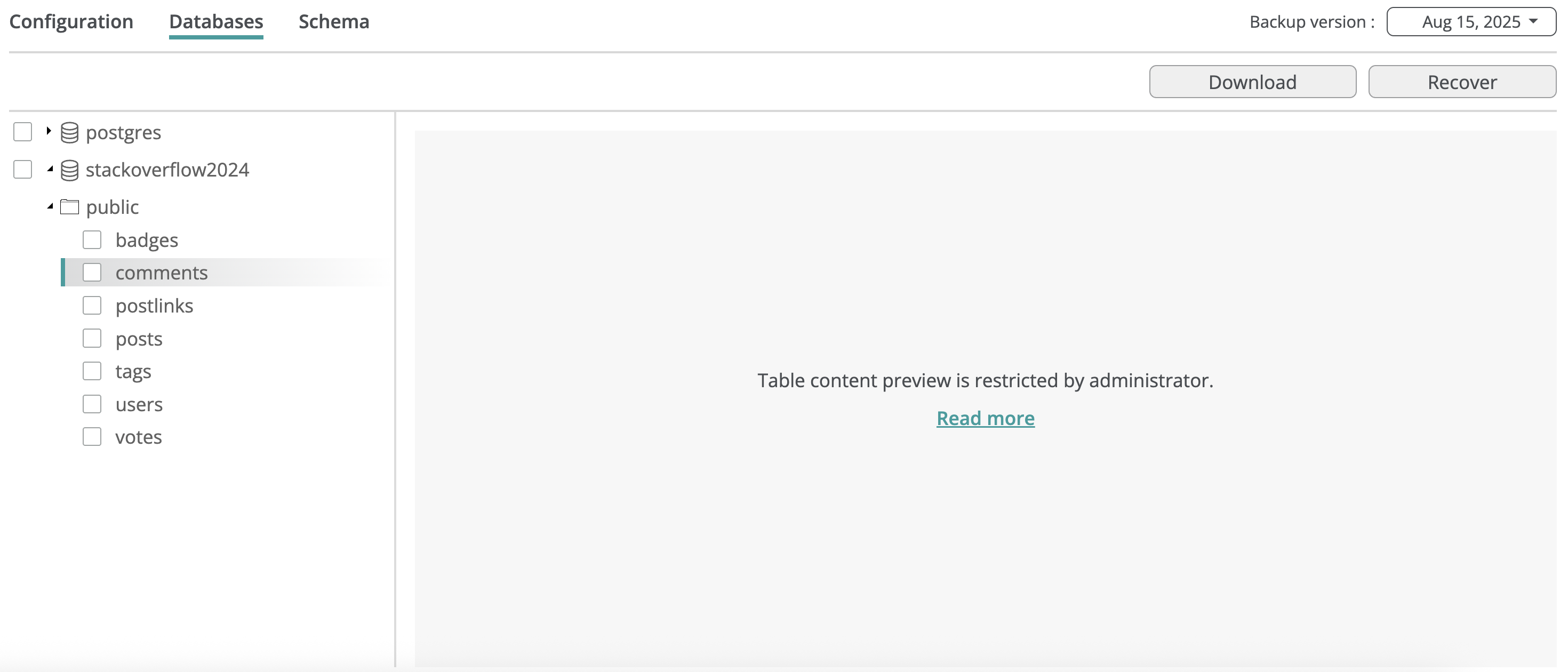
You can restrict access to database table data for service administrators or access group operators on the Service → Settings → Access groups tab by disabling the Preview content access permission. Here is an example of table browse view when content preview is restricted:
Schema
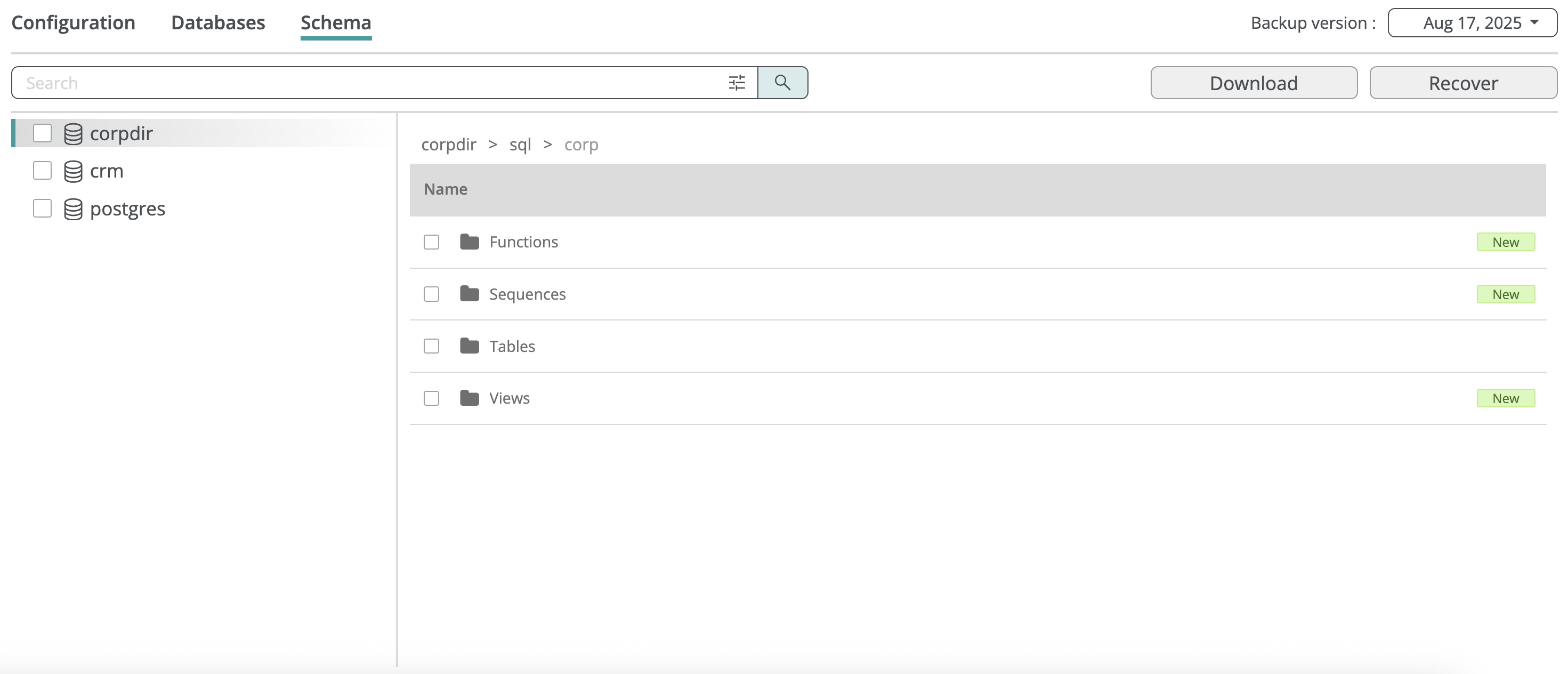
Afi saves the database schema as part of the backup, allowing you to browse it as a collection of SQL scripts that describe tables, constraints, views, functions/procedures, and more.
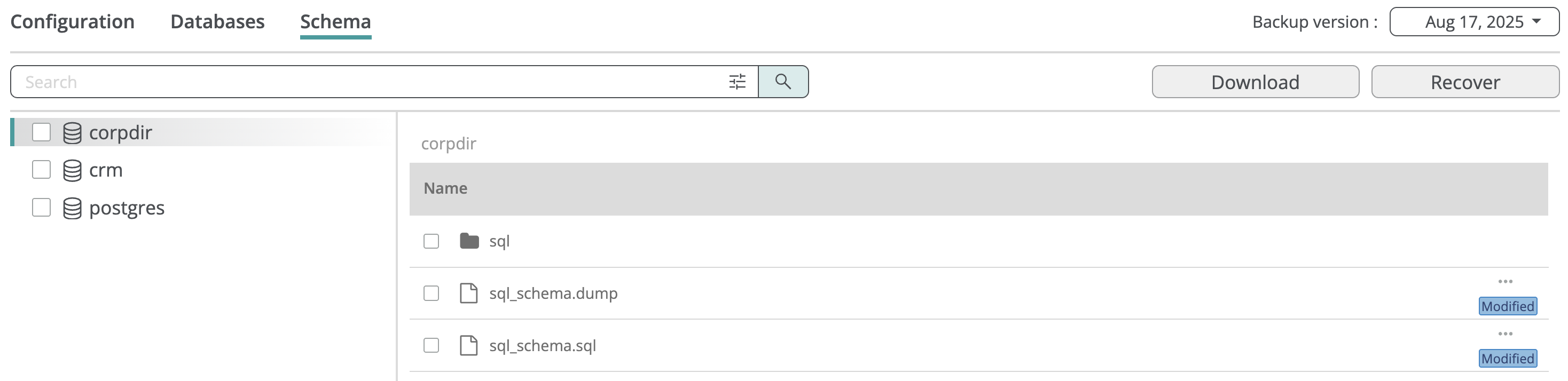
At the root of the schema browse view, you can find sql_schema.dump and sql_schema.sql files that contain the full data structure description for the database. You can use either file to recreate the database with the same data structure configuration as the original.

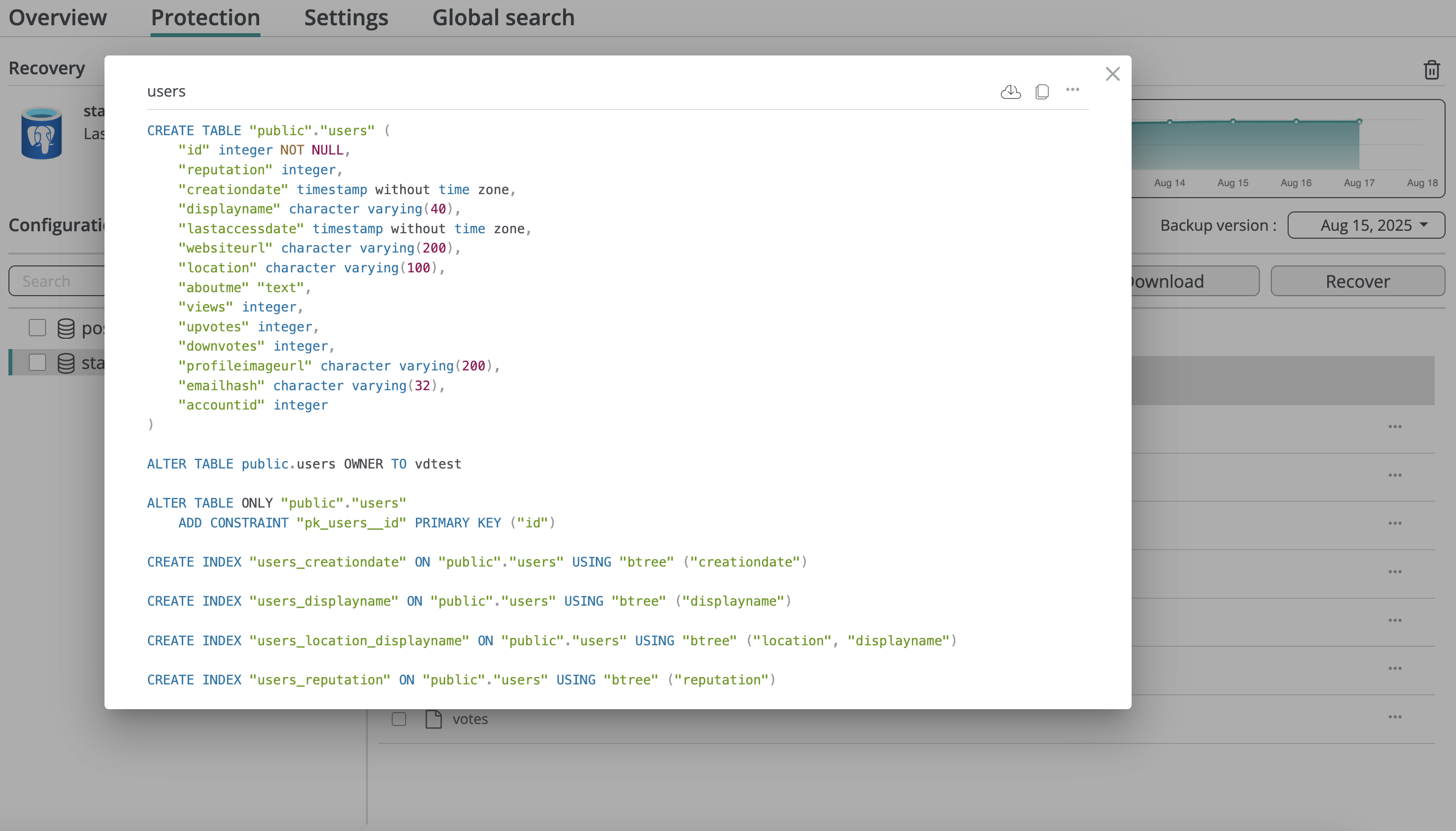
Preview SQL script content
To preview the SQL script content, click the corresponding row:
View SQL script versions
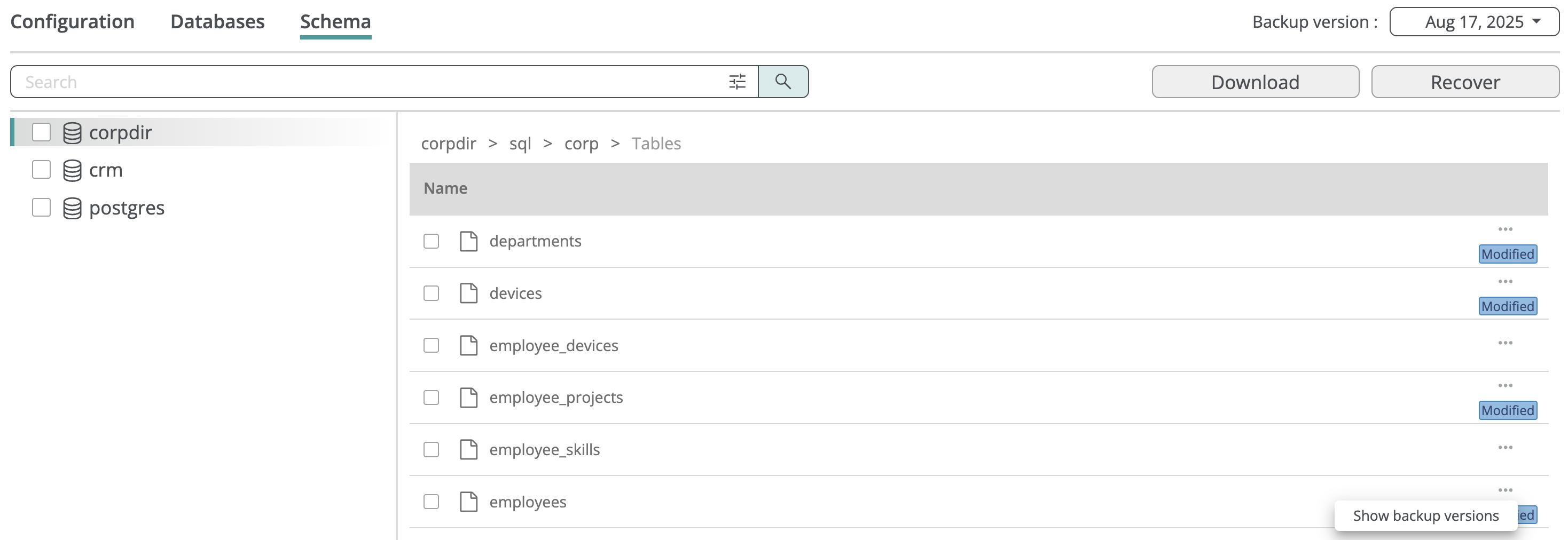
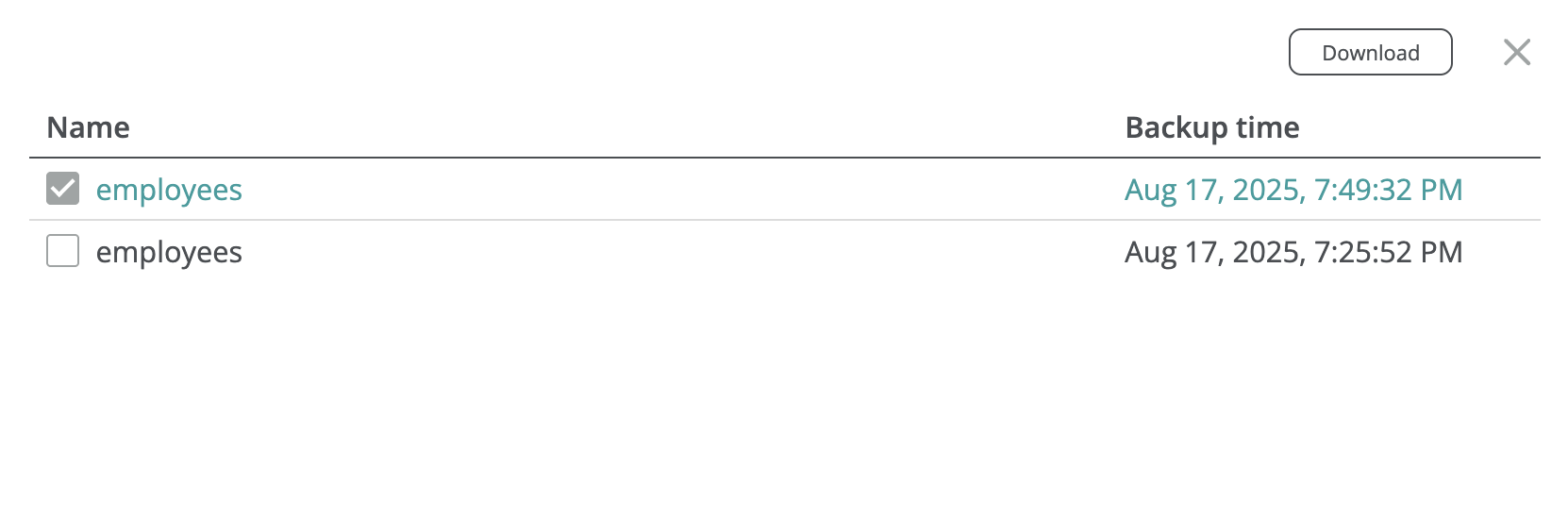
To view all versions of an SQL script stored by the service, click the three-dot icon in the corresponding row and select Show backup versions. A dialog will appear, listing each script version along with the backup snapshot times in which each version exists.
You can select and download any of the listed versions:
Search
Table data
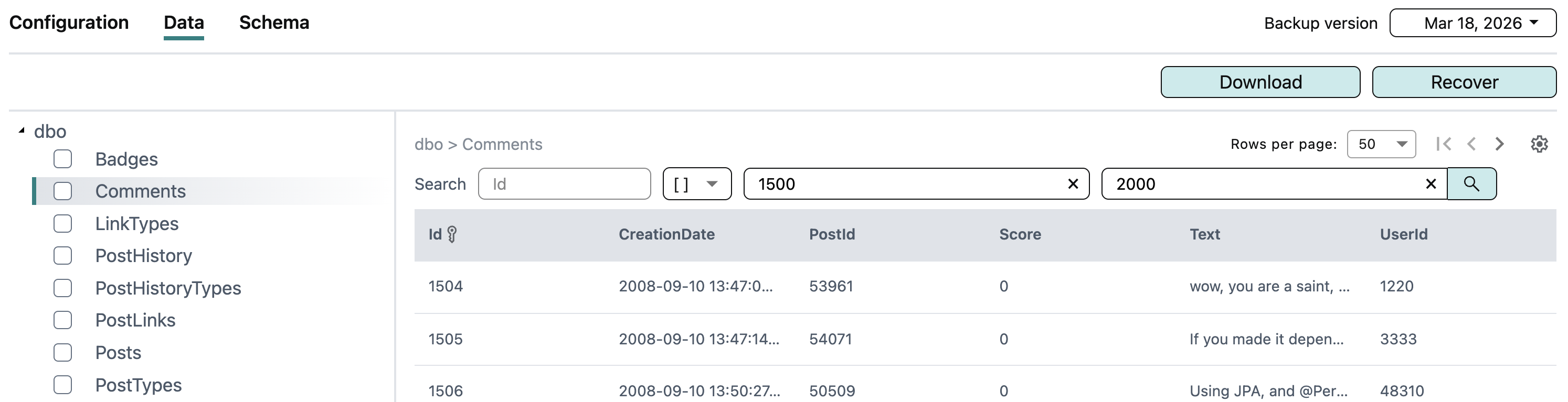
To make navigating large tables easier, Afi lets you search a table by primary key value. Supported operations are =, >, >=, <, <=, and [], where [] matches primary key values within a specified range. You can iterate through the search results just as you would through table data in general.
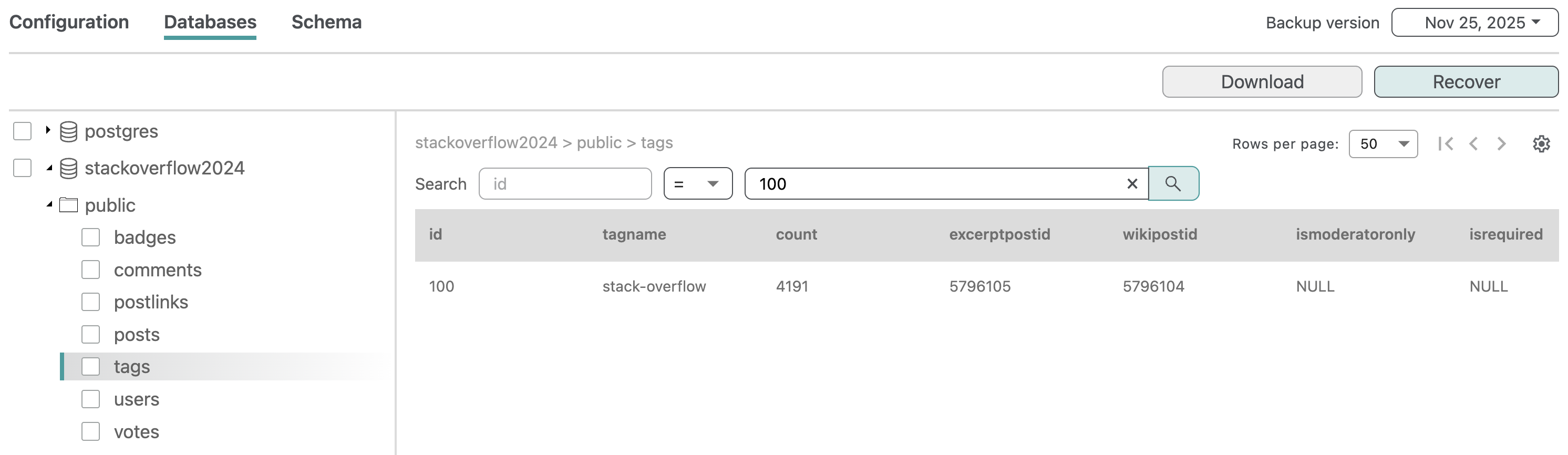
Search is available when:
- The table has a primary key.
- The first column of the primary key uses one of the supported data types listed below.
For tables with a composite primary key, the search uses the first primary-key column only.
Data types supported for searching
| Data type kind | Data types |
|---|---|
| String | name, char, bpchar, varchar, text, uuid, macaddr, macaddr8 |
| Integer | int2, int4, int8, oid |
| Floating and decimal | float4, float8, numeric |
| Temporal | date, time, timestamp, timestamptz |
| Network | cidr, inet |
Exporting search results
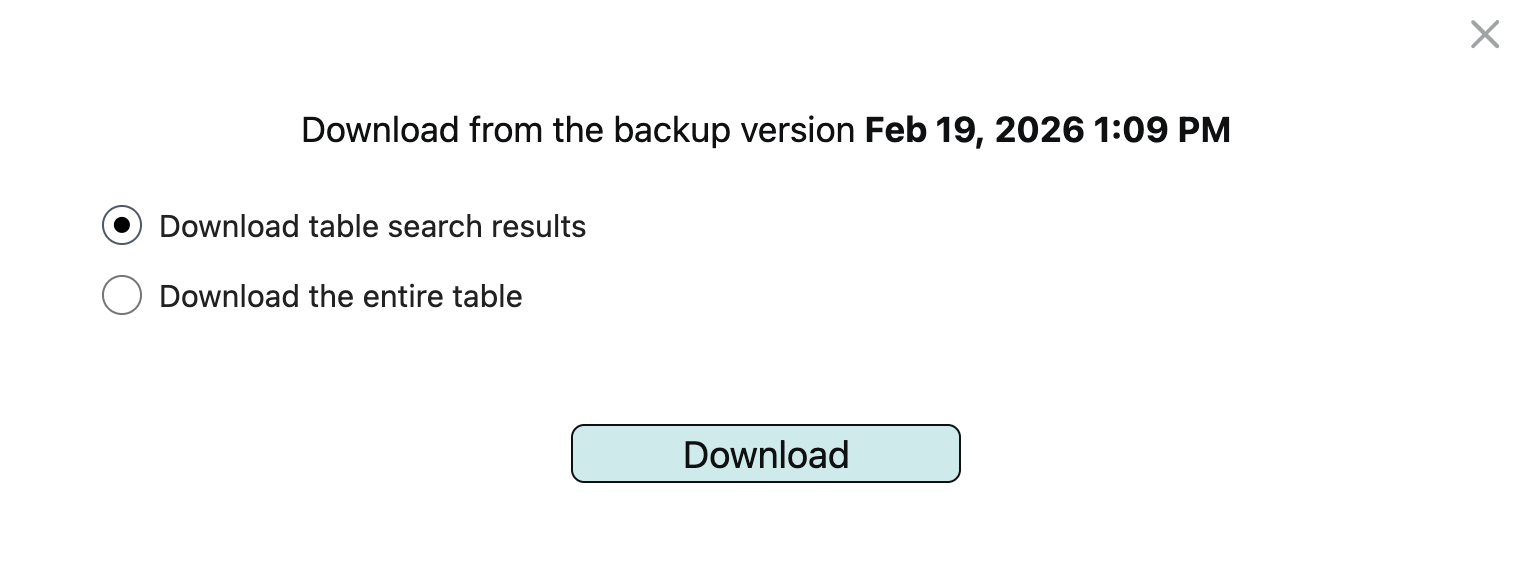
You can export all table rows matching a search query to a CSV file. To do this, run a search query, click Download, ensure that Download table search results is selected, and then start the export.
Schema
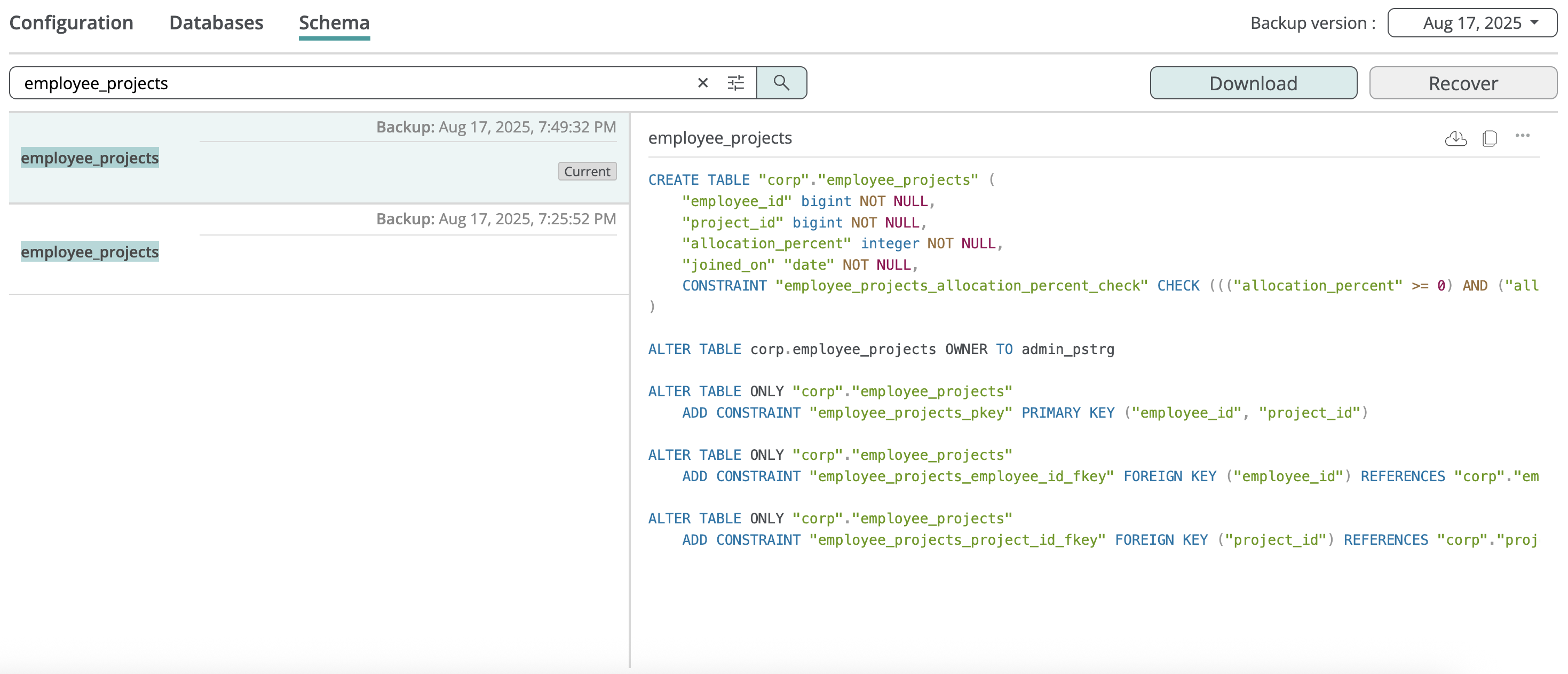
Afi allows you to search across SQL scripts backed up as a part of the database schema by a keyword. The following example shows a search query to find all SQL scripts matched by the employee_projects keyword:
Export
Configuration
You can copy or download a JSON file with the Azure configuration of the PostgreSQL server from the backup browse view.
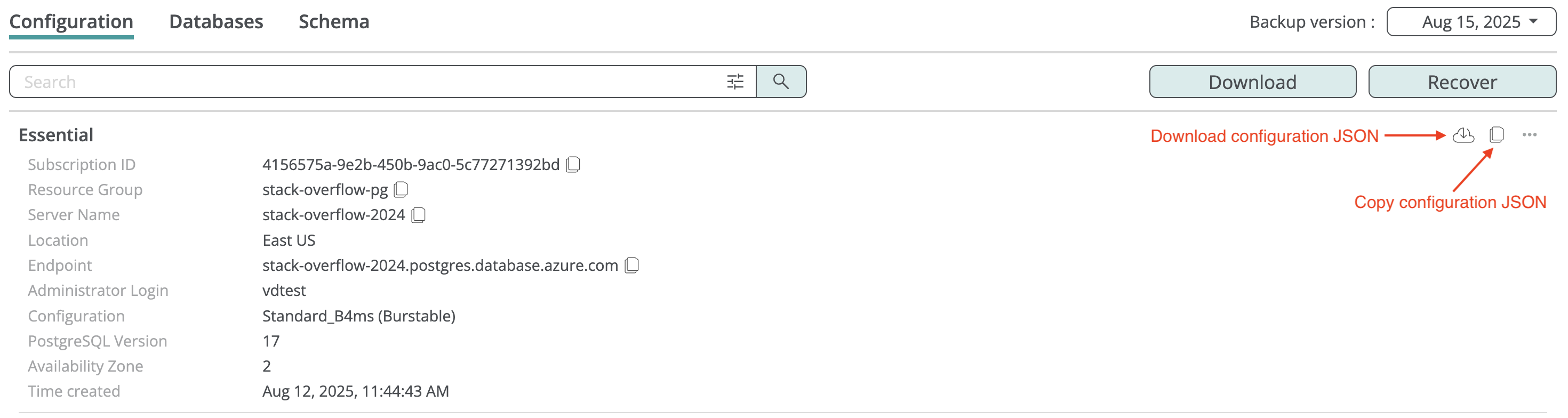
Table data
You can download data for selected tables as CSV. Please note that fields with binary data types are not included in the export.

Schema
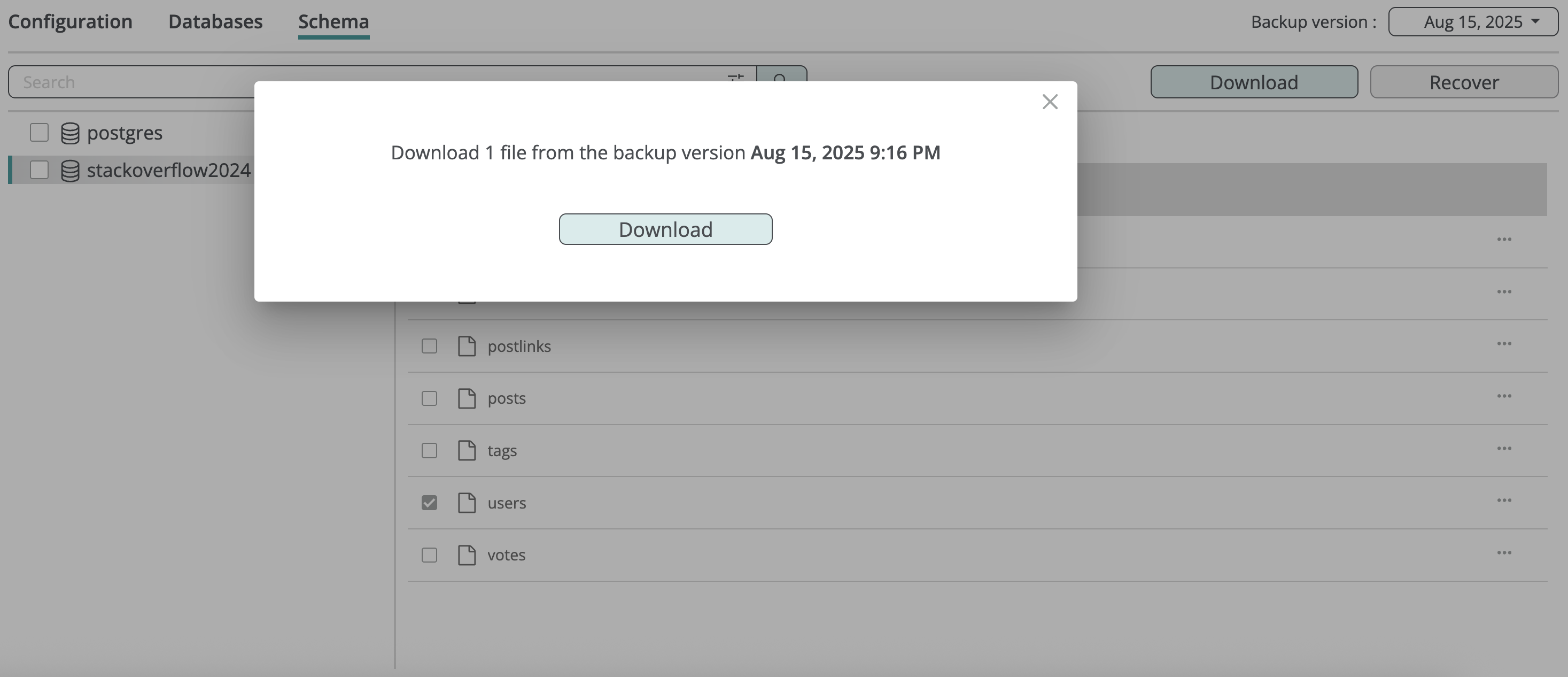
You can download SQL scripts or entire folders containing scripts by selecting them in the backup browse view and clicking Download:
Recovery
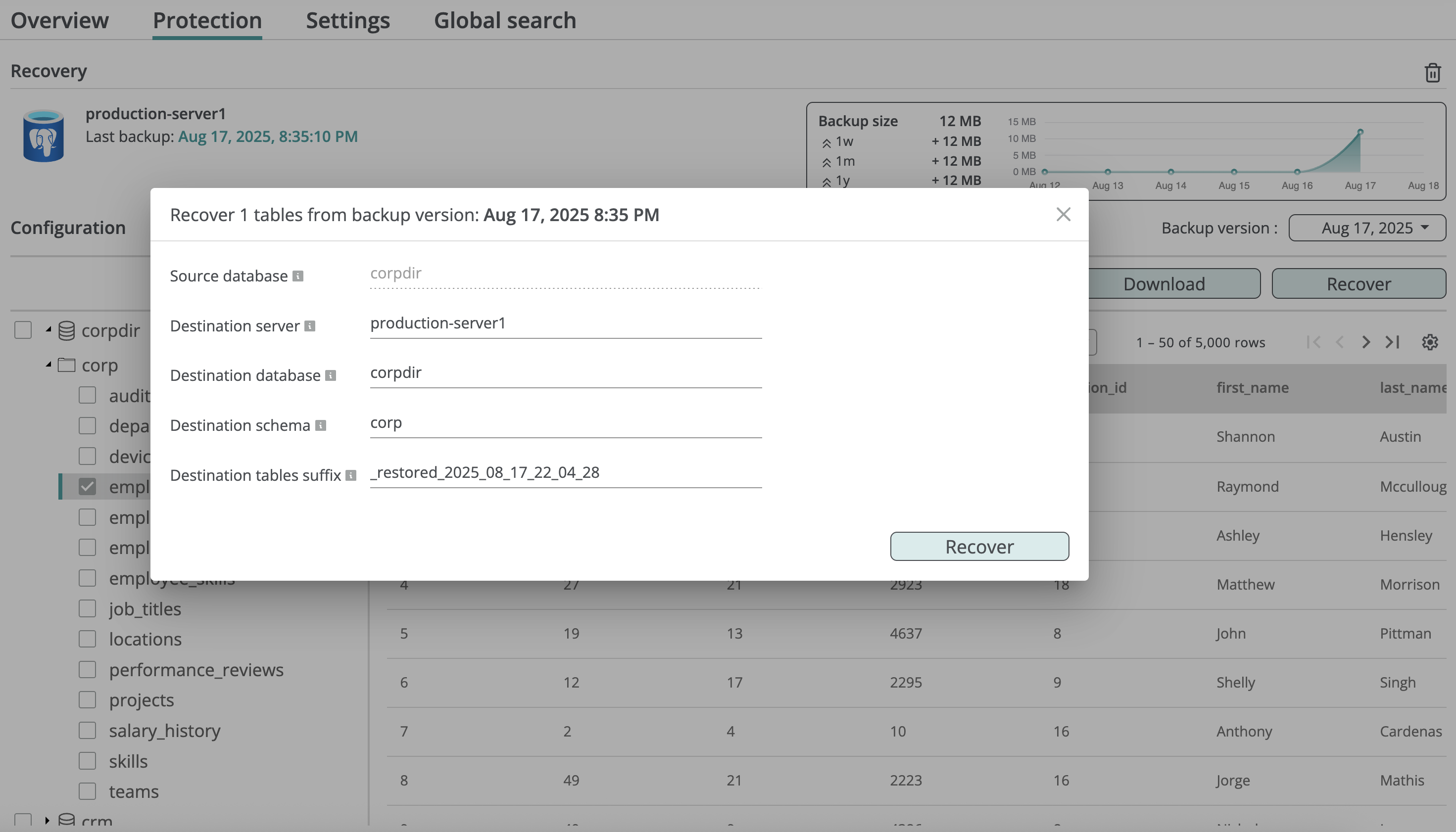
You can restore a database from a backup snapshot, creating a new database in the selected PostgreSQL server, or restore an individual table into an existing database. Full database recovery preserves the entire schema and constraints; table-level recovery restores only the basic table definition to avoid conflicts with the existing database.
Database
To recover a database:
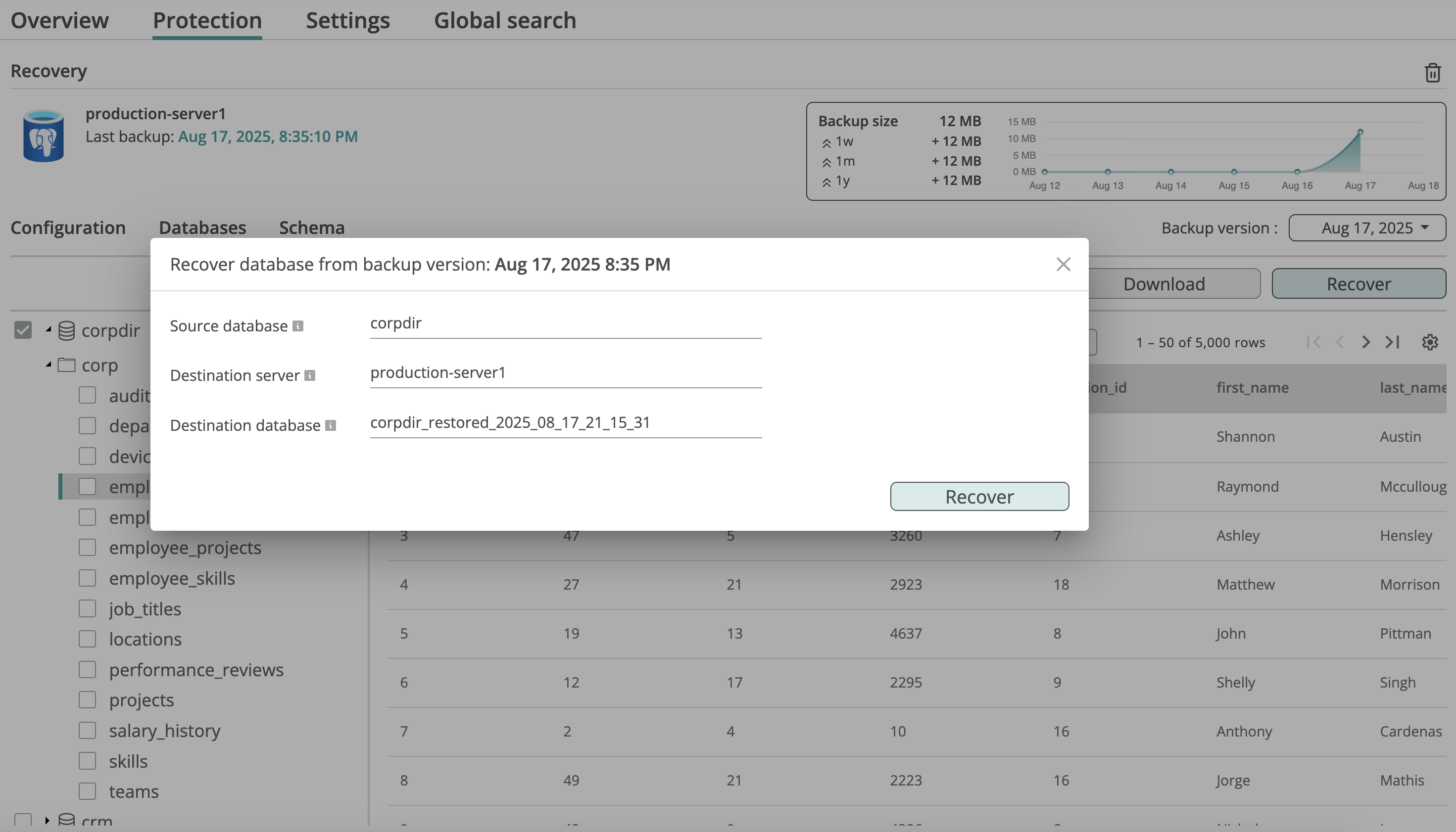
- In the database tree on the left, select the database and click Recover to open the recovery dialog.
- Select the target PostgreSQL server where the new database will be created (the Destination server field).
- Specify the name of the database to be created (the Destination database field).
- Click Recover to start the database recovery.
Afi will display the recovery progress on the Activity → Tasks tab and send you an email notification once recovery completes.
Info
When you click the Source database or Destination server field, Afi automatically shows a searchable list of the corresponding entities available on the backup or on the Azure side, respectively.
Table
To recover a table:
- In the database tree on the left, select the table and click Recover to open the recovery dialog.
- Select the target PostgreSQL server (the Destination server field).
- Specify the names of the database and schema where the restored table should be created (the Destination database and Destination schema fields).
- Specify the suffix for the restored table name (the Destination tables suffix field).
- Click Recover to start the table recovery.