Overview
This article provides a detailed description of Afi data backup and recovery scenarios for AWS EC2 instances and PostgreSQL RDS/Aurora databases.
The current guide assumes that you have already onboarded your AWS tenant in Afi and protected the resources. If not, please follow this article to set up your AWS tenant in Afi.
How AWS backup and recovery work
Afi uses the publicly available AWS APIs to discover resources, synchronize data, and perform recovery activities. To onboard an AWS account in Afi, you should create a custom AWS IAM role that Afi will assume to access the account, add IAM permissions required by Afi to the role, and enter the ARN of the created role in the onboarding wizard. JSON files that contain role and role permissions configuration are provided by Afi during account onboarding.
Afi relies on unique AWS ARN identifiers to recognize and access AWS accounts and resources. This approach ensures that resource renames are transparent to Afi and do not affect any service activities.
Once per 24 hours, Afi runs a resource discovery activity that enumerates resources within the AWS account, updates the resource list on the Afi side, and automatically protects the resources if auto-protection rules are configured. You can trigger an out-of-schedule resource discovery for an AWS account by clicking on the refresh icon in the top-right corner of the Service → Protection screen.
EC2 instance backup
Afi backup for EC2 instances is based on the AWS recovery point technology, ensuring crash consistency for multi-disk configurations as well as application consistency for certain Windows applications that support VSS. During an EC2 instance backup, Afi creates a recovery point for the instance and then synchronizes the corresponding snapshot data to the Afi cloud. Restore points are kept on the AWS side for 7 days to allow fast recovery from recent backup snapshots.
Application-consistent backup for Windows applications relies on AWS Systems Manager Agent (SSM Agent) installed inside the EC2 instances. During the instance backup, Afi installs the AWS VSS component on the Windows instance as well as creates an instance profile for the instance to receive and execute commands from AWS Systems Manager.
Database backup
AWS PostgreSQL
During a PostgreSQL database backup or recovery, Afi configures temporary network access to the database instance that allows our backup service to connect to the instance and query or recover the data. This rule is created only for the duration of the operation and removed when it completes. The backup implementation guarantees strong consistency at the database level.
How to view backup data and navigate across backup snapshots
To view backup data for a resource (EC2 instance/database), go to the Service → Protection tab, locate the backup by searching for its name or ID, and click Recover to open the backup browse view. Please note that clicking on Recover on the Protection tab doesn't trigger any actual data recovery activities.

When you open a backup, you will see a set of tabs for backup navigation and a calendar control to switch between the backup snapshots. By default, the most recent backup snapshot is opened for browsing.
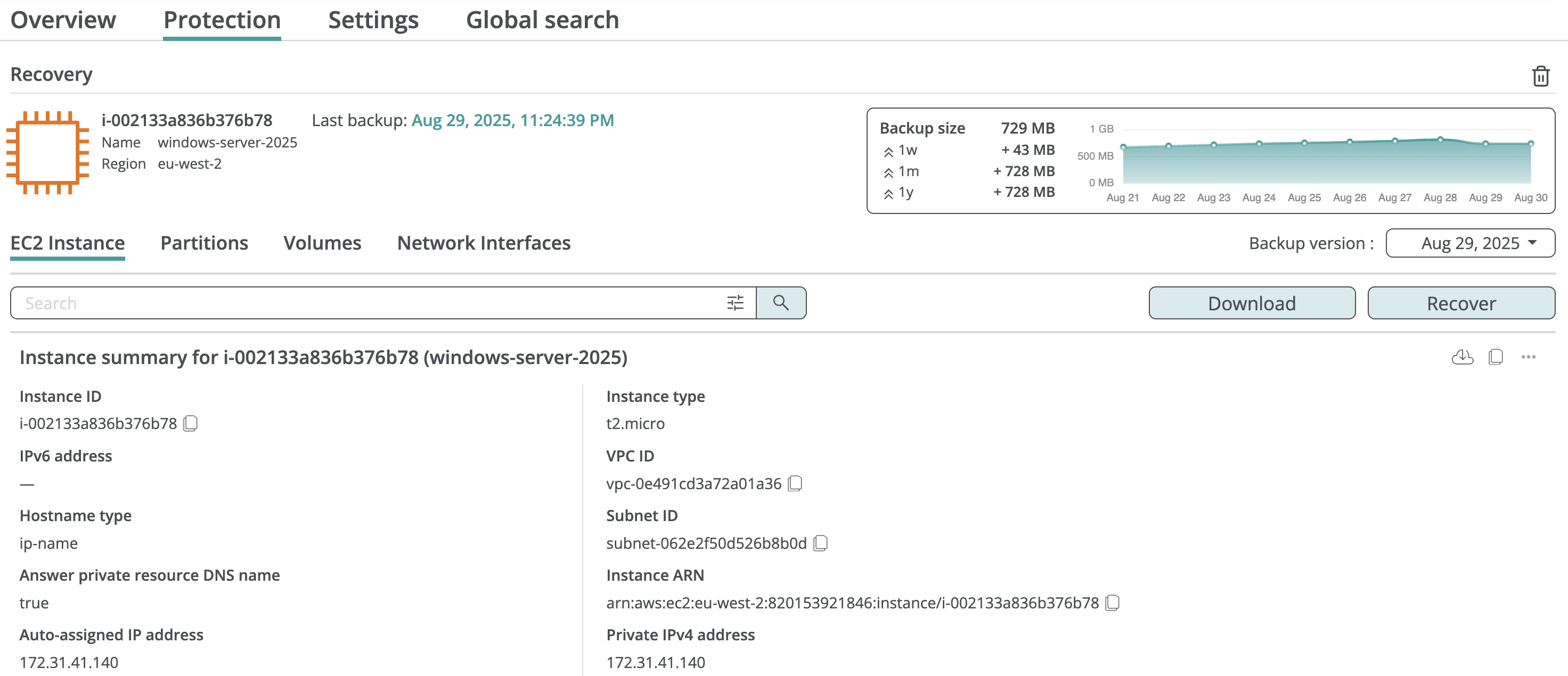
Backup snapshots
To switch to a different backup snapshot, click on the Backup version dropdown and select a backup date by clicking on the corresponding day. If several backups were performed on that day, the service will display their start times, and you will need to click on the backup time to proceed to the snapshot.
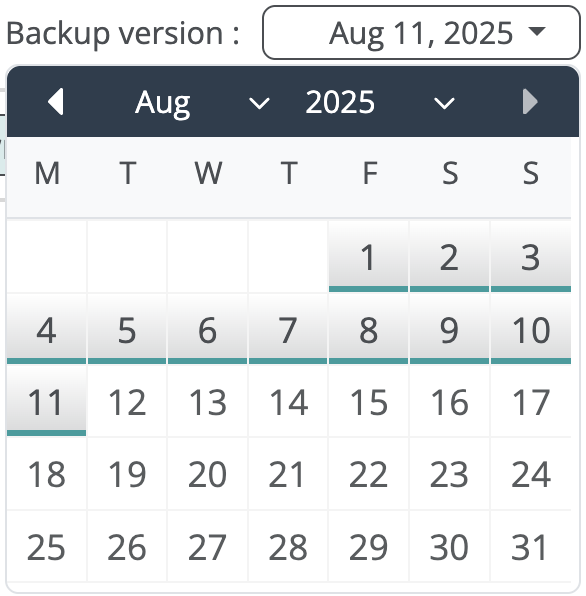
After a backup snapshot is opened, you will be able to view the instance state at the time of this backup snapshot and launch a data export or restore from this backup snapshot. The service will highlight a backup version from which an export or a restore is performed in the download or recovery settings dialogs.

By default, Afi preserves all backup snapshots indefinitely. If you want to limit how long the Afi service keeps backup snapshots inside the backups, you can configure backup version or GFS retention rules for your backup SLA policies as described here.
Data access security
Afi provides a fully explicit and fine-grained access model which allows you to configure custom access groups that grant users limited access to certain resource groups or individual resources in an AWS tenant. Please see the following article for a detailed description of the Afi permissions model.
Afi audits all user activity related to data export, including data browse, search, export, or recovery events. Afi administrators can review these audit events on the Activity → Audit tab in the Afi portal.