Auto-protection and mass management
To enable automatic protection and access management for resources that match specific criteria, Afi relies on system- and user-defined resource groups. Groups can be populated by resource kind, by provider-native groups (for example, Google organizational units or Microsoft Entra ID user groups), or by user-defined rules. An Afi account administrator can assign a backup SLA policy to a resource group to protect all its current and future members, and can grant selected users access to all resources in specified resource groups.
Default resource groups
For each tenant, Afi automatically populates the following resource groups based on the available resource kinds and the provider-native groups for that tenant kind.
Google Workspace
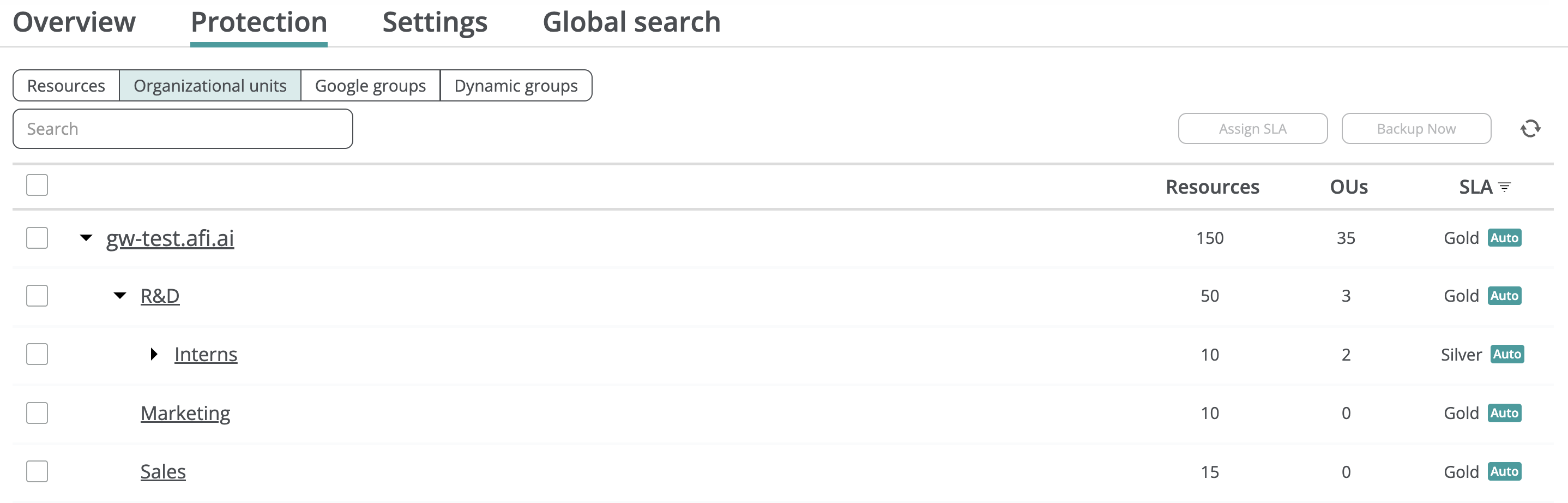
For Google Workspace tenants, Afi discovers organizational units and Google groups in the tenant and displays them on the Service → Protection → Organizational units and Service → Protection → Google groups tabs, respectively.
Microsoft 365
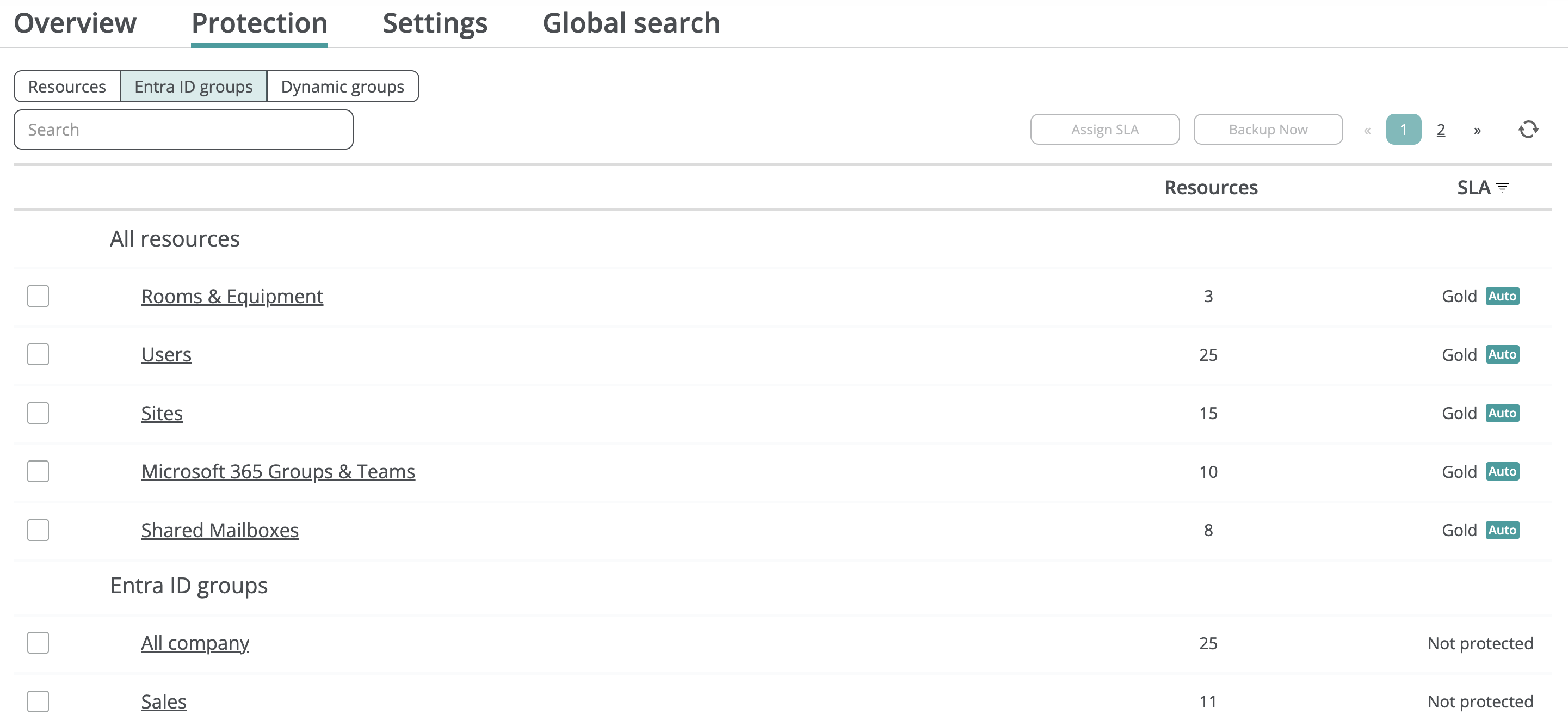
For Microsoft 365 tenants, Afi discovers Entra ID (Microsoft 365) groups and, within Afi, populates them with users as well as shared and room mailboxes that belong to those groups. Afi also automatically provisions several system resource groups (Users, Shared mailboxes, Rooms & Equipment, Sites, and Microsoft 365 Groups & Teams) that enable convenient mass management of resources by kind.
Microsoft Azure
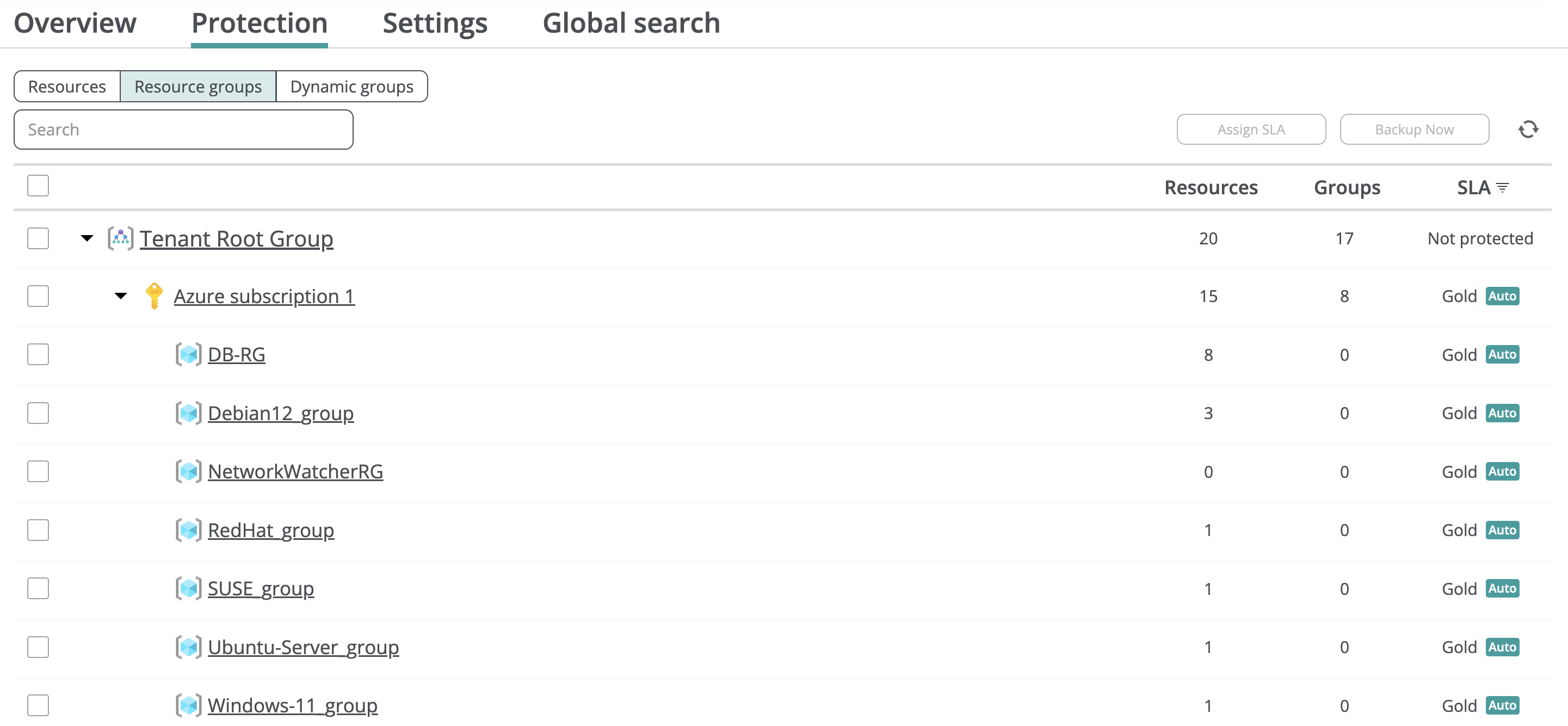
For Azure tenants, Afi discovers the Azure-native management group, subscription, and resource group hierarchy and displays it on the Service → Protection → Resource groups tab.
Amazon Web Services (AWS)
For AWS tenants, Afi provisions only default resource groups, EC2 Instances and Aurora and RDS for PostgreSQL, because AWS doesn't provide any built-in group hierarchy.

Dynamic resource groups
In addition to provider-native resource groups, Afi supports dynamic resource groups that you can create to match resources based on selected criteria (for example, name, email, department, location, or tag) and use these groups for auto-protection and access management.
Create a dynamic group
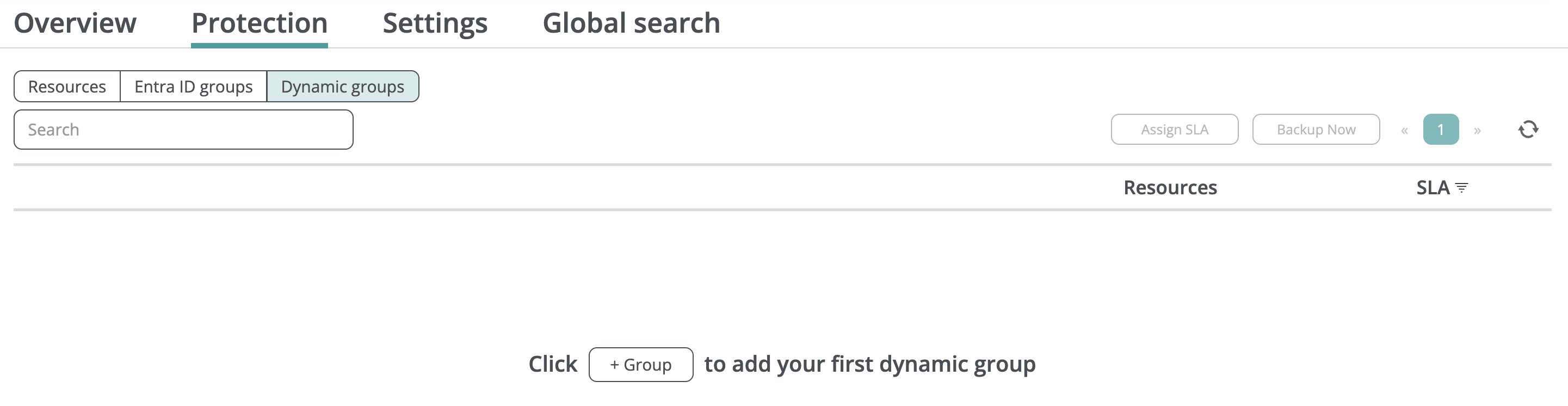
You can create and manage dynamic groups for a tenant on the Service → Protection → Dynamic groups tab:
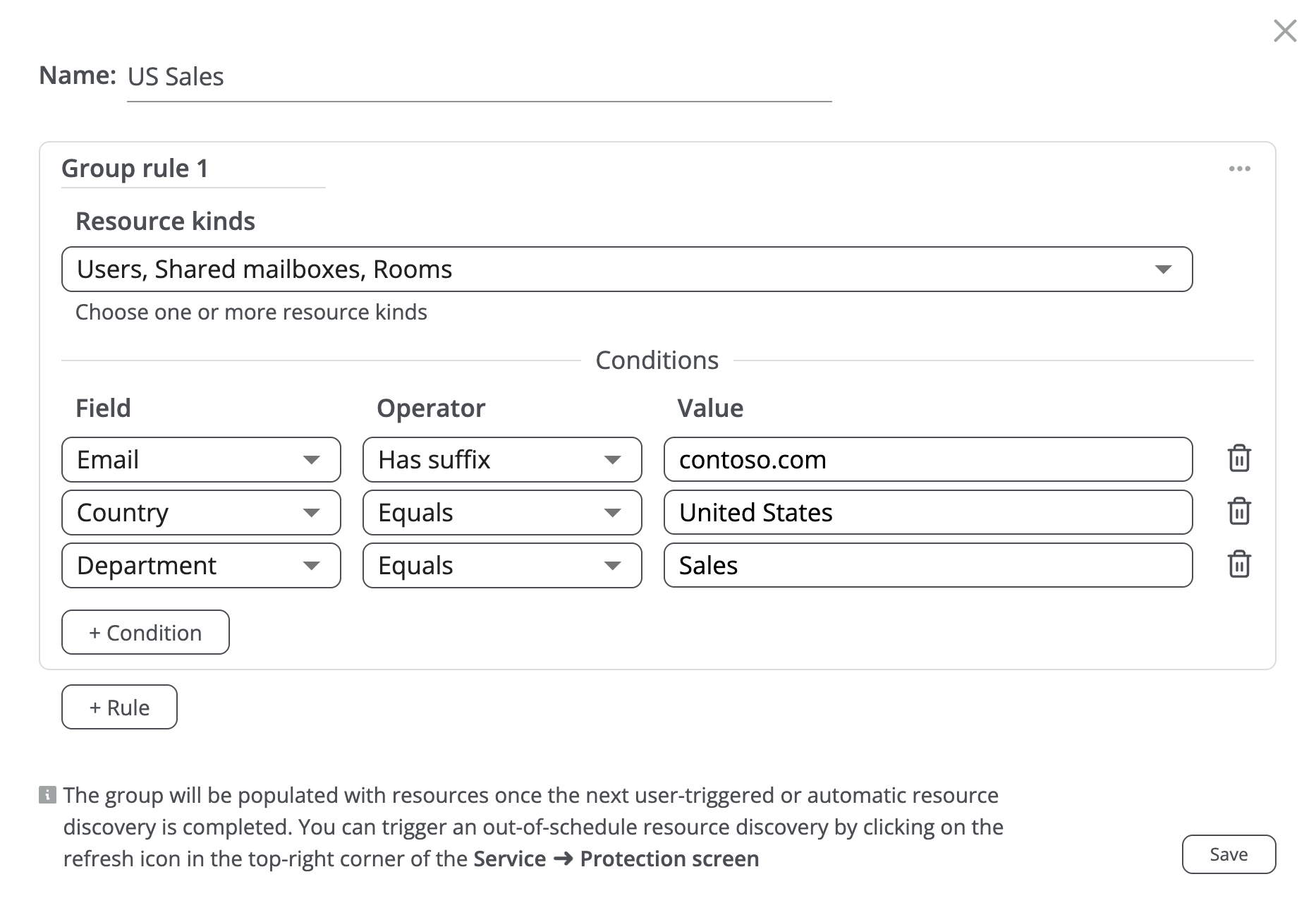
In the group configuration dialog you can specify the rules and rule conditions that will be used for resource matching. Each rule defines a set of conditions a resource must satisfy to match that rule, and the resulting dynamic group includes resources that match at least one rule (logical OR across the rules).
This example shows how to create a dynamic resource group in a Microsoft 365 tenant that contains user, shared, and room mailboxes that satisfy all the following criteria at once:
- The primary email ends with
contoso.com - The
countryproperty in Entra ID user settings isUnited States - The
departmentproperty in Entra ID user settings isSales
To update a dynamic group’s matching rules, click Edit in the three-dot menu in the group’s table row on the right.

Dynamic resource groups are populated and refreshed during resource synchronizations with the corresponding provider (Google Workspace, Microsoft 365, etc.). Periodic synchronizations run every 24 hours, and you can also trigger an ad-hoc resource discovery by clicking the refresh icon in the top-right corner of the Service → Protection screen. When you create or update a dynamic resource group, Afi triggers a discovery job to populate or refresh the group automatically.
Supported fields and operators
The table below summarizes the fields available for matching by tenant kind.
| Tenant kind | Dynamic group field types |
|---|---|
| Google Workspace | Name |
| Microsoft 365 | Name Email - for mailboxes and groups/teams City Country Department Job title |
| Microsoft Azure | Name Location Resource group Storage account - for Azure file shares Tag key and value |
| Amazon Web Services (AWS) | Name ID Region Tag key and value |
To enable granular resource selection, dynamic group conditions support the following operators:
- Equals and Doesn't equal
- Contains and Doesn't contain
- Has suffix and Doesn't have suffix
- Has prefix and Doesn't have prefix
- In (for matching against a set of values)
Resource group priority for auto-protection
When a resource is a member of several resource groups with configured auto-protection settings, Afi decides which settings to apply based on the group kind, in the following priority order. The resource is protected by the backup SLA policy configured for the highest-priority group.
- Dynamic resource groups
- Provider-native resource groups
- Google groups and organizational units for Google Workspace tenants
- Entra ID groups for Microsoft 365 tenants
- Management groups, subscriptions, and resource groups for Microsoft Azure tenants
- Default resource groups provisioned based on the resource kind
- Shared drives and Classroom groups for Google Workspace tenants
- Users, Shared mailboxes, Rooms & Equipment, Sites, Microsoft 365 Groups & Teams groups for Microsoft 365 tenants
- EC2 Instances and Aurora and RDS for PostgreSQL groups for AWS tenants
Info
When a resource is a member of several automatically protected resource groups with the same priority (for example, a user is a member of two Entra ID groups with Gold and Silver backup SLA policies configured, respectively), Afi doesn't guarantee which backup SLA policy will be assigned to the resource and can assign any of those group policies.
Auto-protection settings
To protect all resources in a default or dynamic resource group, select this group on the corresponding tab, click Assign SLA, and choose a backup SLA policy to be assigned to resources in this group. To automatically protect resources added to the group later, keep Automatically protect new resources checked.
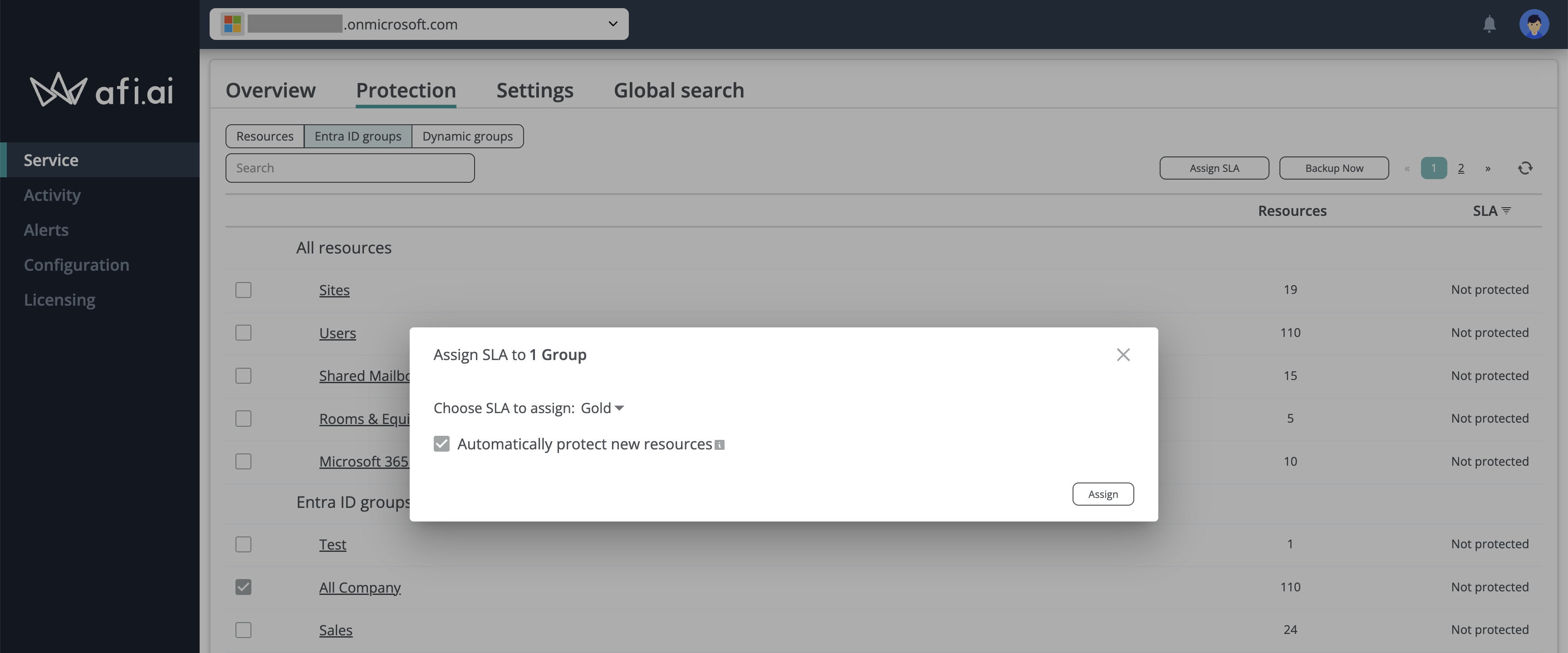
With Afi’s granular auto-protection settings, administrators can assign different SLA policies to different resource groups based on the organization’s requirements, for example, varying retention settings or backup schedules for different groups.