Context-aware access
Afi provides context-aware access policies that let you enforce access restrictions based on a user’s IP address, country, or identity provider. These access policies are managed on the Configuration → Access policies tab in the Afi portal and apply to all users accessing the corresponding Afi organization account.
IP allowlist
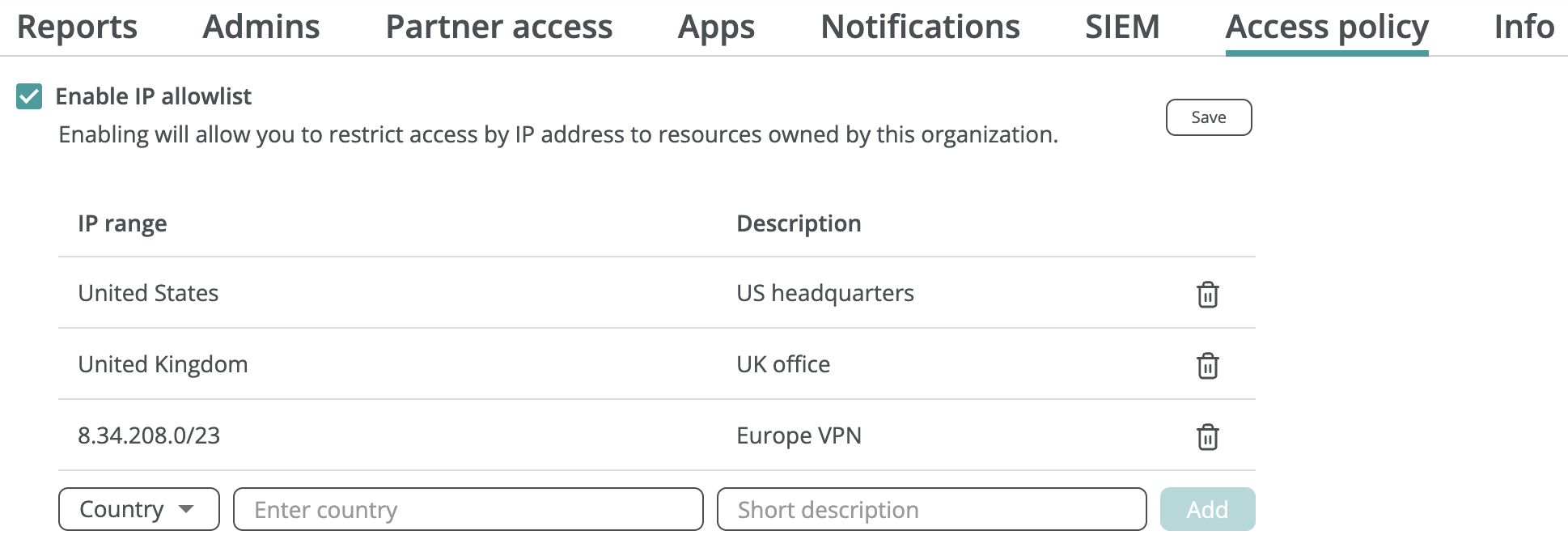
To limit access to your Afi organization based on a user’s IP address or country:
- Select Enable IP allowlist on the Configuration → Access policies tab.
- Specify the countries or IP ranges (or individual IP addresses) from which you want to allow access. You can combine both country-based and IP-based rules in the same list.
- Click Save and confirm the changes.
Info
We recommend using country-based rules rather than IP-based rules if you want to restrict user access based on geographical location.
Warning
If you choose to allow access based on individual IP addresses rather than IP ranges, we recommend specifying multiple IP addresses to avoid losing access if your primary IP address changes.
Once IP restrictions are configured, users who attempt to access the Afi portal from IP addresses that do not comply with the policy cannot view account data or configuration and will see the following banner:

You can update the IP allowlist at any time by adding or removing entries, or disable the restriction entirely by unchecking the Enable IP allowlist checkbox.
SAML/Okta login enforcement
If you have set up SAML SSO with a third-party identity provider (Okta, JumpCloud, OneLogin, etc.) for the Afi organization account, you can require your users to log in exclusively through that identity provider.
To enforce a SAML-only access policy:
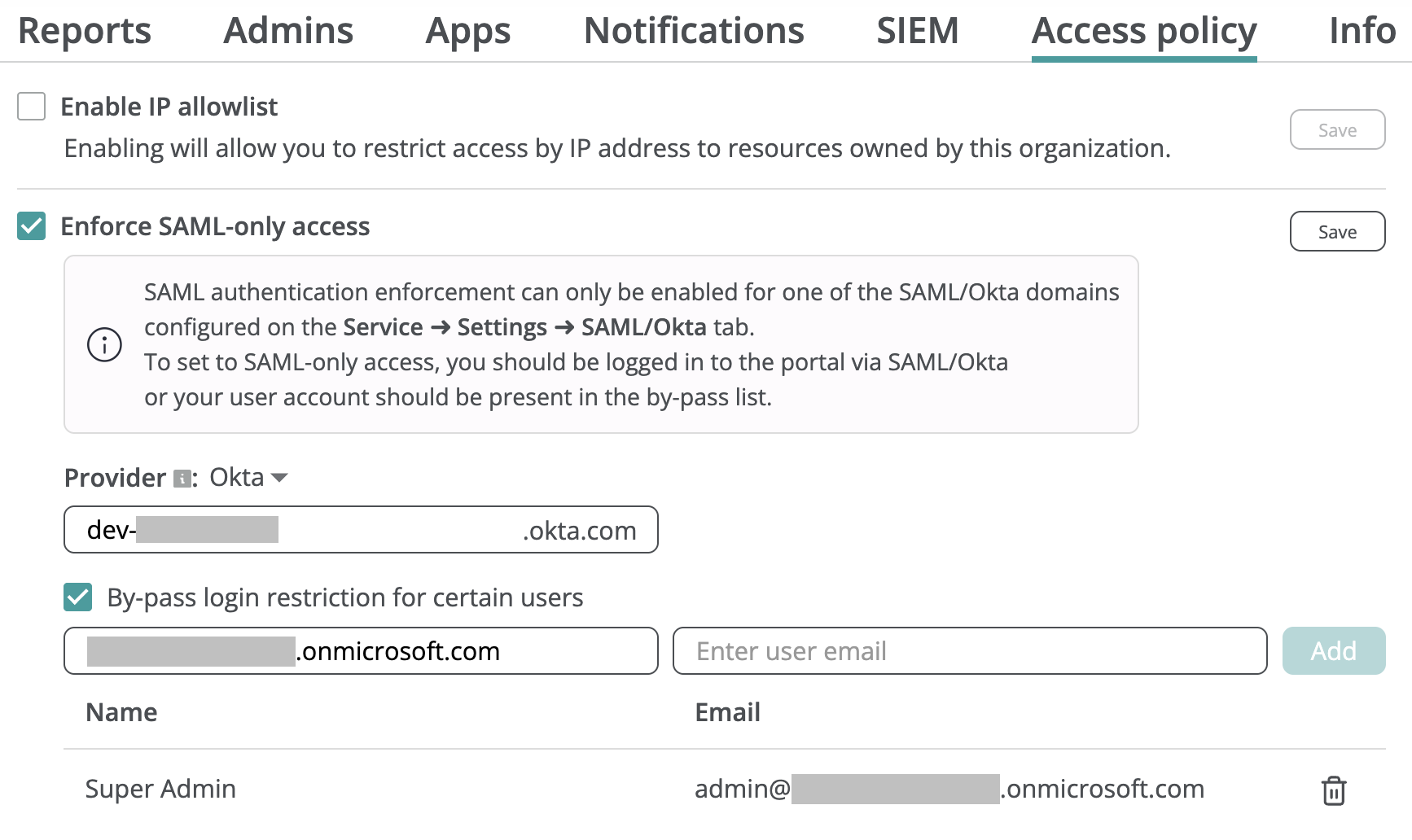
- Select Enforce SAML-only access on the Configuration → Access policies tab.
- Choose your identity provider type (Okta/SAML).
- Specify the domain previously configured on the Service → Settings → SAML/Okta tab.
- Click Save.
You can optionally select specific users in your organization’s tenants to bypass the SAML-only requirement and log in using Google or Microsoft 365 SSO, for example, in case your organization's identity provider is temporarily unavailable.
Warning
Upon setup, Afi automatically checks that you do not lock yourself out of the portal. If you are logged in via Google or Microsoft 365 SSO during SAML enforcement configuration, you should add your own user account to the bypass list; otherwise, you will be prompted to log out and log back in through Okta/SAML before proceeding.
In addition to the Afi side checks, we strongly advise to verify that SAML/Okta authentication works for your Afi account before enforcing SAML-only access.
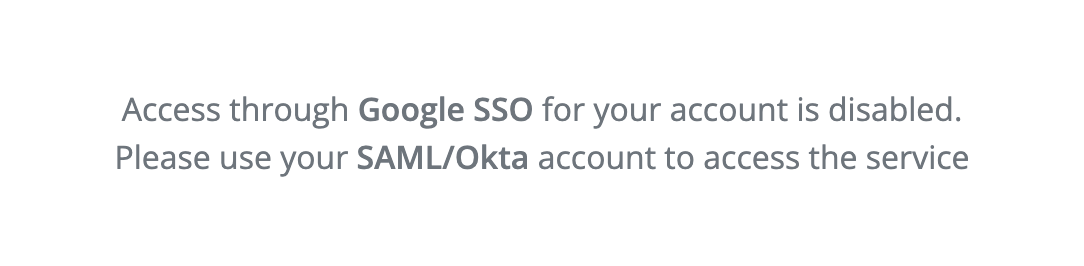
After SAML access enforcement is configured, any user not present in the bypass list who attempts to log in via Google or Microsoft 365 SSO will be prevented from accessing account data or configuration and will see a banner prompting them to use SAML authentication:
You can modify the bypass user list at any time by adding or removing entries, or turn off this restriction entirely by unchecking the Enforce SAML-only access checkbox.