Recovery
You can restore the entire resource, all records of selected SObject types, or individual records, with or without their children.
Only writable SObjects can be recovered. Read-only types, including User and PermissionSet, remain available for browsing, search, and export. You'll need to create any required users and permission sets in Salesforce before recovering data that depends on them.
Start a recovery
You can restore data to its original location or to another Salesforce organization or sandbox connected to Afi.
The Salesforce user who connected the destination to Afi must have permission to create and update records and edit the fields being restored.
- To recover data from a particular backup, choose its completed snapshot under Backup version.
- For all records of one or more SObject types, such as all Accounts, select those types. You can select individual records instead, or leave both unselected and choose full recovery in the dialog.
- To open the recovery settings, click Recover.
- In the dialog, you can choose the destination organization or sandbox and set the child record and automation options.
- After reviewing the settings, start recovery.
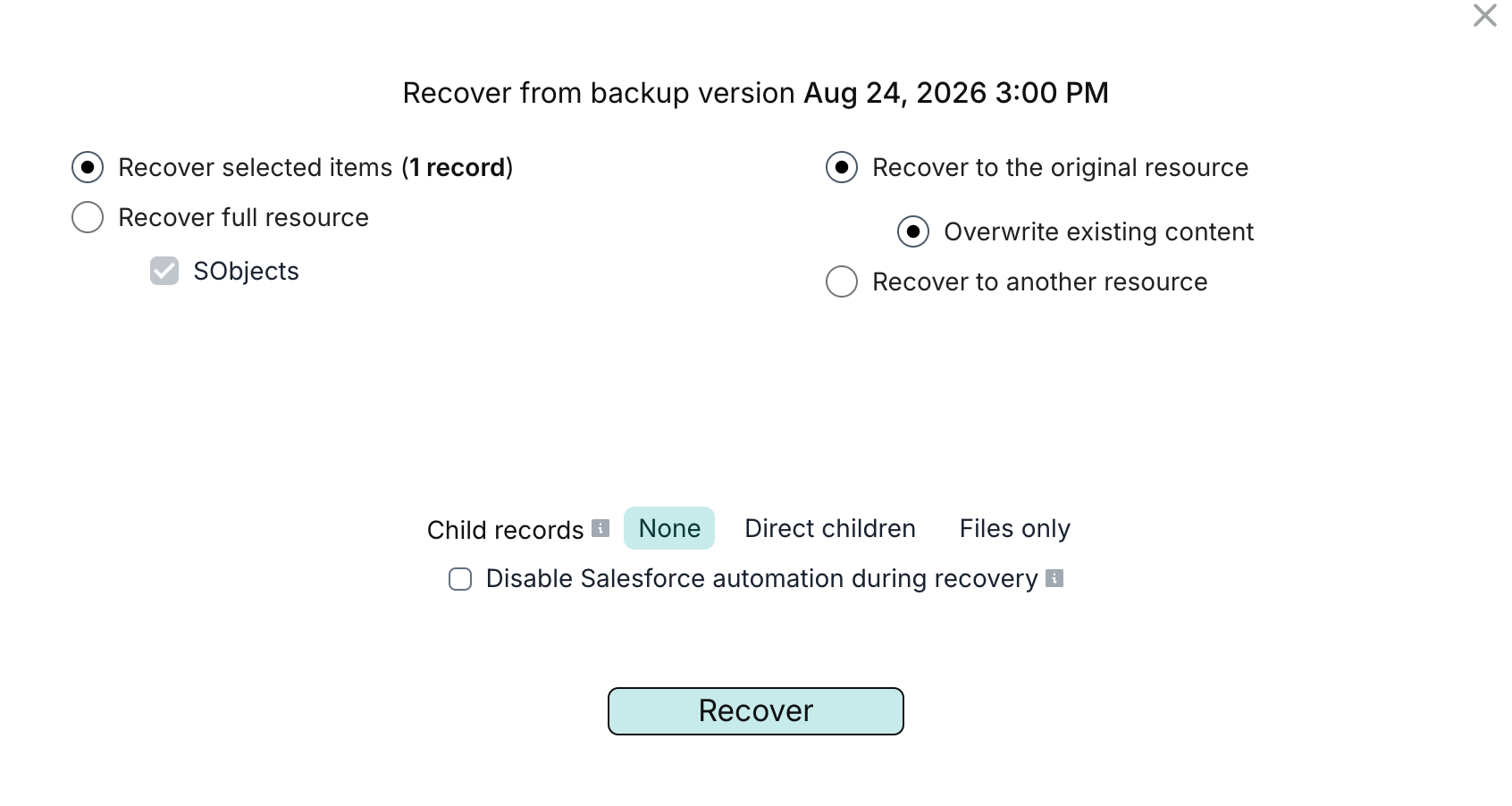
After recovery, review the task result. If recovery completed with warnings, also review the skipped-record report.
Info
To retrieve data without restoring it to Salesforce, export it or download individual files from record details.
Recovery options
Child records
The Child records setting controls whether recovery includes children of the selected records:
- None (default) — selected records only, without their children.
- Direct children — selected records and their backed-up direct children, including eligible linked files and attachments. For example, restoring an Account also restores its Contacts and may update matching Contacts in the destination.
- Files only — selected records and their linked files and attachments, without other child records such as Contacts.
To include child records when recovering from search results, keep Limit to current backup version enabled.
Automation during recovery
Salesforce automation stays enabled by default and may create, change, or reject records during recovery.
With Disable Salesforce automation during recovery selected, Afi turns off active flows, workflow rules, and validation rules, then turns them back on when recovery ends.
This affects the entire destination organization, including objects outside your selection, so plan for the impact on other business processes. The setting doesn't restore older automation definitions.
Afi doesn't disable Apex triggers. If they could block recovery or make unwanted changes, your Salesforce administrator should disable them before recovery and re-enable them afterward.
Notice
If recovery is interrupted or Salesforce rejects an automation change, check that flows, workflow rules, and validation rules are in their intended state before resuming normal operations.
Recovery behavior
Record matching and relationship handling
Afi updates matching records and recreates missing ones where Salesforce allows it. Matching can use compatible external IDs and other identifiers, such as Contact or User email addresses, to identify existing records when restoring to another organization. Missing or ambiguous identifiers and Salesforce duplicate rules can lead to additional or skipped records.
To preserve relationships, Afi restores records in dependency order and updates supported lookup and master-detail relationship fields with the corresponding record IDs in the destination. Afi reconnects parents even when Child records is set to None: for example, it links a restored Contact to its Account, recreating the Account from backup if it is missing. When restoring selected records to the original organization or sandbox, Afi normally reuses existing parents without changing their field values.
Info
- Recovery doesn't delete records that exist in the destination but aren't in the selected backup, such as records created after that backup.
- If a field is empty in the backup but has a value in the destination, recovery leaves that value unchanged.
- If recovery fails or is cancelled, records already created remain in Salesforce, and changes already made to existing records aren't undone.
If external applications store Salesforce record IDs, review those references after recovery: recreated records may have new IDs.
Missing objects and fields
If a supported custom SObject type is missing, Afi recreates it from its backed-up metadata before restoring its records.
If the SObject type still exists but custom fields were deleted, Afi doesn't recreate those fields, even when you recover all records of that type. Before recovering their data, use Salesforce's Undelete action for fields still listed under Deleted Fields, or recreate them manually. In either case, the fields must use their original API names.
Field values and business states after recovery
Afi restores each selected record's backed-up values in fields that the destination's integration user can write. To change just one field, look up its value in the backup or an export and update that field manually in Salesforce.
Recovery also affects these fields and record types:
- Calculated fields: backed-up formula, roll-up summary, and other calculated values are available for browsing and export. Salesforce recalculates them during recovery and sets system and other read-only values.
- Audit fields and owners: original Created Date and Created By values can be preserved when Salesforce permits setting audit fields on creation and the referenced users can be found. The integration user also needs the Update Records with Inactive Owners permission for records with inactive owners. See permission requirements.
- Orders and Contracts: recreated records are set to Draft, and recreated Orders receive new order numbers. After reviewing them, you can activate the Orders or Contracts in Salesforce as needed.
- Opportunity products: Salesforce may reject incompatible backed-up pricing values, so check the recovered products and amounts.
Recover Salesforce Files and legacy attachments
To recover a file and all its backed-up versions in the selected snapshot, open Files (Content Documents) in the SObject list, select the file's ContentDocument record, and click Recover. Salesforce stores these versions as ContentVersion records.

In the recovery dialog for the selected ContentDocument record, choose Direct children under Child records to restore the file's links to other records. Afi uses its backed-up ContentDocumentLink records to reconnect the file automatically. The related records must exist in the destination or be recoverable from backup.
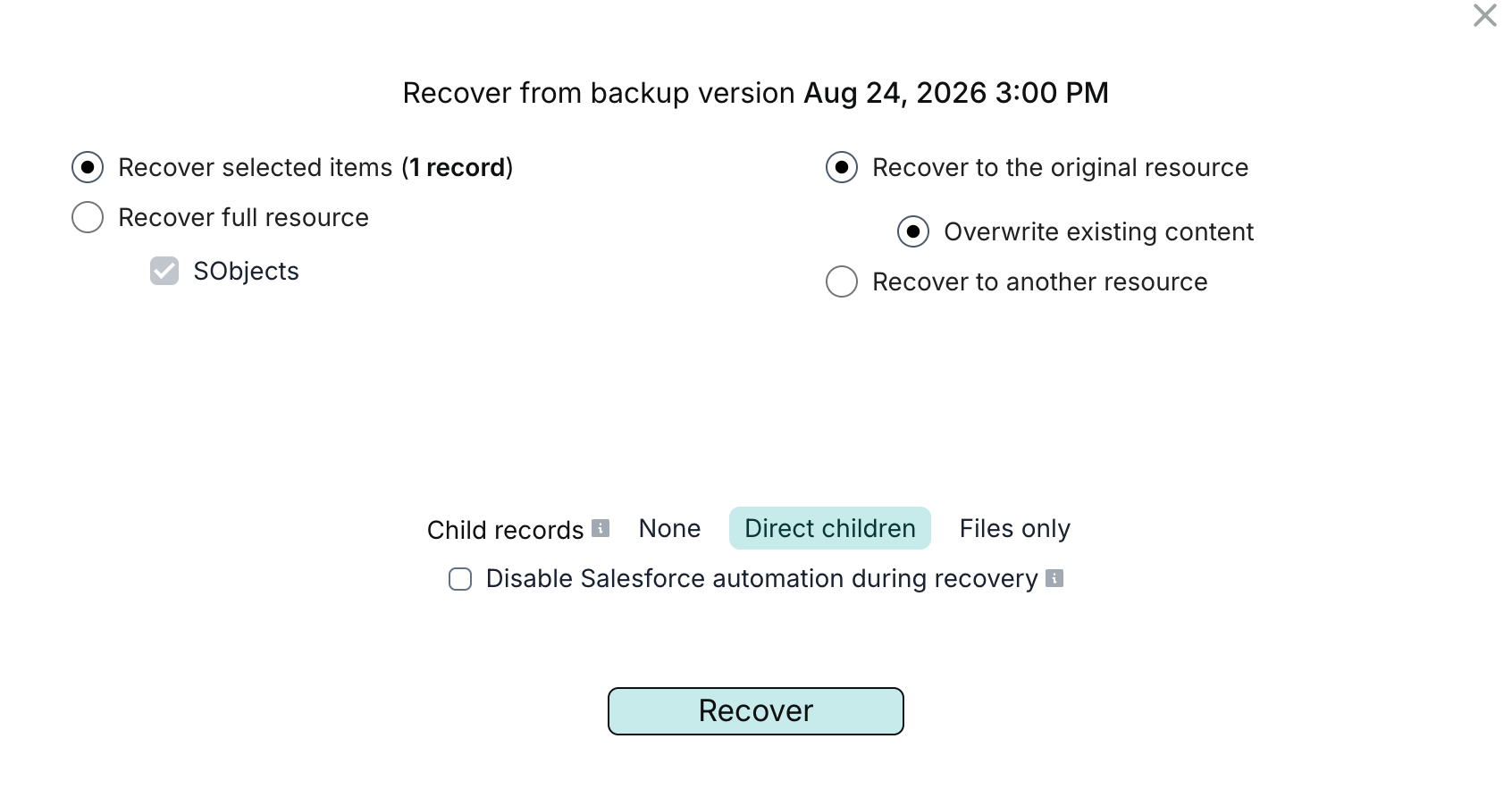
File recovery always creates a new file with new IDs, even if the original still exists. Repeating recovery can create more copies. Within one recovery task, Afi reuses the same recovered file for records that reference it.
For a legacy attachment, open Attachments, select its Attachment record, and click Recover. Afi restores the parent relationship automatically. You can also restore a parent record with Direct children to include its files and attachments along with its other children.
