Export
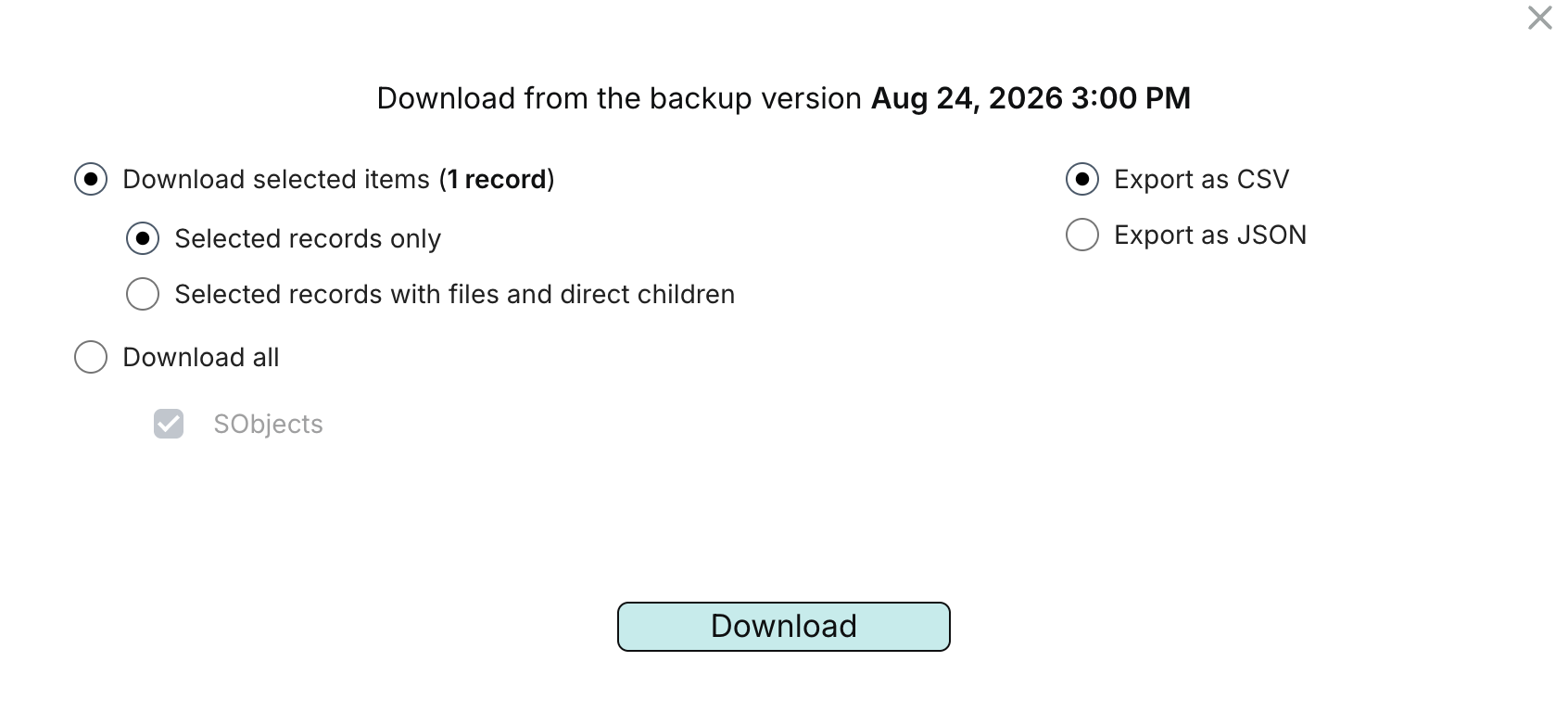
You can export the entire resource, all records of selected SObject types (such as all Accounts), or individual records from the backup browser or search results. To choose an export format, select the data and click Download:
- Export as CSV — exports records to CSV files, with field API names as column headings.
- Export as JSON — exports records to JSON Lines (
.jsonl) files, with one record per line. - Export metadata as XML — exports backed-up object definitions to XML files. This option is available for SObject types or the entire resource; see Export object metadata.
CSV and JSON exports are packaged as ZIP archives. Large exports of selected records may contain multiple numbered CSV or JSONL files within the ZIP archive. Use all parts when processing the exported records.
Empty, missing, and null values can appear as blank CSV cells. JSON preserves data types such as numbers and booleans, but may omit fields without values. Address and geolocation values appear in separate component fields, such as BillingStreet, BillingCity, latitude, and longitude.
Include files and child records
In the export dialog, Selected records only exports just the records you selected. Selected records with files and direct children also includes attached files and direct child records, such as an Account's Contacts, arranged in a folder tree. It doesn't include further levels of child records.
Linked files and binary content from supported fields are included in the selected record's Files folder, with record IDs and available names or titles to help identify each file. When exporting a ContentDocumentLink record, Selected records with files and direct children also includes the linked file's content. All related data must be in the selected snapshot, so keep Limit to current backup version enabled when exporting children from search results.
To download only the latest backed-up version of each linked file, click the icon beside Files in record details.
Export backup versions
To export older versions of a record, open Show backup versions, select the versions you need, and click Download. You can also choose Download all item versions. An export can contain several versions of the same record, and CSV exports can include fields from older schemas that were later removed.
Export object metadata
Export metadata as XML appears when you select SObject types in the left-hand list or choose Download all in the export dialog while browsing a backup. Exports of individual records and search results offer CSV and JSON only.
To export metadata for specific SObject types, select the checkboxes beside their names in the left-hand list, then click Download:
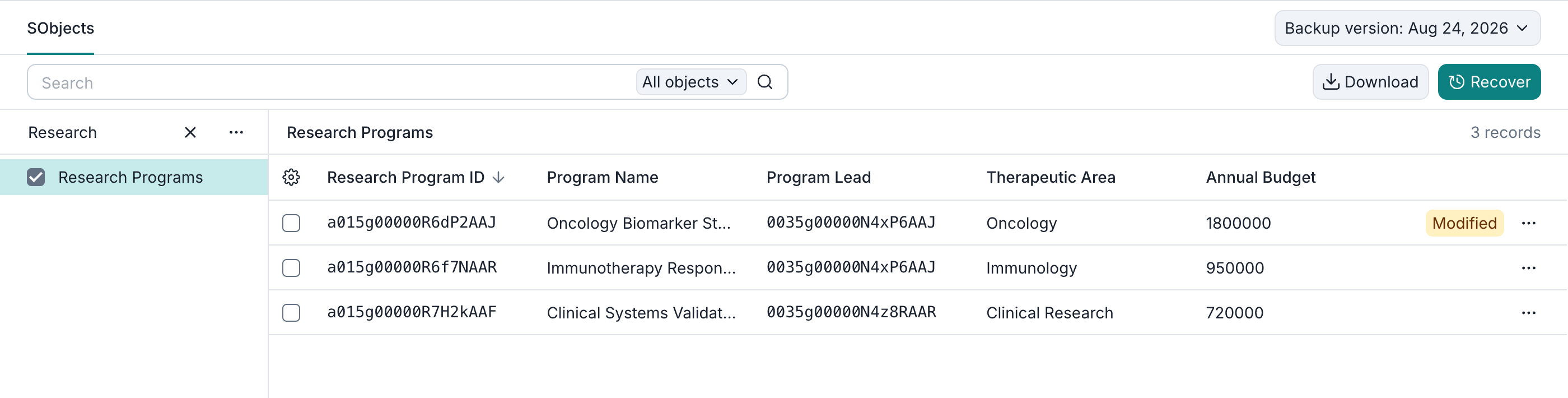
In the dialog, choose Export metadata as XML and click Download. To export metadata for all backed-up SObject types, choose Download all instead of Download selected items.
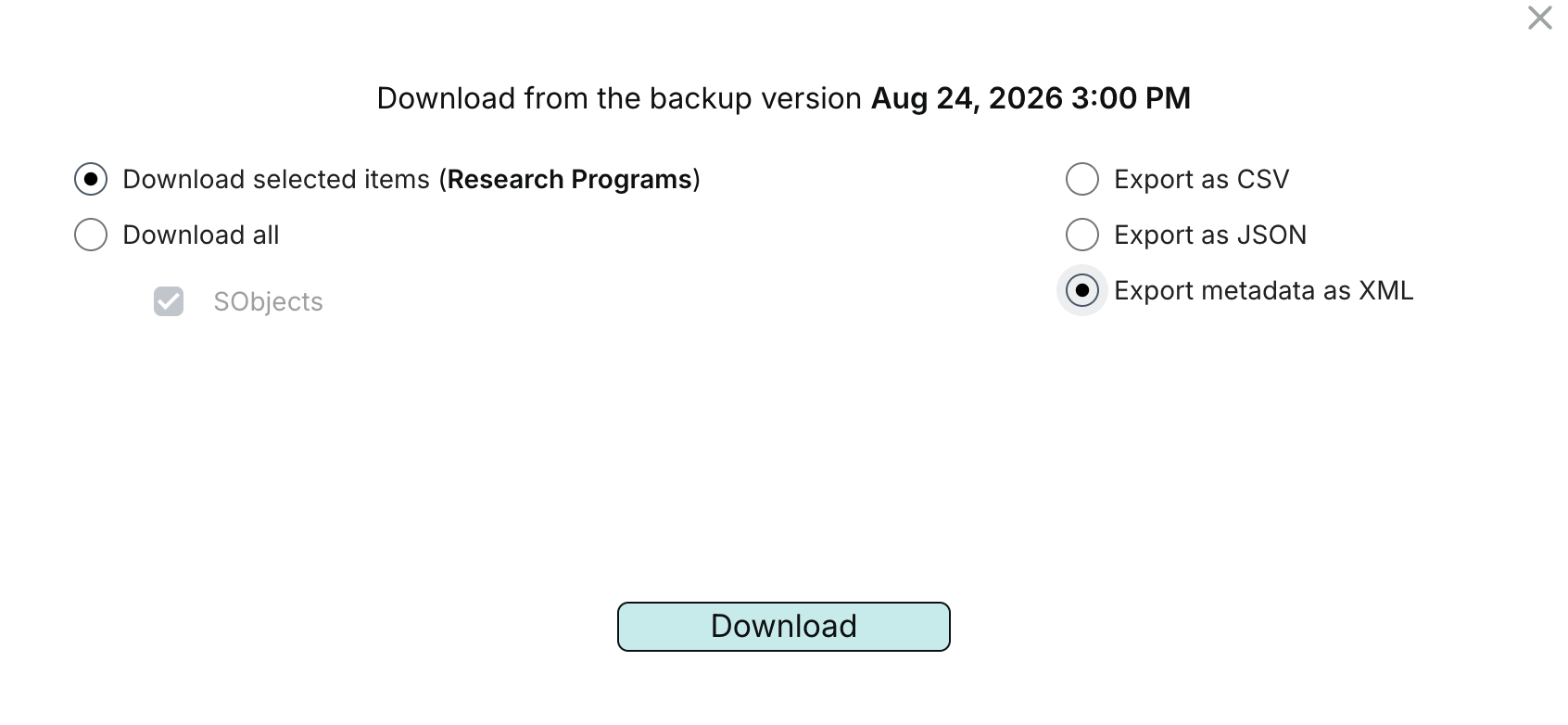
XML exports contain backed-up object definitions in .object-meta.xml files, organized in the Salesforce DX project folder structure. You can inspect these files or deploy them with Salesforce CLI. Record data is exported separately. See metadata coverage for the definitions included in backups.