Browse
Afi backs up records and their field values from standard and custom SObjects, including eligible objects from installed managed packages. See What's supported for Salesforce data and metadata coverage.
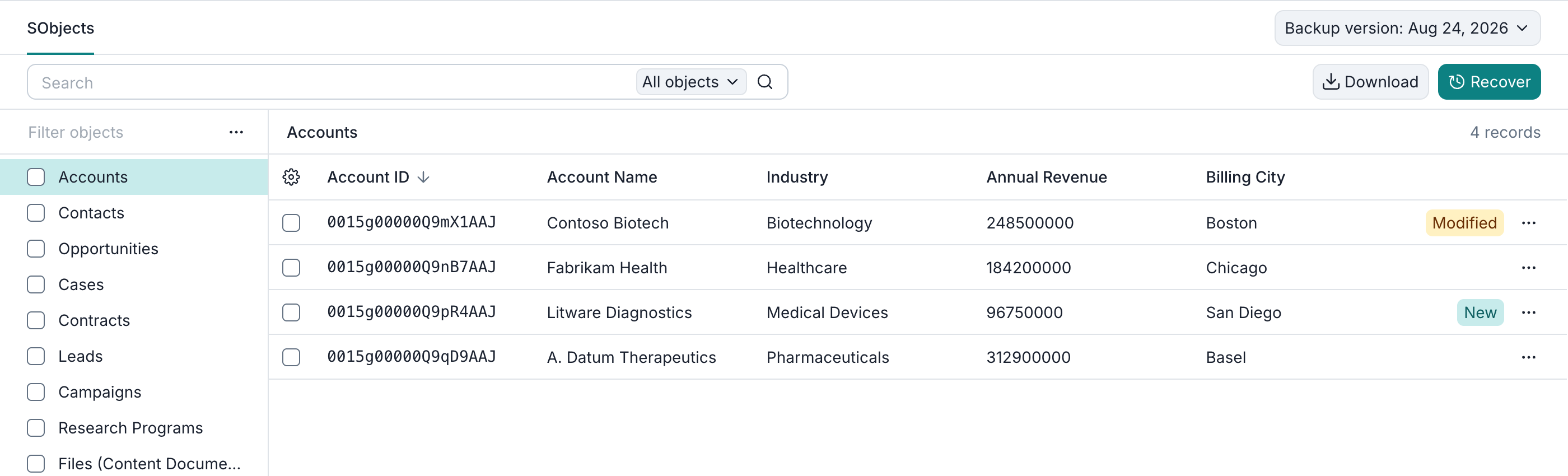
To browse a backup, click Recover next to your organization or sandbox on Service → Protection. On the SObjects tab, select an object type on the left to view its records on the right.
The latest successful snapshot opens by default; use Backup version to select an earlier one.
Filter SObject types
The Filter objects search box above the SObject list matches the start of the displayed object names. For example, Acc matches Accounts.
To include types with no backed-up records, open the three-dot menu beside the search box and select Show empty SObjects.
Choose table columns
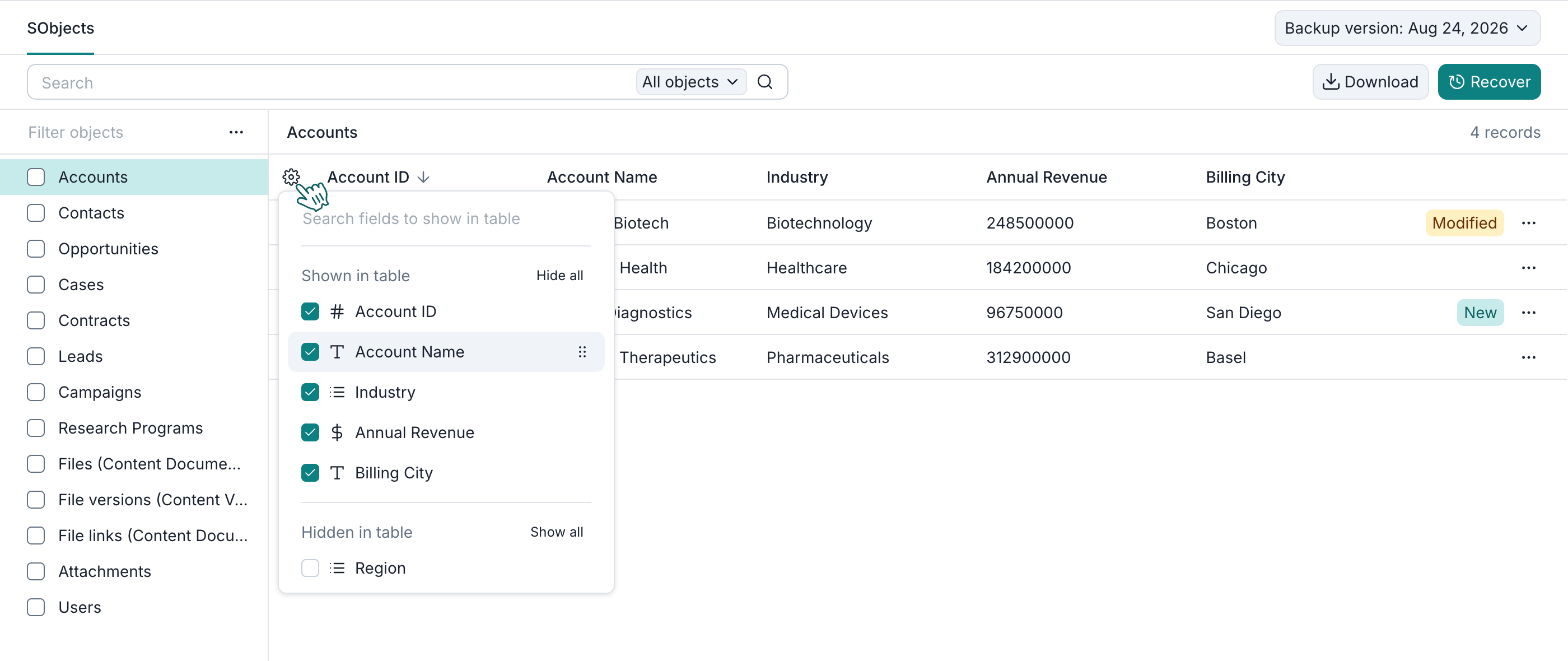
The default columns come from a backed-up Salesforce list view, with the record ID first. If no list view is available, Afi uses the object's default page layout, then all backed-up fields as a fallback.
To customize the table view, click the settings icon. The dialog lets you search for fields and select or clear their checkboxes. To reorder selected fields, clear the field search and drag them into order.
View record details
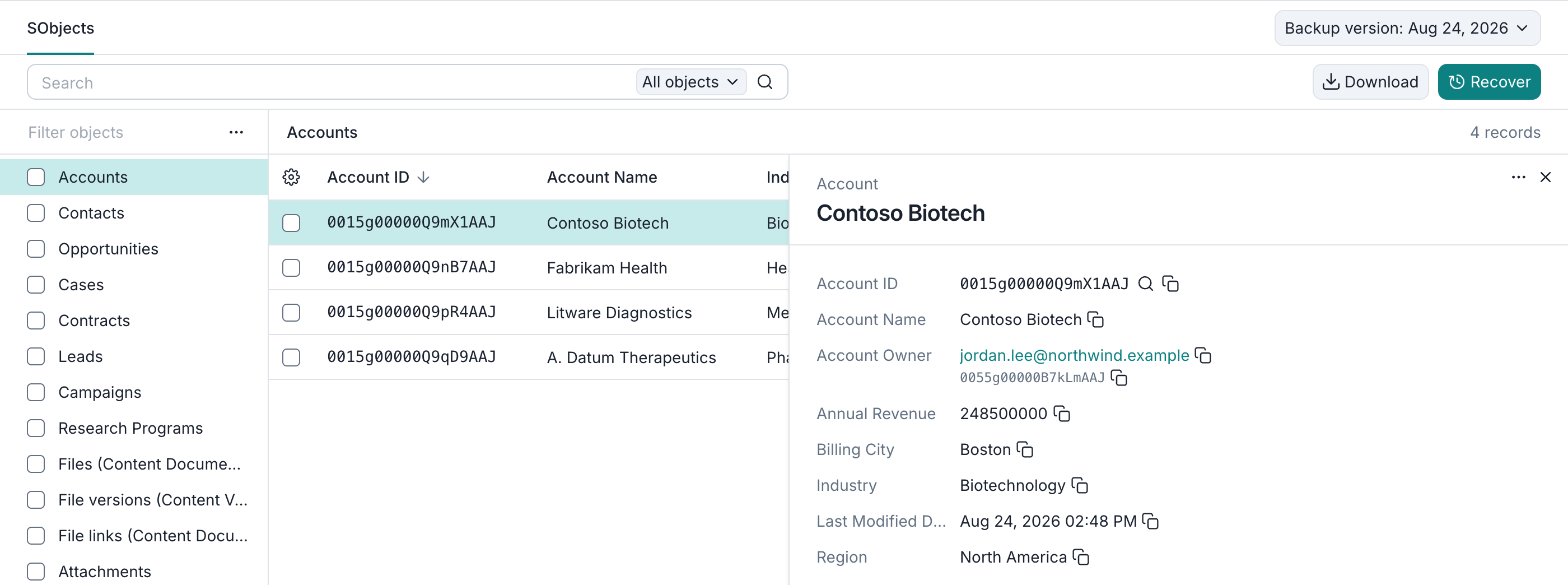
To see a record's fields and copy their values, click the record. Record details show complete field values, including line breaks and rich text formatting. URL fields open as links.
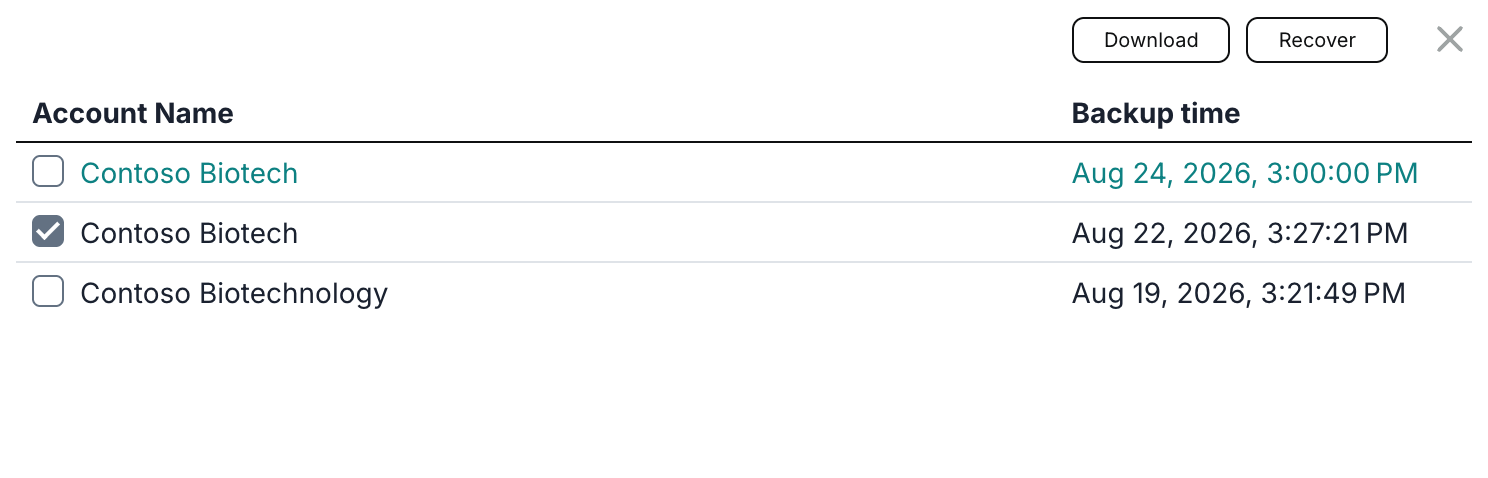
To review a record's backup versions, open its row's actions menu and select Show backup versions.

The dialog lists retained versions by record name and backup time - the time the corresponding snapshot was taken. You can select a version to Download or Recover it.
Explore related records
Links in record details let you follow Salesforce object relationships. This example follows an Account to a Contact, then to a record of the custom Research Programs SObject type.
-
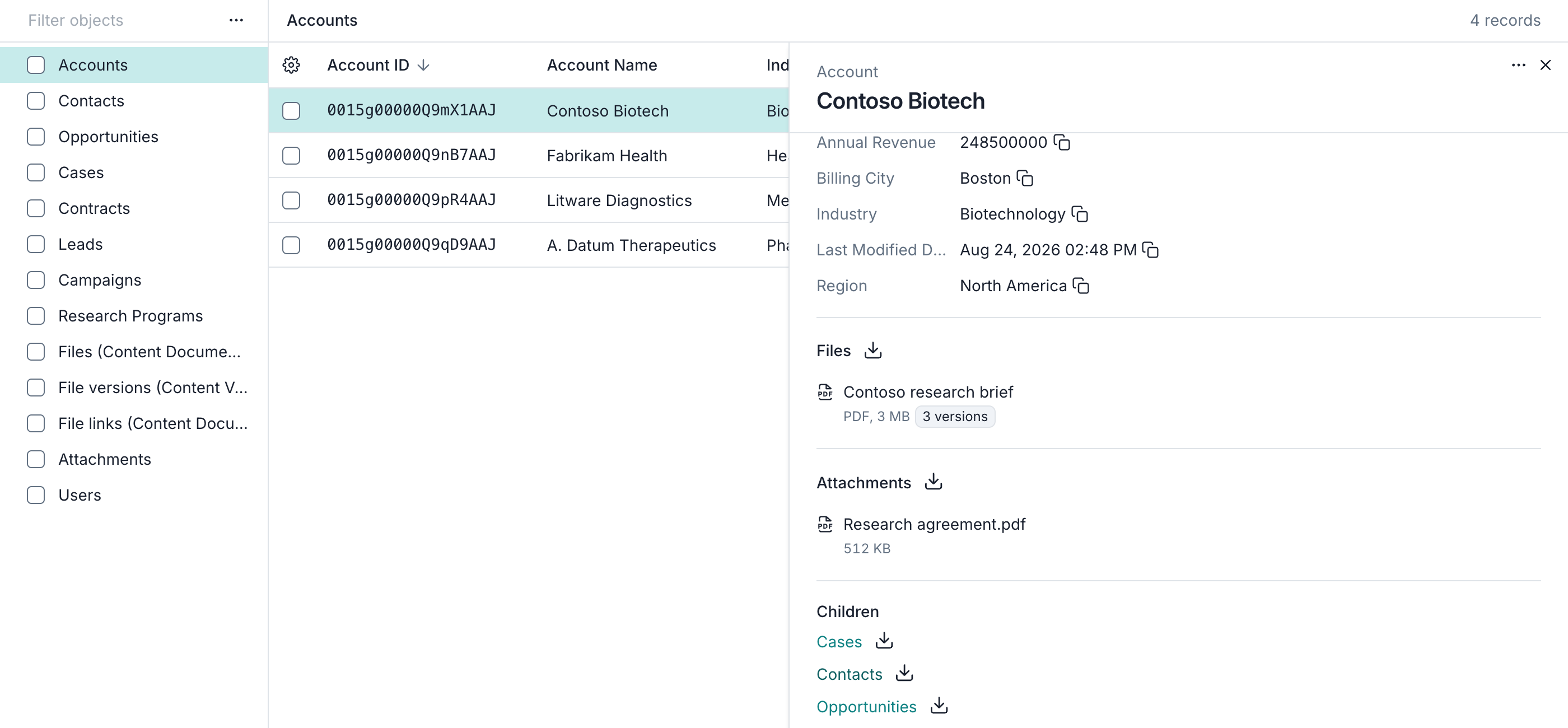
To see an Account's children, choose Accounts and open Contoso Biotech. Under Children, click Contacts.
-
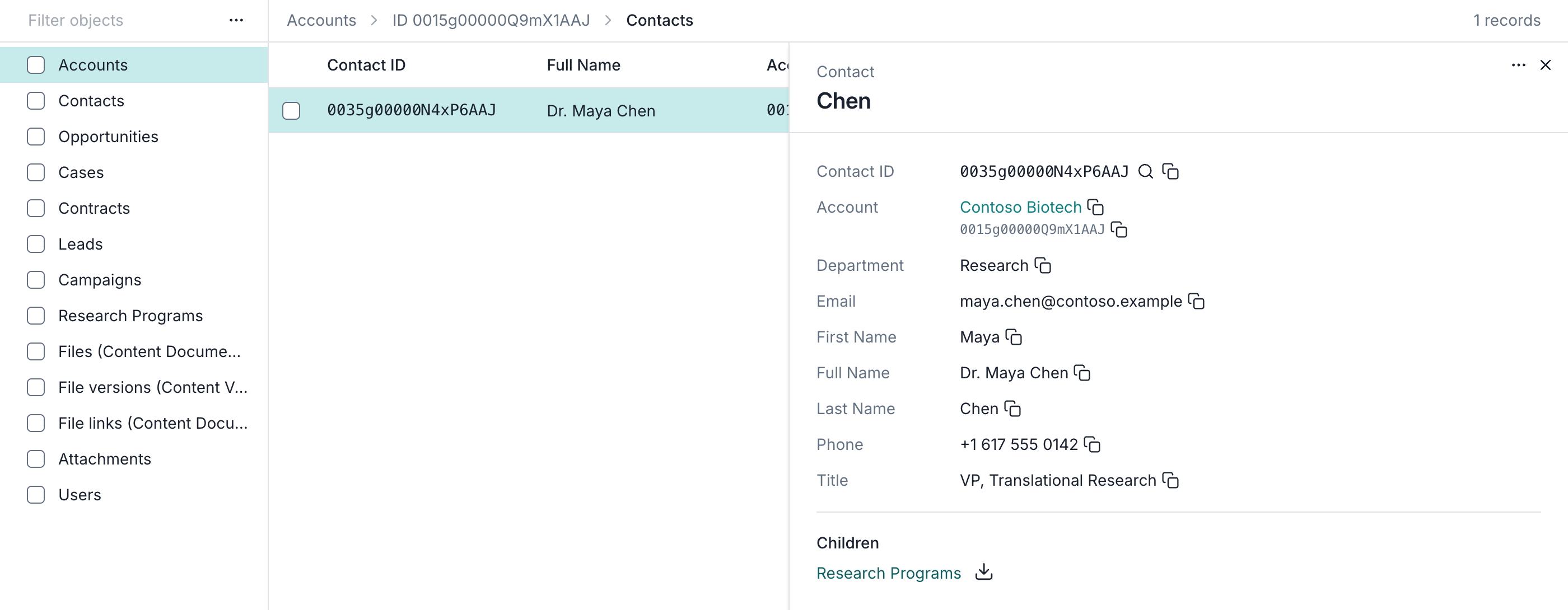
The table now lists only Contacts linked to that Account. To open a child's details, click Dr. Maya Chen.
-
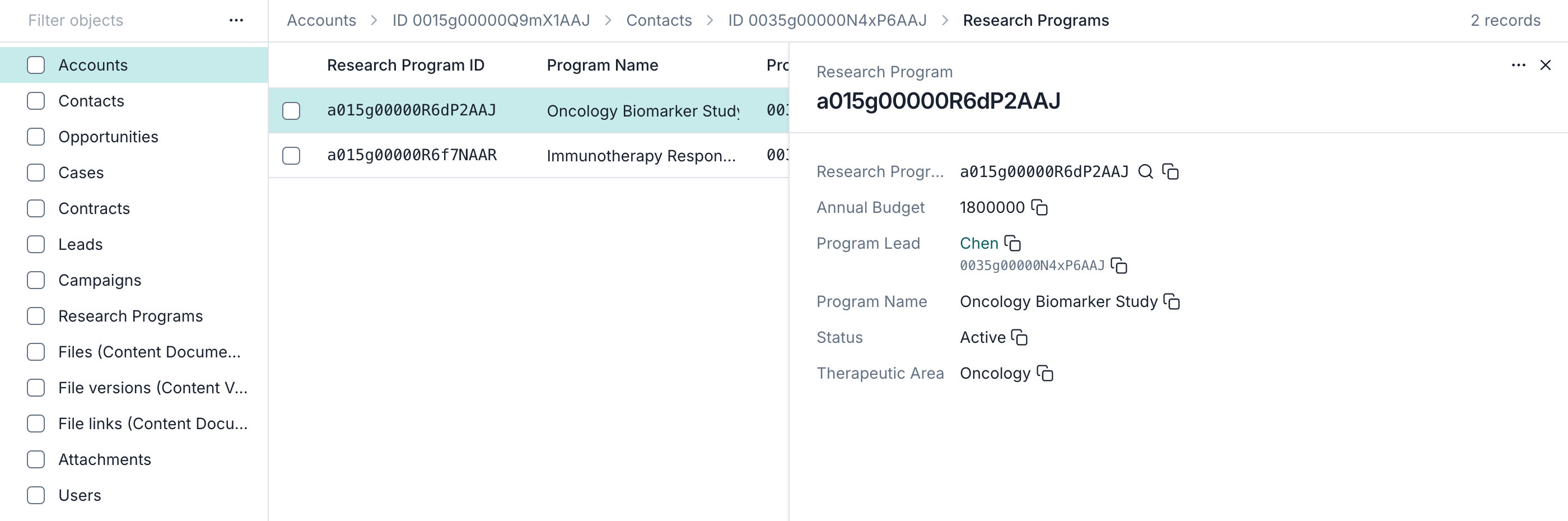
To explore the Contact's children, click Research Programs under Children, then open Oncology Biomarker Study. These programs are children of the Contact and grandchildren of the Account.
-
To open a parent, click its linked name in a relationship field. Here, clicking Chen under Program Lead opens Dr. Maya Chen's Contact record. Her Account link leads back to Contoso Biotech. The parent opens in the same details panel, while the table keeps its current record list.
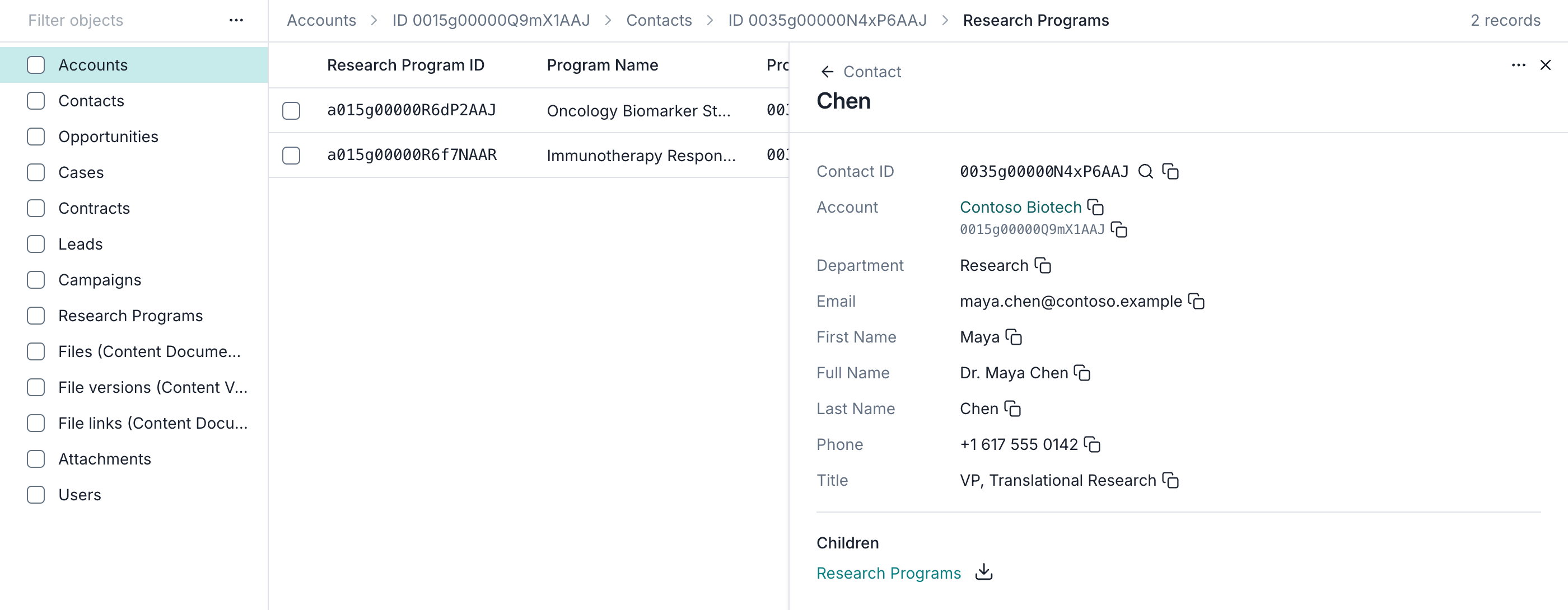
To return to an earlier list, use the breadcrumbs above the table. Contacts returns to that Account's Contacts; Accounts returns to all Accounts.
View related files and attachments
The Files section shows linked files and their types, sizes, and version counts. For file details, click a title or version count. To download its latest backed-up version, hover over the file and click its download icon. The icon beside Files downloads the latest backed-up version of each linked file in a ZIP archive.
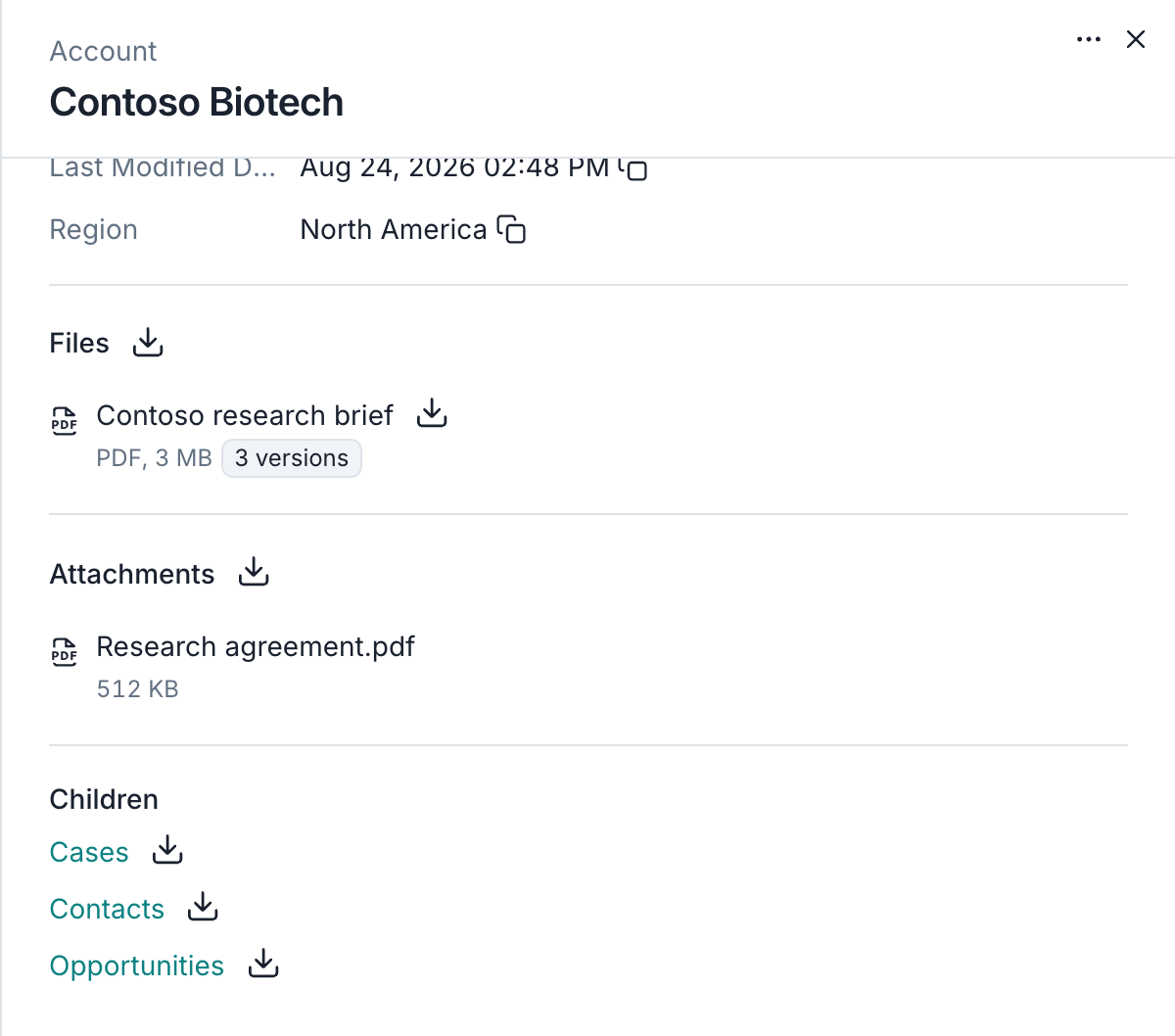
To browse all backed-up files, select Files (Content Documents) in the SObject list and click a file to open its details.
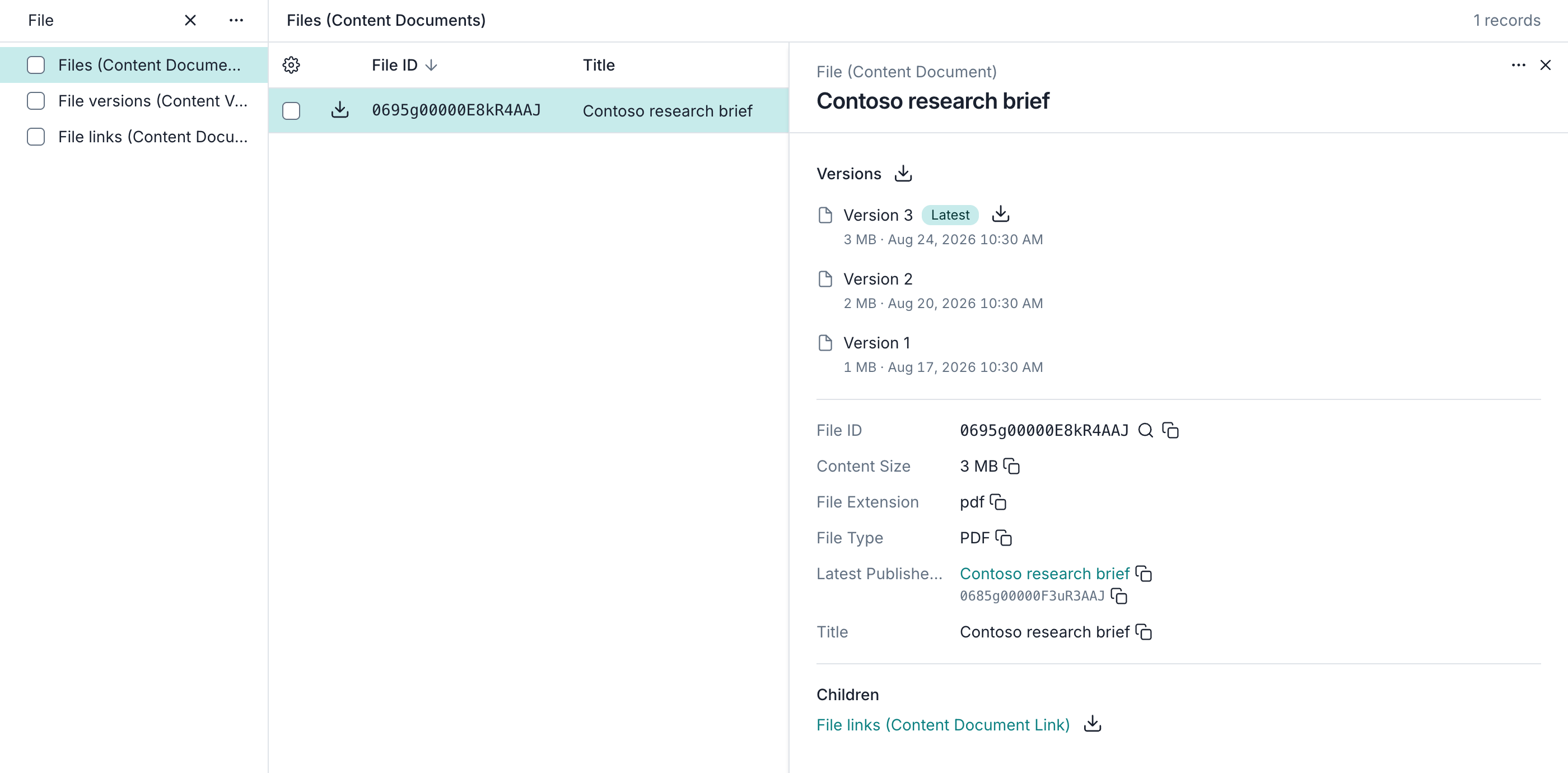
In file details, Versions lists the Salesforce file versions in the selected snapshot, with sizes and creation times. Each version has a download icon that appears on hover. The icon beside Versions downloads all listed versions and their record data in a ZIP archive.
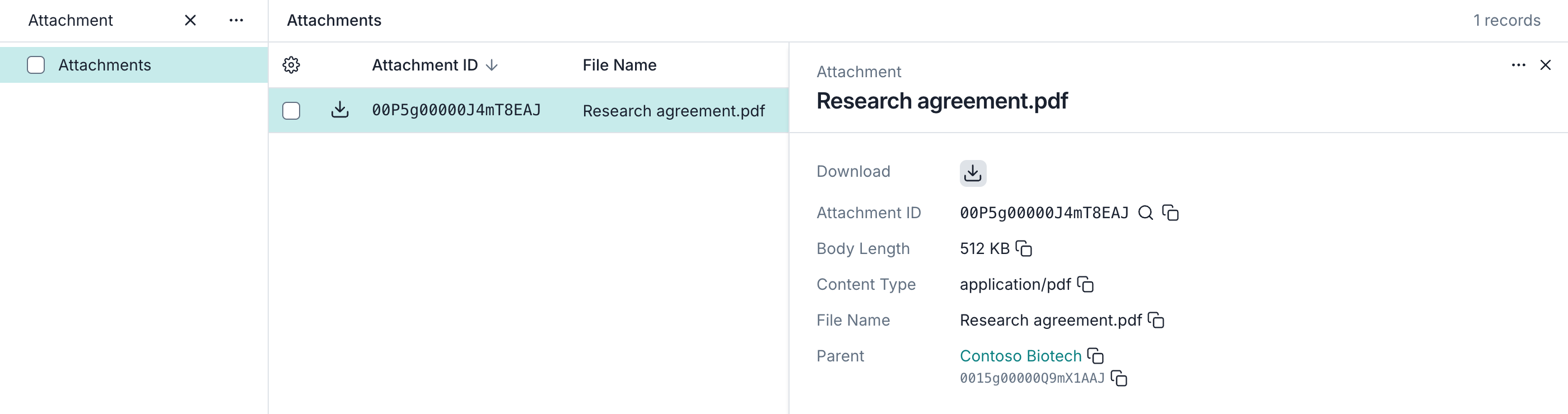
Legacy Attachments appear in a separate section with individual download controls. To browse all backed-up attachments, select Attachments in the SObject list and click an attachment. Its details include a download icon and a link to its parent record.