Onboarding
Afi connects to your Salesforce production organization or sandbox through a managed package. See what Afi protects for data and metadata coverage.
Info
A Salesforce account with the System Administrator profile is required to install the Afi managed package and connect a production organization or sandbox.
Installation steps
Log in and create an account
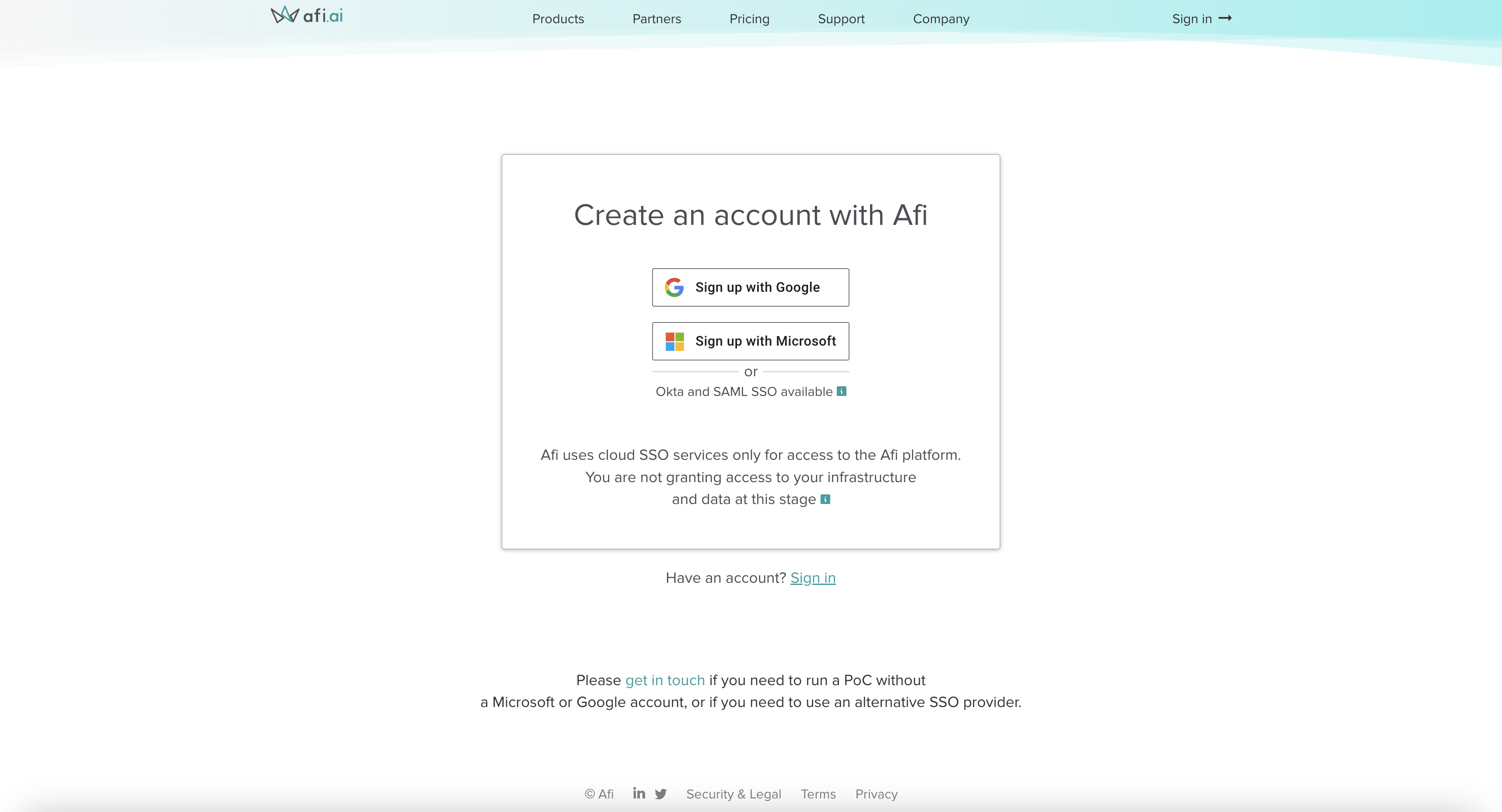
To create an Afi organization account, open the Afi sign-up page and sign in with your Microsoft 365 or Google user account. This user becomes an Afi organization administrator and can invite other administrators on the Configuration → Admins tab.
Info
Any Google or Microsoft 365 user can create an Afi account. Later, when connecting a Salesforce production organization or sandbox, you will need to sign in with a Salesforce account that has the System Administrator profile.
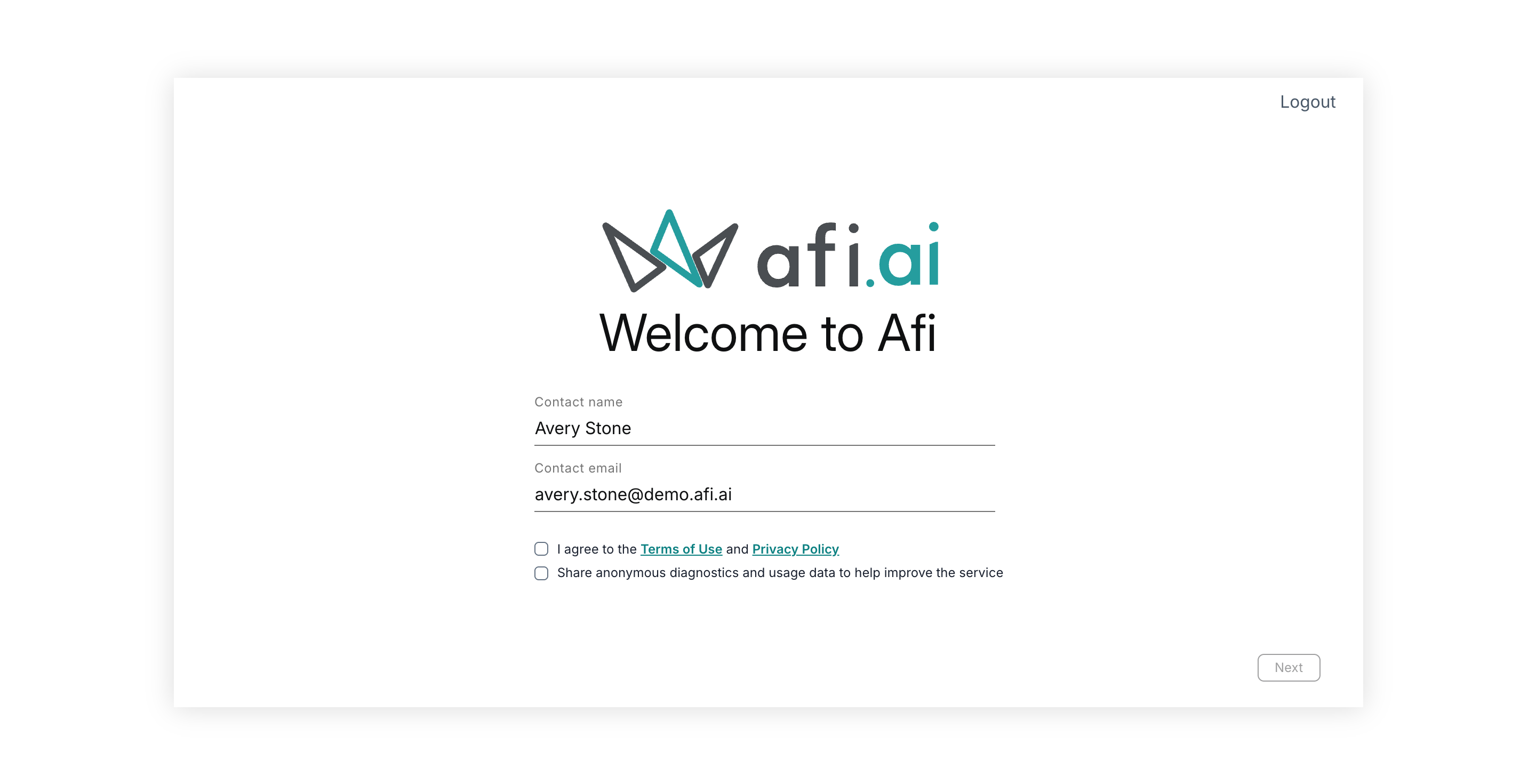
To finish creating the account, confirm your contact details, accept the Terms of Use and Privacy Policy, and click Next.
Connect a Salesforce organization
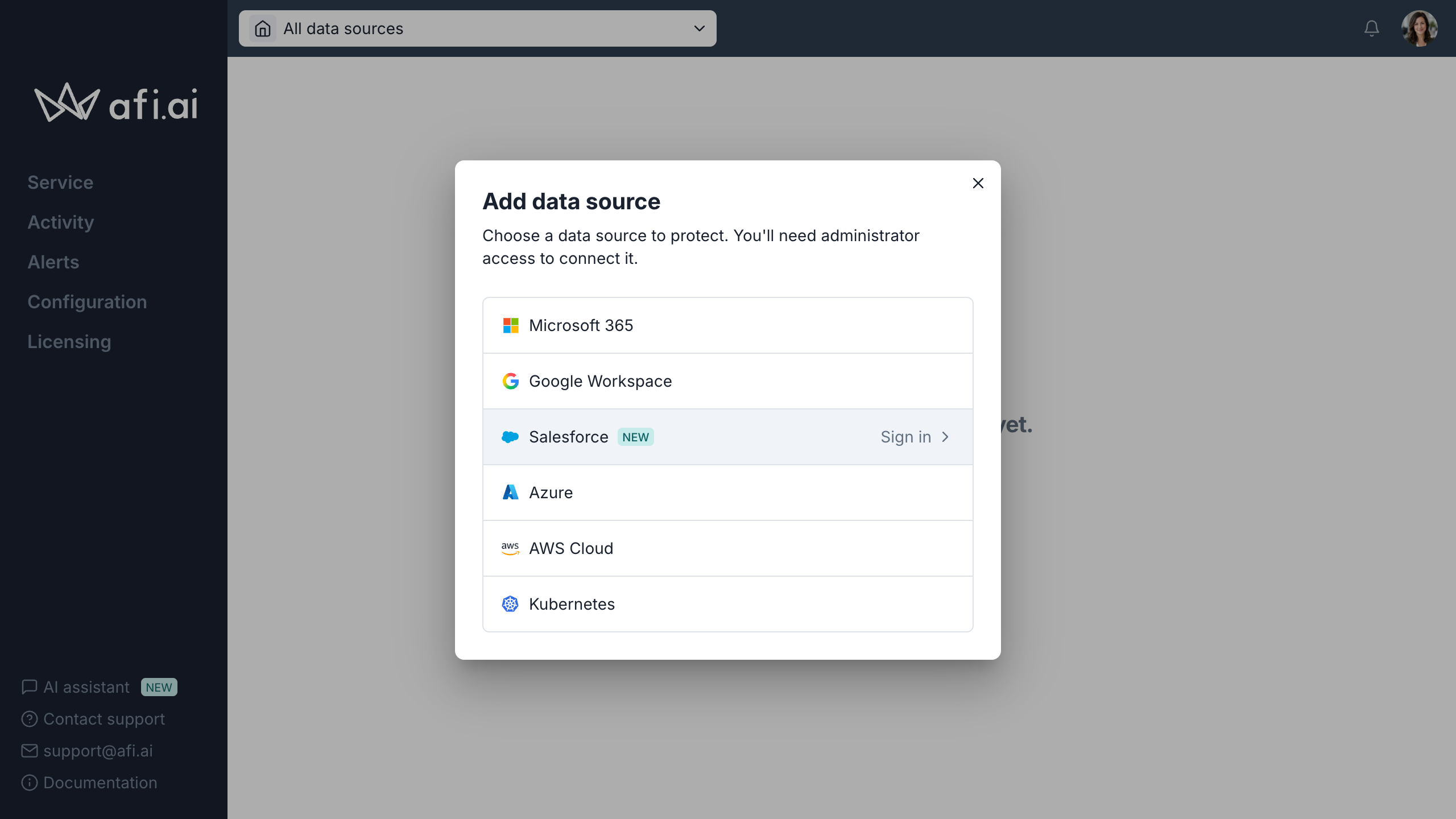
To connect Salesforce, open the data-source selector in the upper-left corner of the Afi portal and choose Add data source. In the Add data source dialog, choose Salesforce.
On the Add a Salesforce organization page, choose Log in to a production org or Log in to a sandbox org.
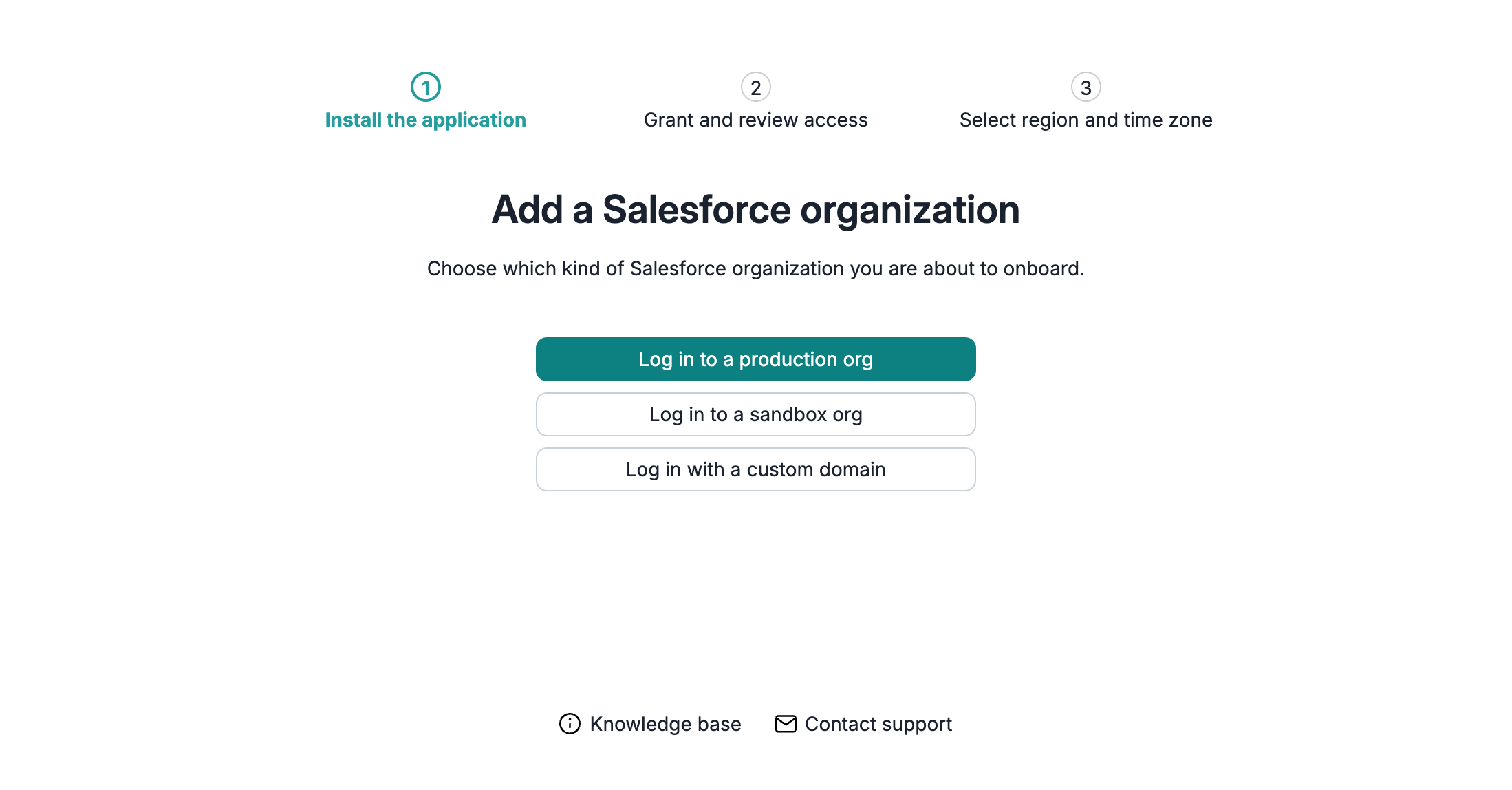
To sign in using your organization's Salesforce My Domain (org-specific subdomain), choose Log in with a custom domain, enter the domain (for example, northwind.my.salesforce.com), and click Log in.
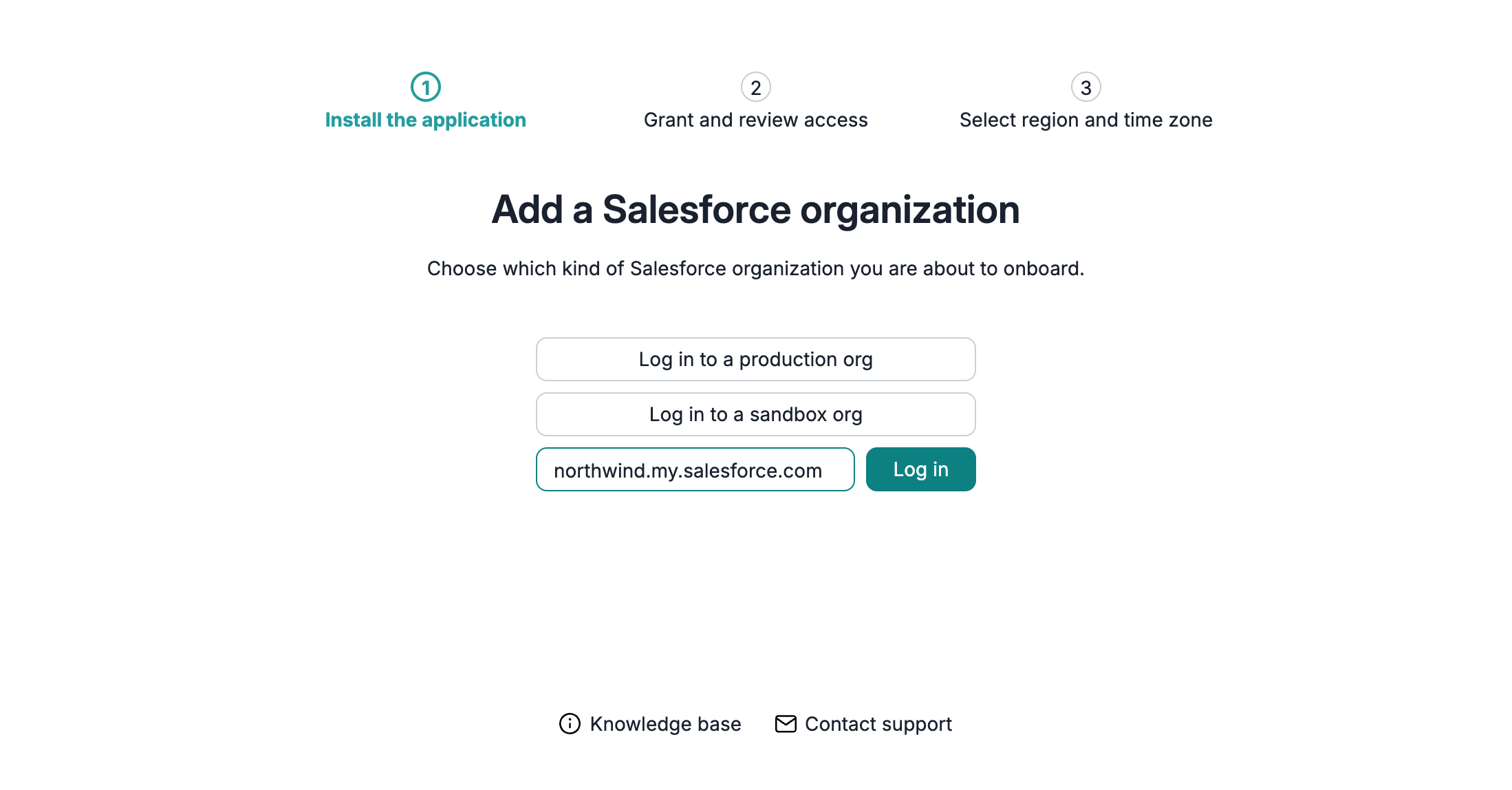
To install and authorize Afi in the selected organization:
- When Salesforce prompts you to sign in, use a System Administrator account.
-
To install the Afi managed package, select Install for Admins Only, check the acknowledgment box, and click Install.
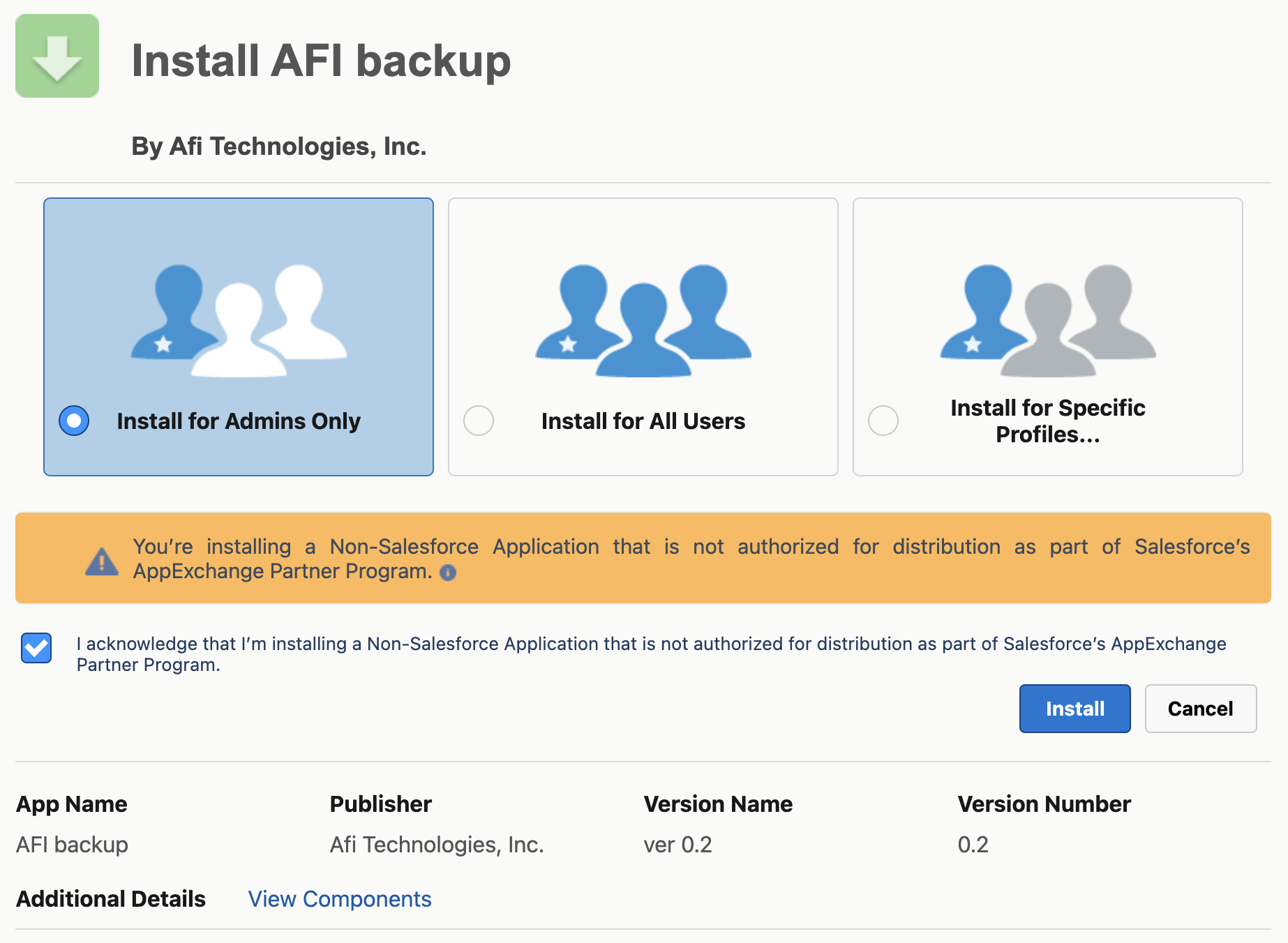
-
In Approve Third-Party Access, select Yes, grant access to these third-party web sites for
*.afi.aiand click Continue. Salesforce then installs the package.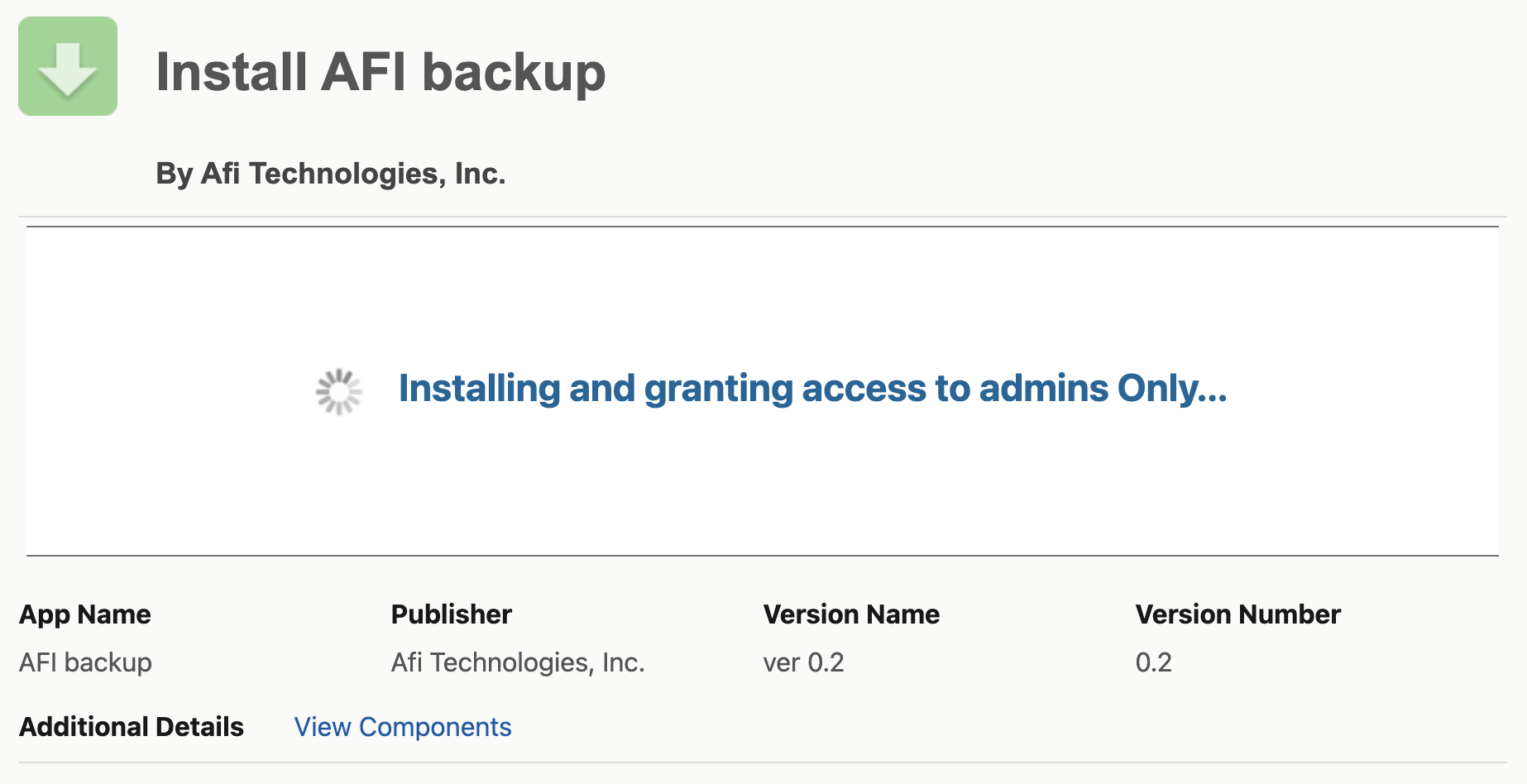
-
When installation finishes, Salesforce displays Installation Successful.
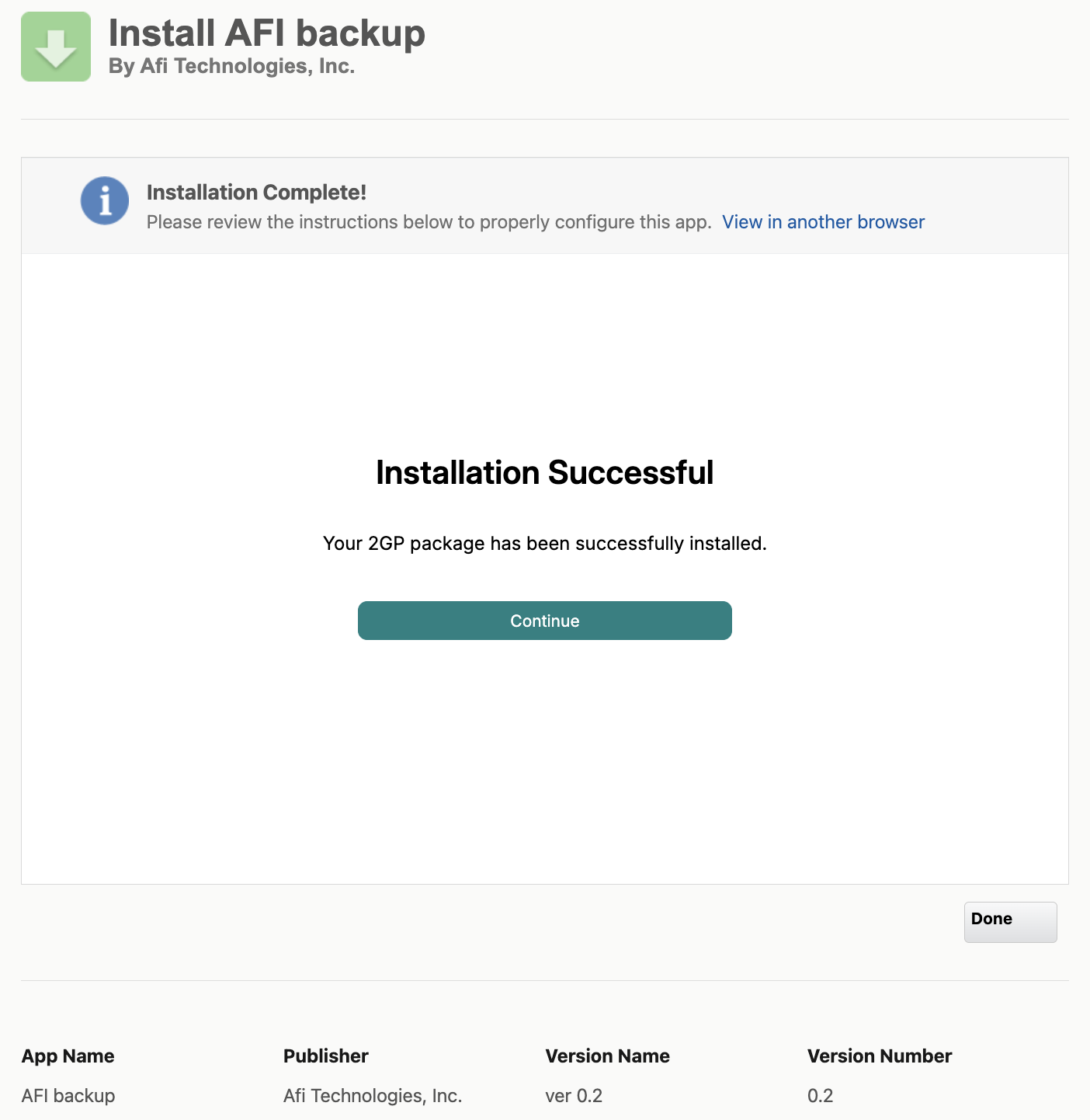
To continue onboarding, click Continue.
-
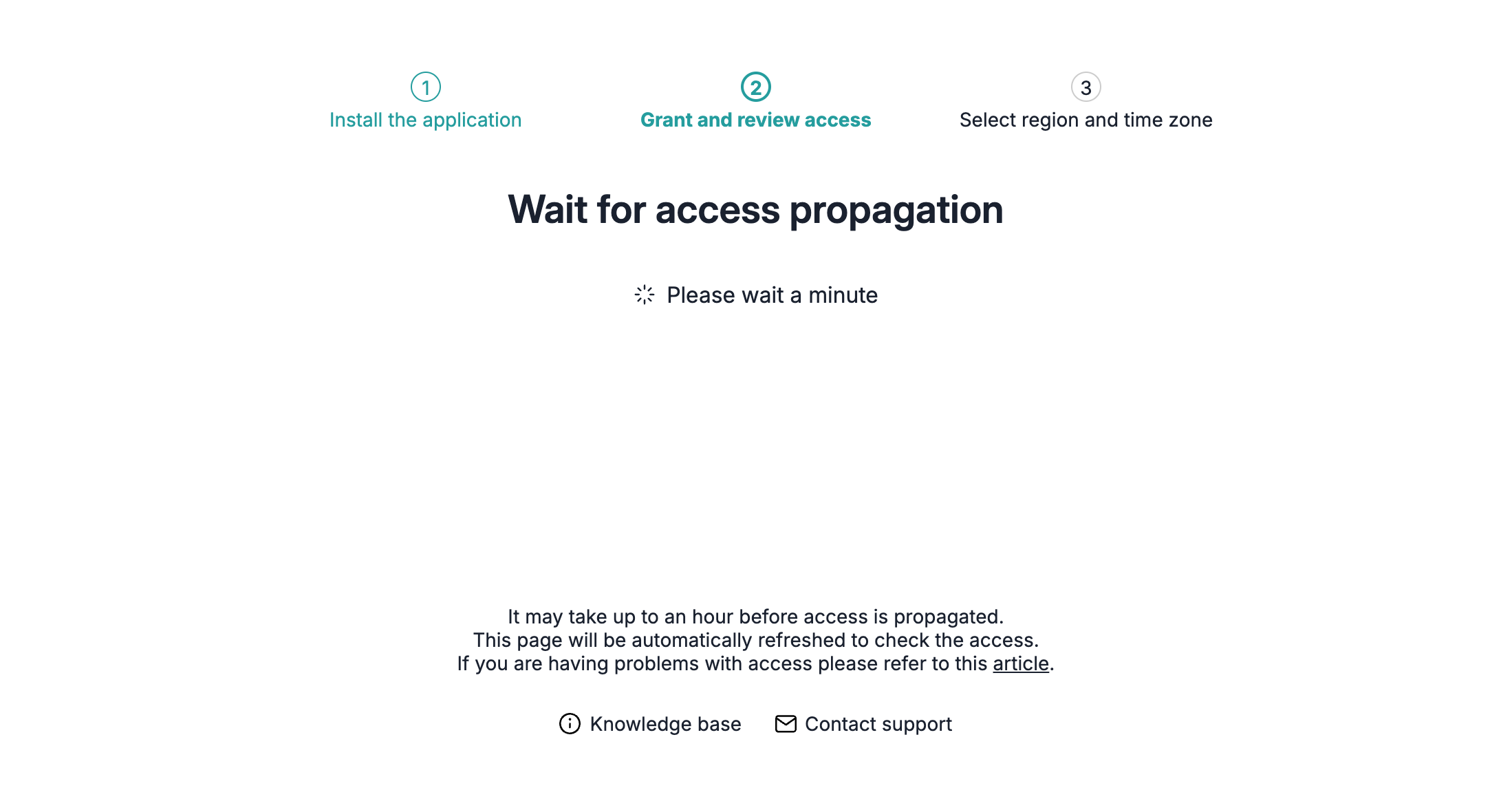
Afi checks access to the installed package. Salesforce can take up to one hour to make it available. The Wait for access propagation page retries automatically; if it displays an error, wait a few minutes and click Log in to retry.
-
On Allow Access?, confirm that the same System Administrator account is selected and click Allow to authorize Afi.
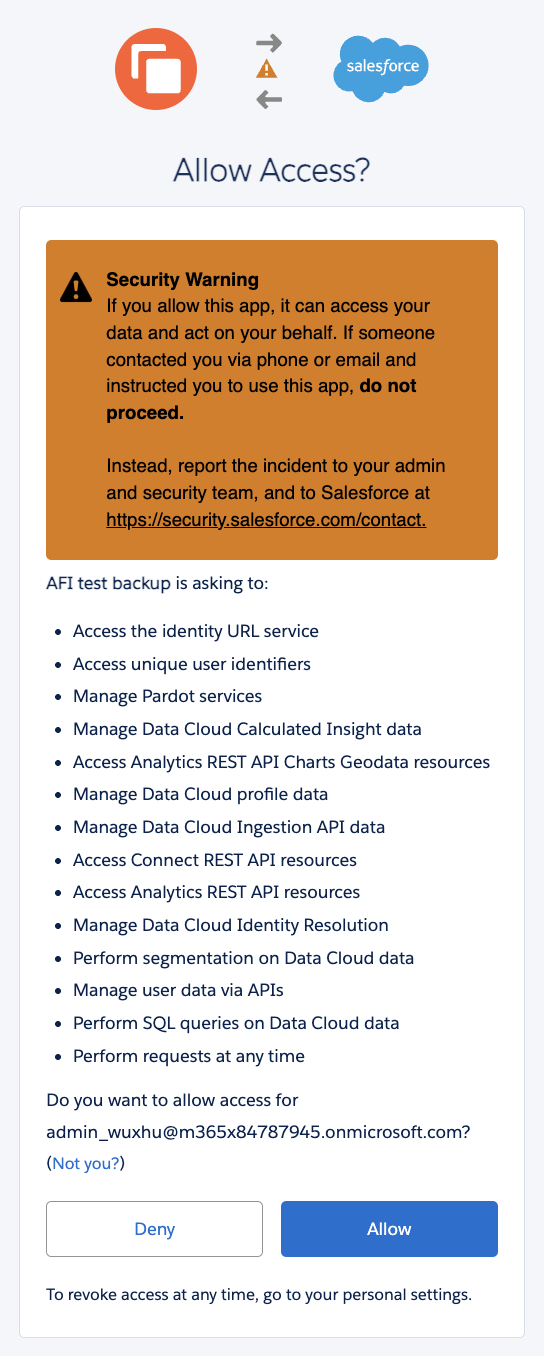
The Salesforce account you authorize becomes the integration user for discovery, backup, and recovery. Afi doesn't create a separate Salesforce user.
Review Salesforce permissions
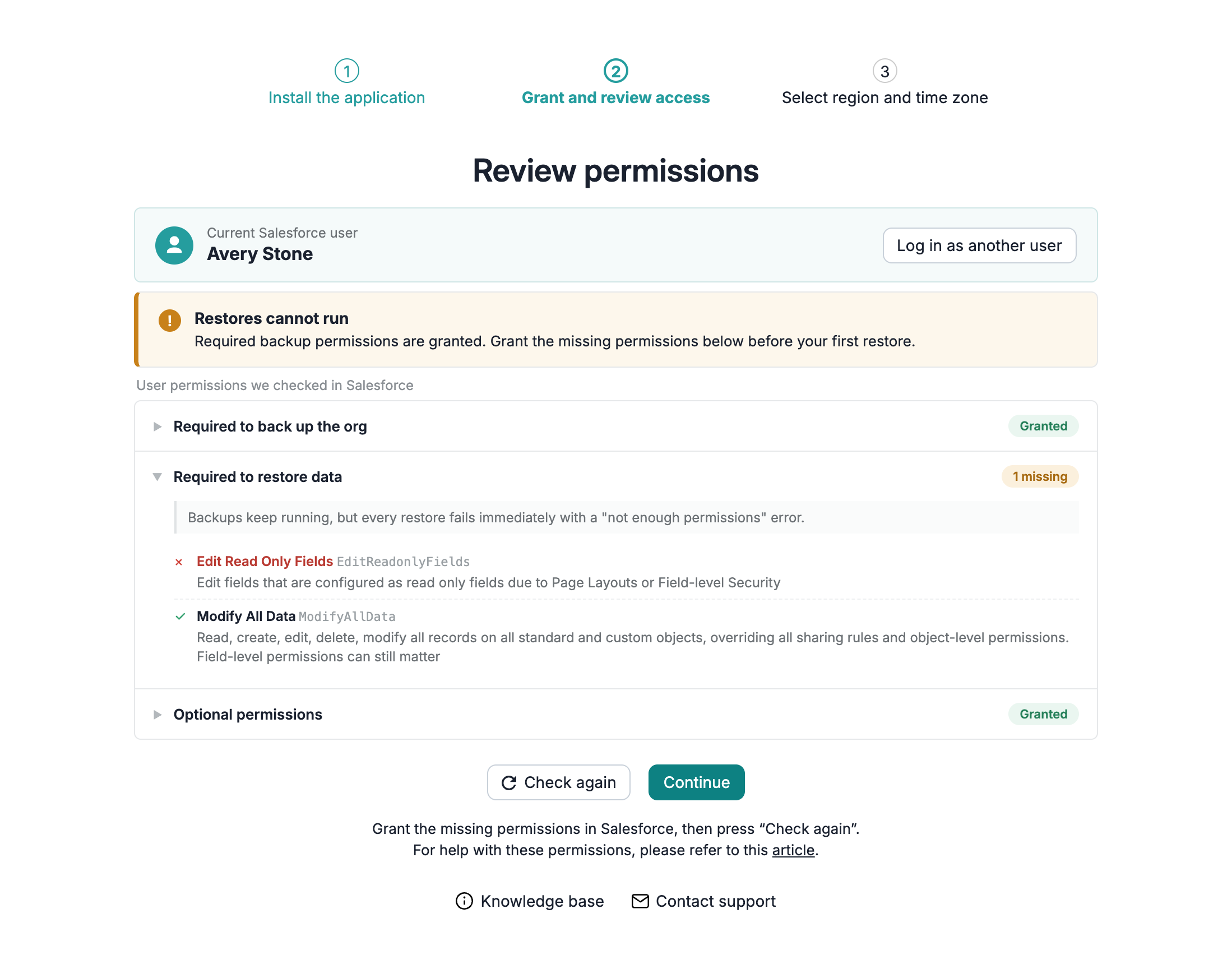
The onboarding wizard opens Review permissions if any required or optional permissions are missing, or if Afi can't check them. Otherwise, it proceeds directly to region selection.
The page shows the Current Salesforce user and three groups: Required to back up the org, Required to restore data, and Optional permissions.
To resolve missing permissions, grant them in Salesforce, then click Check again. If the page reports login IP restrictions or missing API access, resolve that issue before retrying. Log in as another user lets you choose a different integration user.
When adding a data source, Continue lets you finish onboarding with missing permissions. You can review permissions in Afi after onboarding and grant any missing permissions in Salesforce.
Missing backup permissions prevent backups, and missing restore permissions prevent recovery. Optional permissions affect specific data and recovery options; see permission requirements.
Select a region and time zone
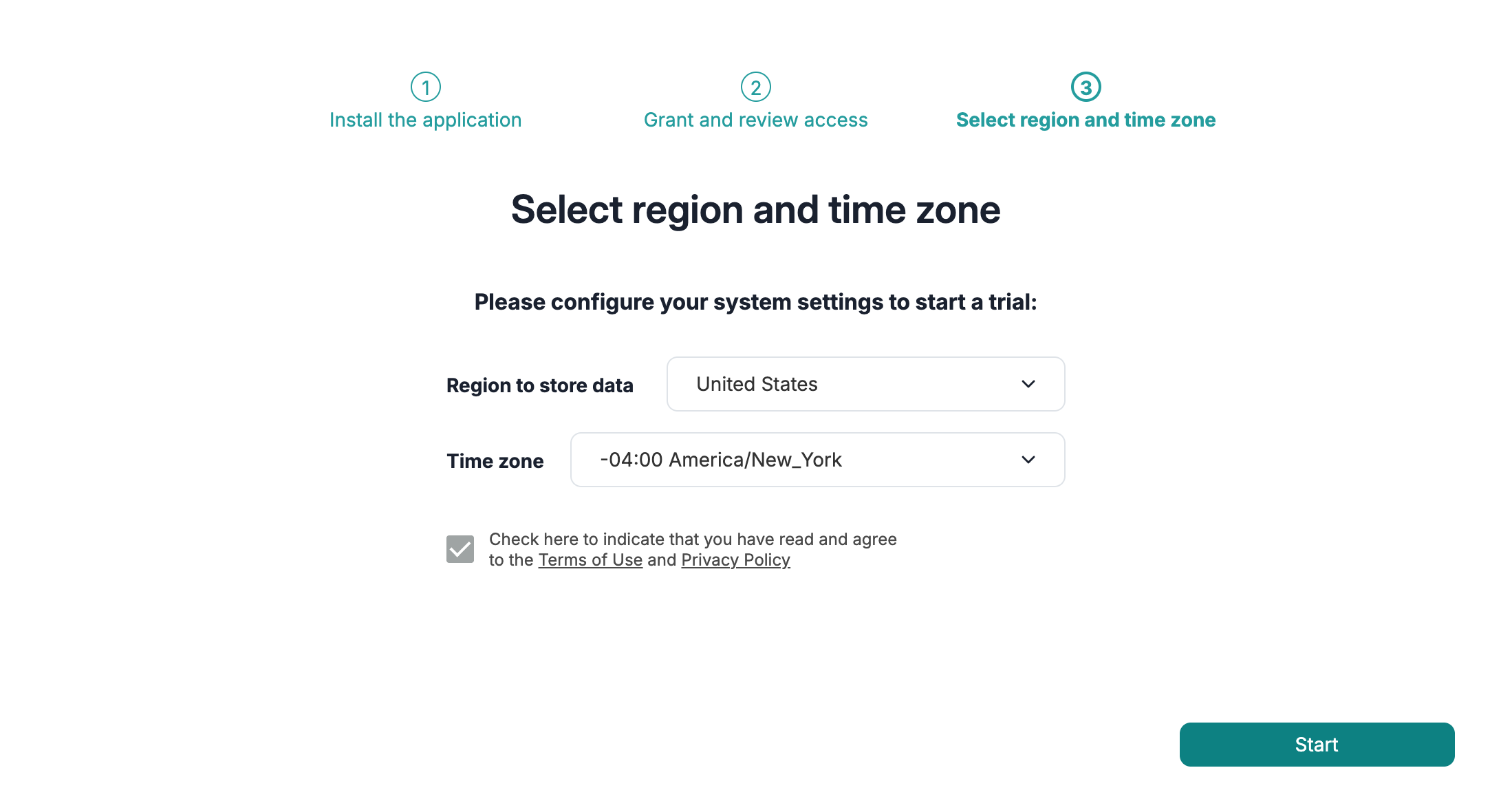
The backup region determines where Afi stores your backups. You can review it under Service → Settings → Info, but can't change it in the portal after onboarding. The time zone applies to the initial backup schedules.
To finish onboarding, choose the region and time zone, review the Terms of Use and Privacy Policy, select the agreement checkbox, and click Start.
Protect your data
Data protection and basic data access, search, export, and recovery scenarios are covered in our first steps guide.
Add sandboxes and other organizations
Add a sandbox to a production data source
If the production organization is already connected, you can add its sandboxes to the same data source. Each sandbox has its own authorization, SLA policy, and backup history, so production and sandbox backups can use different schedules and retention.
This flow requires Afi tenant administrator access and a Salesforce System Administrator account for the sandbox. The production organization must support sandbox management, and its integration user needs the Manage Sandboxes permission so Afi can list the available sandboxes.
-
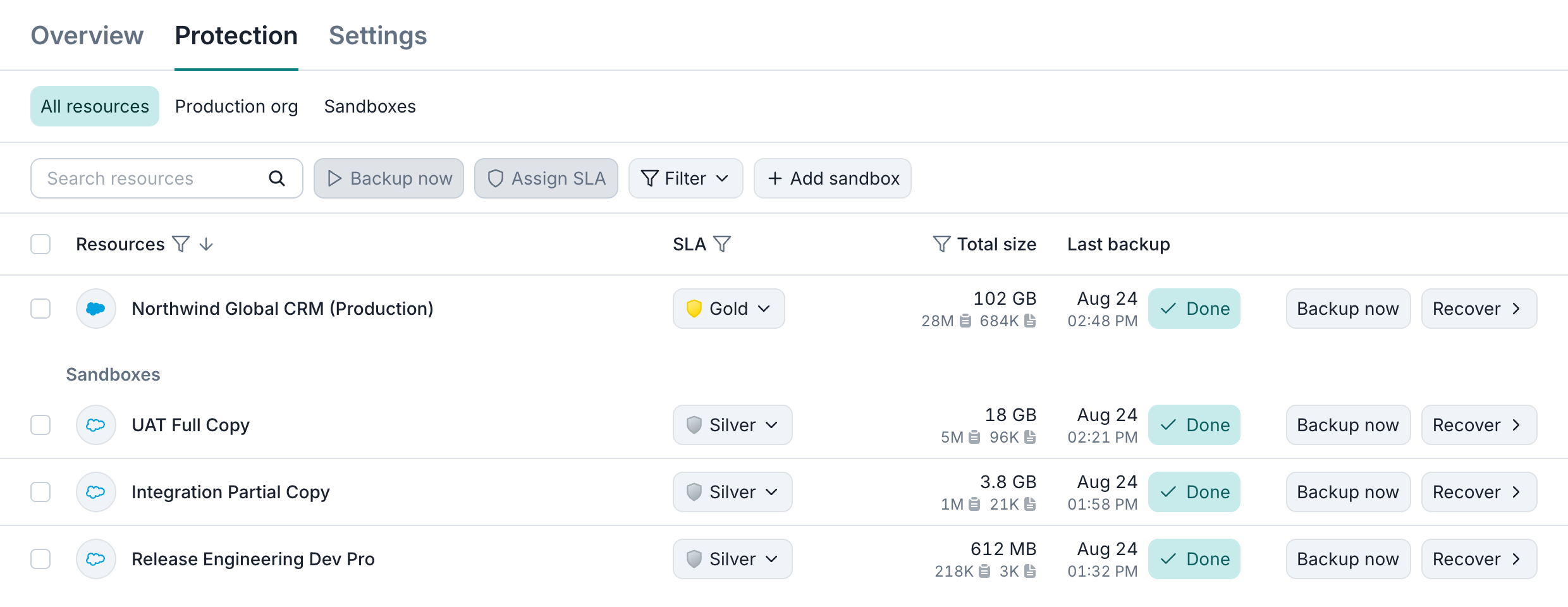
To see available sandboxes, open Service → Protection in the production data source and click Add sandbox.
-
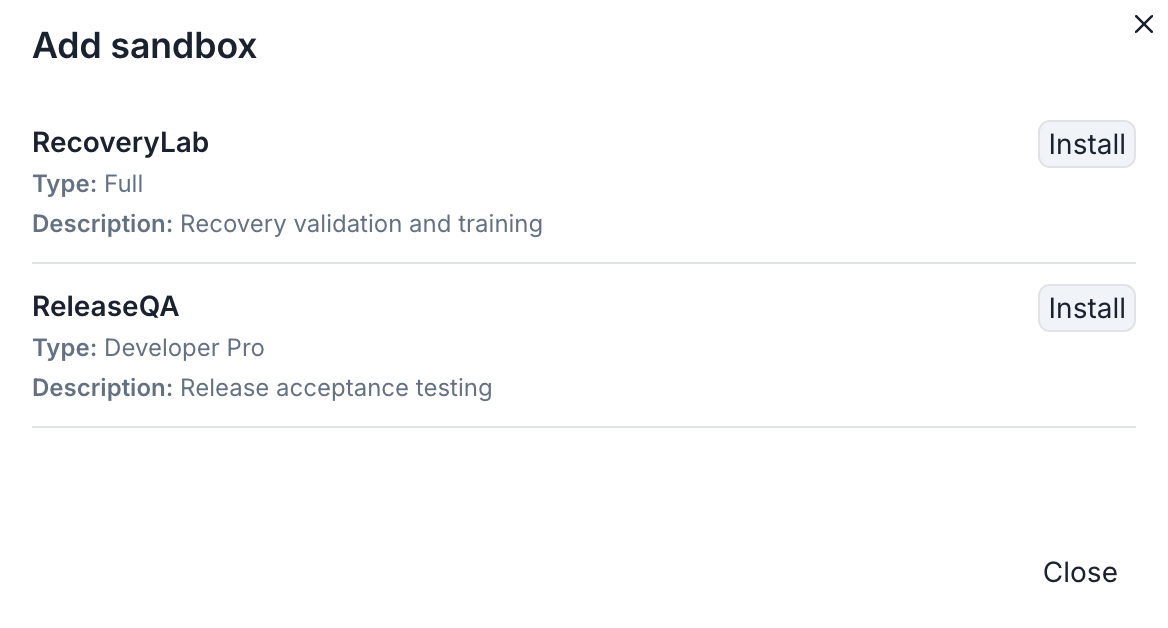
The dialog lists sandbox names, types, and descriptions. To begin setup, click Install beside the sandbox you want to connect.
- The sandbox needs its own package, so sign in to the sandbox with a Salesforce System Administrator account and follow the installation and authorization steps.
- If Review permissions appears, grant the missing backup and recovery permissions, then click Check again. Optional permissions don't block this step. This flow has no Continue button.
- Once the sandbox appears in the resource list, assign a backup SLA policy to start protection.
After a sandbox is refreshed and activated or deleted and recreated in Salesforce, Afi treats it as a new resource, even if its name stays the same. To protect it, add it again through Add sandbox and assign an SLA policy. Backups of the previous sandbox remain with the old resource, subject to its retention and archiving rules. Afi doesn't create or refresh sandboxes.
Connect a separate data source
To connect another production organization or sandbox under the same Afi account, choose Add data source from the data-source selector and follow the installation steps above.
To connect a sandbox to Afi without onboarding its production organization, choose Log in to a sandbox org during sign-in. The sandbox is added as a separate data source and has no Add sandbox button.
Info
You can also add Microsoft 365, Google Workspace, Microsoft Azure, Amazon Web Services, or Kubernetes tenants under the same Afi account.
Maintain the Salesforce connection
Discovery, backup, and recovery require an active integration user with Afi authorization, API access, and the required object and field permissions. Removing access can interrupt tasks or limit the data Afi can access.
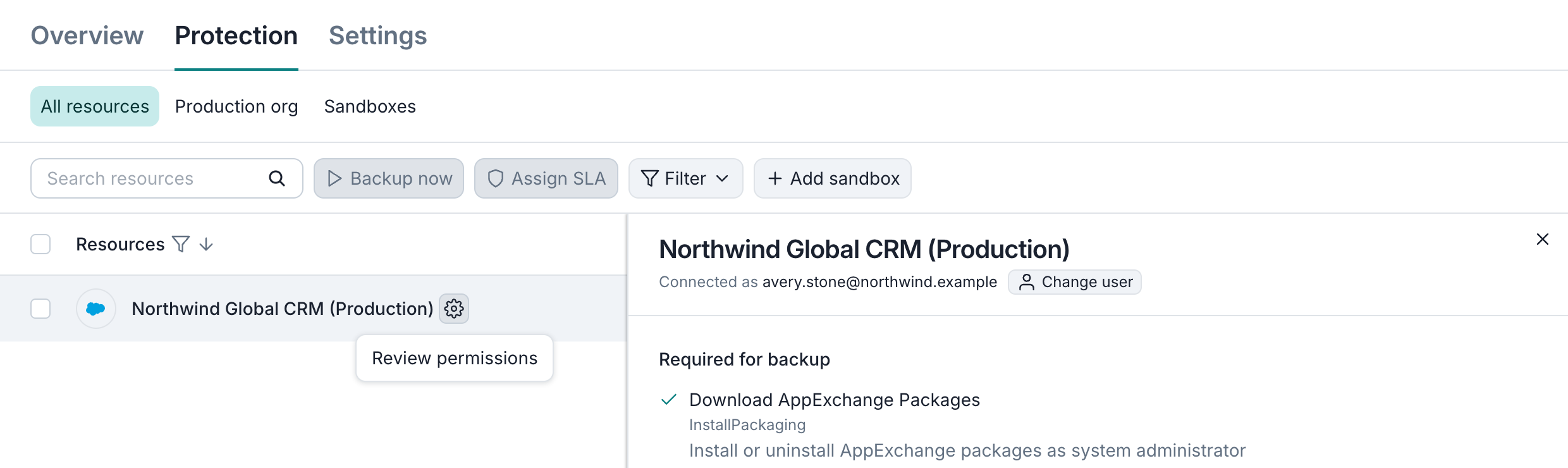
To review the connection, hover over the resource on Service → Protection and click its settings icon.
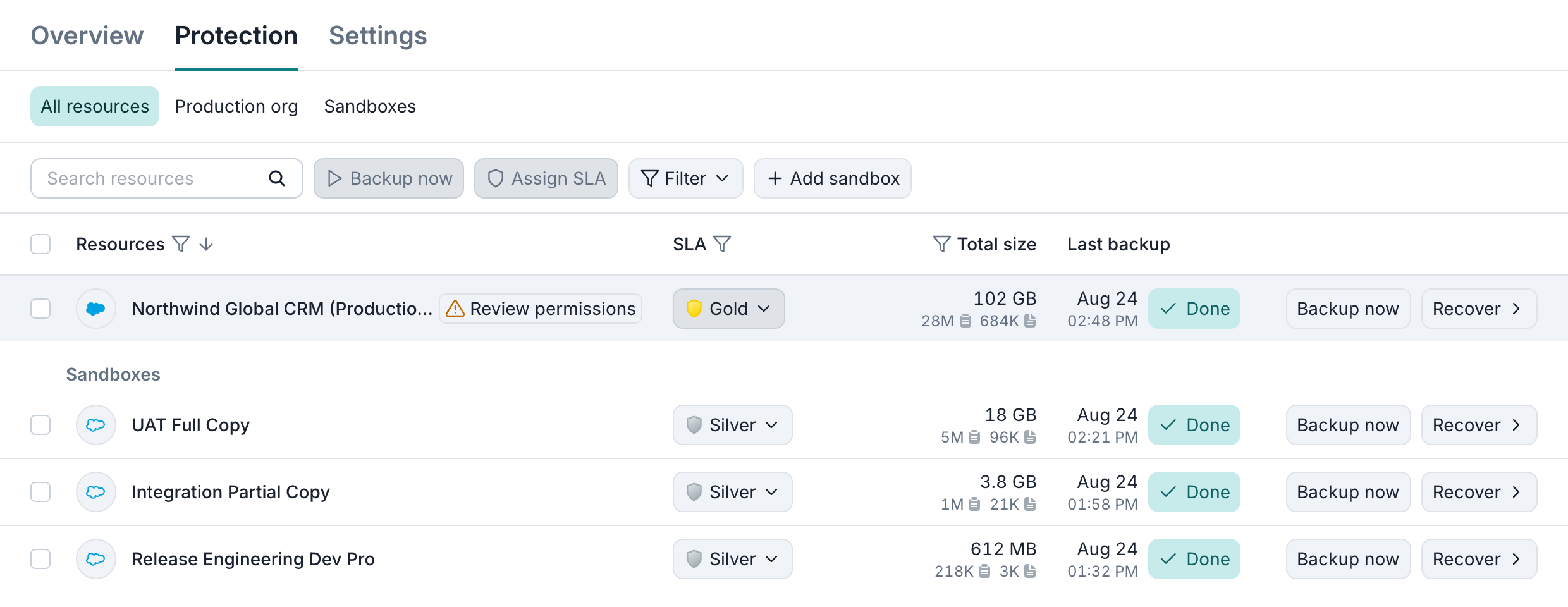
If required backup or recovery permissions are missing or their status is unavailable, the resource shows Review permissions instead.
The side panel shows the Connected as user and the granted or missing permissions in each group. Afi rechecks these permissions during automatic Salesforce resource discovery, which runs once a day.
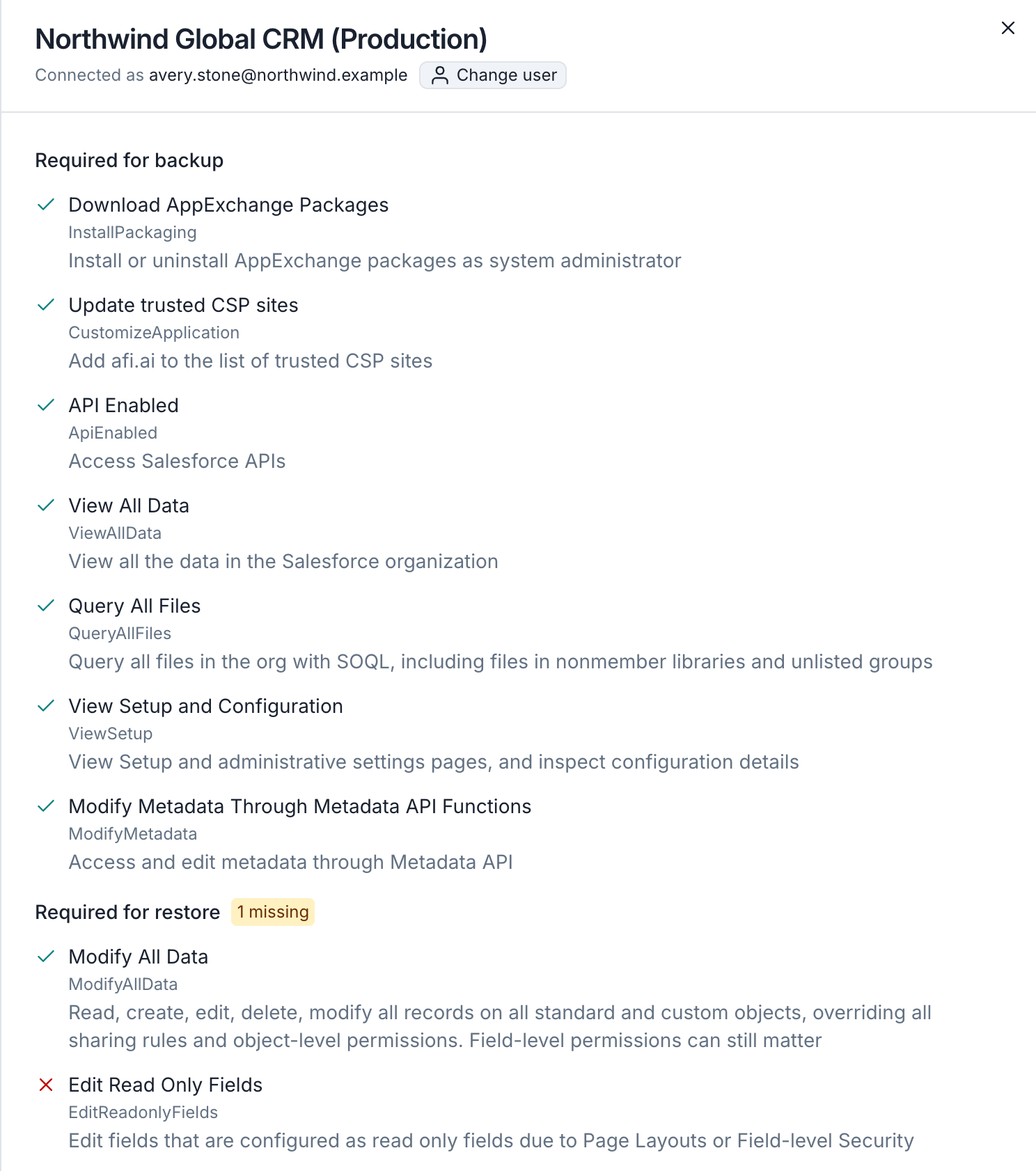
To change the integration user, click Change user and authorize Afi with another Salesforce account for the same organization or sandbox. If Review permissions appears, grant the missing backup and recovery permissions, then click Check again. Optional permissions don't block the change, and this flow has no Continue button.
To confirm access after changing users or permissions, trigger a backup with Backup now.