Setting up an account
The Salesforce onboarding guide covers account creation and connecting a production organization or sandbox. Once connected, you can protect your data and try the features below.
Protect resources
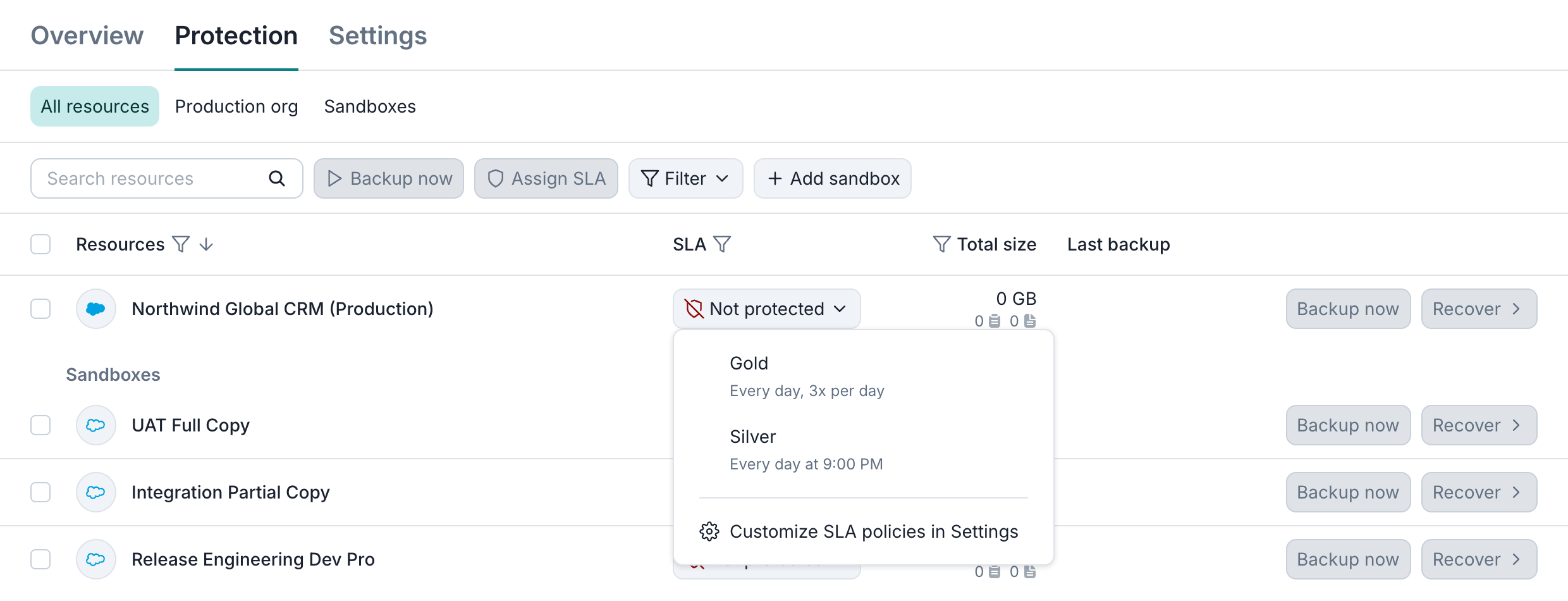
Each organization or sandbox needs an assigned backup SLA policy, which defines its backup schedule and retention settings. To assign one, go to Service → Protection, click Not protected in the resource's SLA column, and choose a policy.
Run backup
To run a backup immediately, select a protected resource and click Backup now. Scheduled backups run automatically; resources assigned the Manual policy are backed up only on demand.
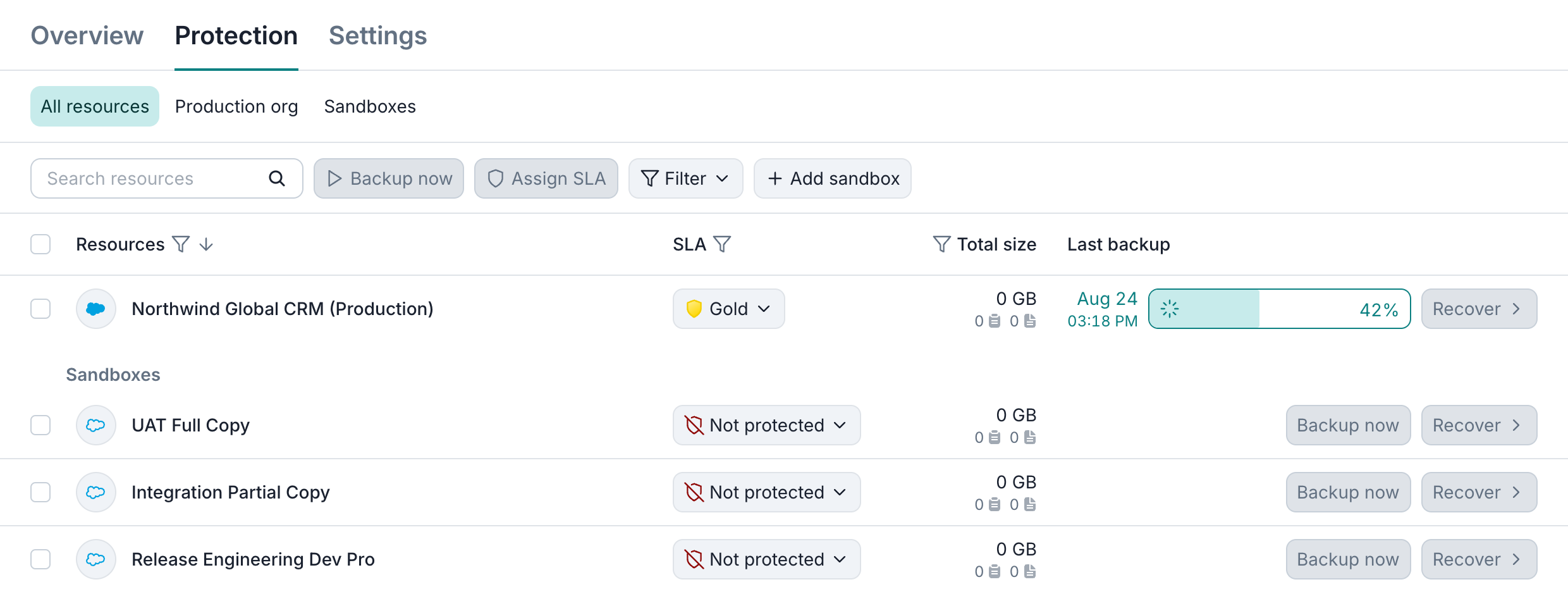
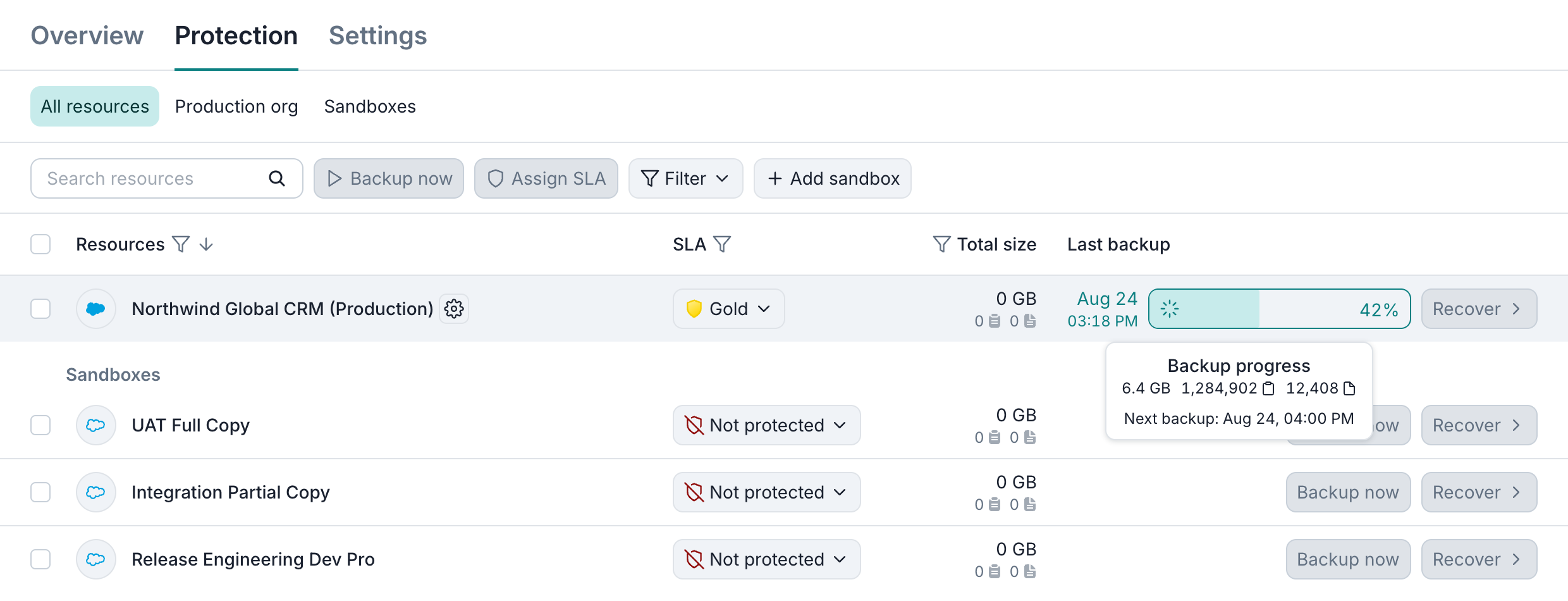
To see the amount of backed up data as well as record and file counts synchronized during the current in-progress backup, hover over the backup progress bar.
Data browsing and preview
Once a backup completes, click the Recover button next to the resource to open it for browsing. You can select an SObject type on the left to view records of the corresponding type and then open any record to review its fields, related records, and files.
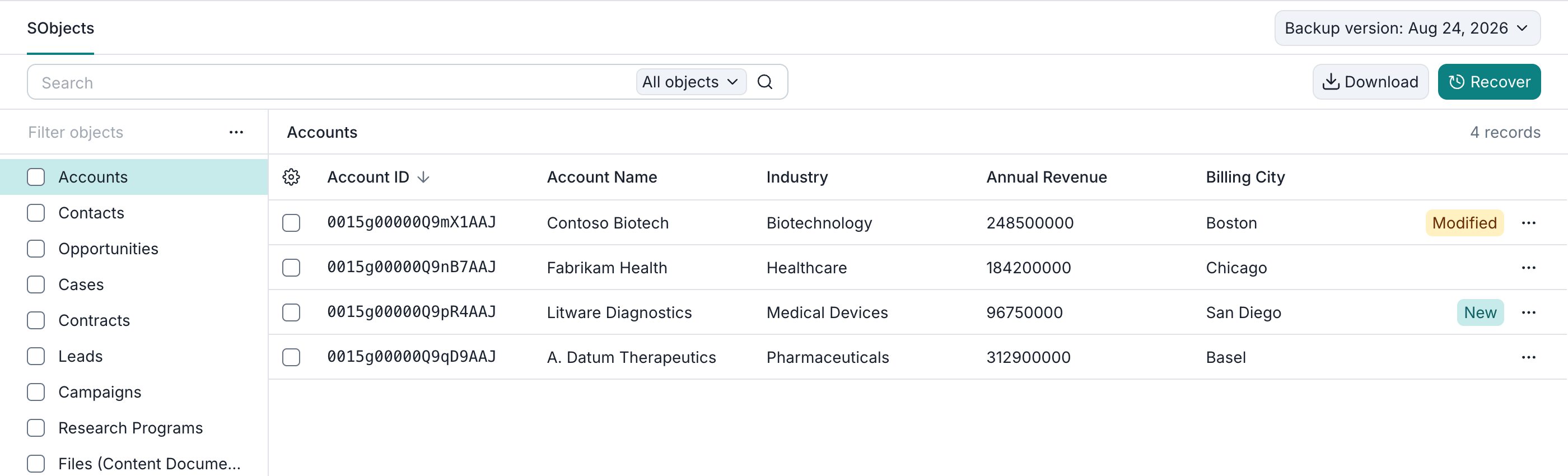
See Browse for more ways to explore your backup.
Data search
To find records, enter a query in the search box in the backup browsing view. You can search text, record IDs, email addresses, phone numbers, and picklist values. To search particular fields, select an SObject type and use Filter for field selection. Limit to current backup version searches the selected snapshot; turning it off includes retained versions across all snapshots.

See Search for search options and examples.
Data download
To download your data, select SObject types or records and click Download. You can choose Export as CSV or Export as JSON and, for selected records, include files and direct children.
You can also download available object definitions for a particular SObject or all SObjects with Export metadata as XML.
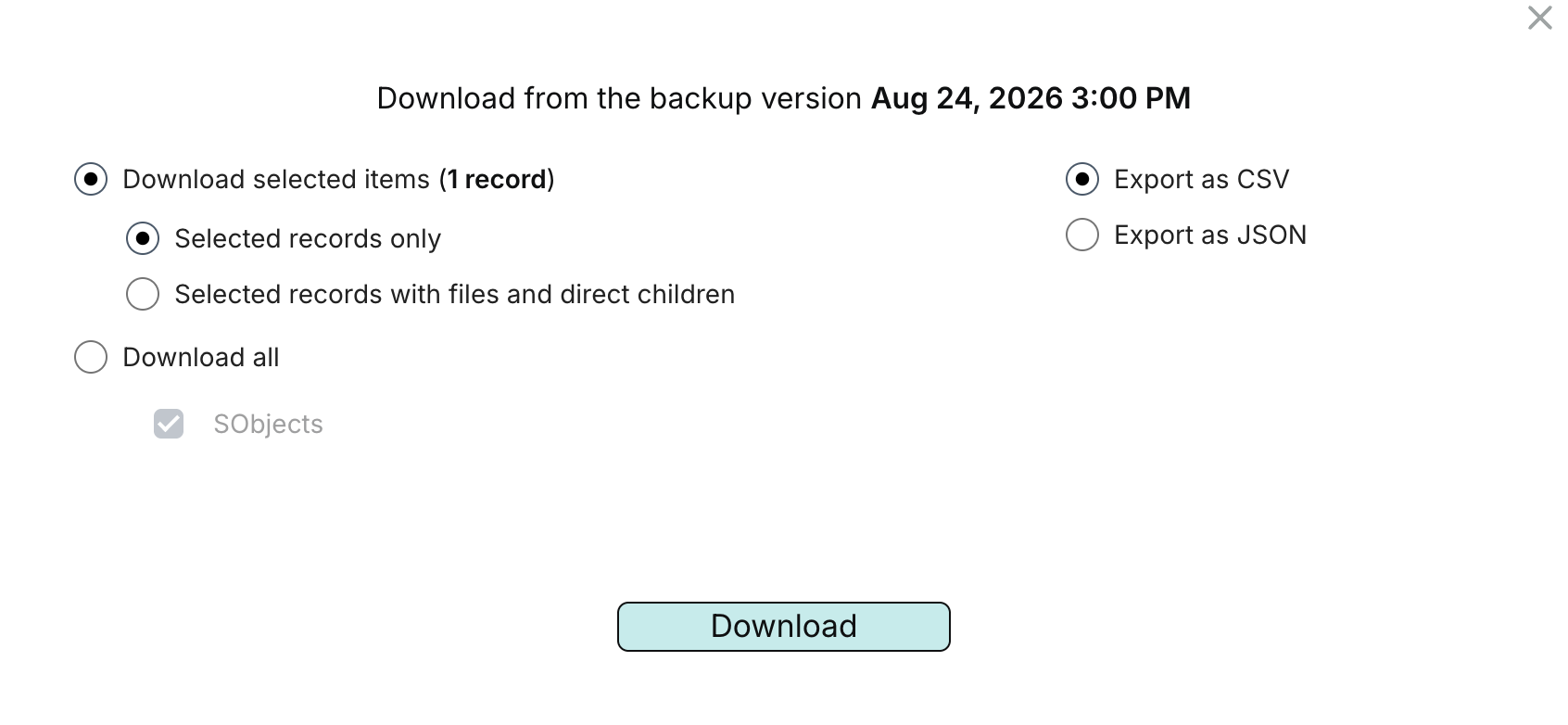
You can track export progress on the Activity → Tasks tab, and Afi will notify you via email once the export is complete. See Export for formats and download options.
Data restore
To restore data, select the snapshot and SObject types or records, then click Recover. In the dialog, you can choose the original resource or another connected Salesforce organization or sandbox and review the child-record and automation options before starting recovery. Afi updates matching destination records with backed-up values.
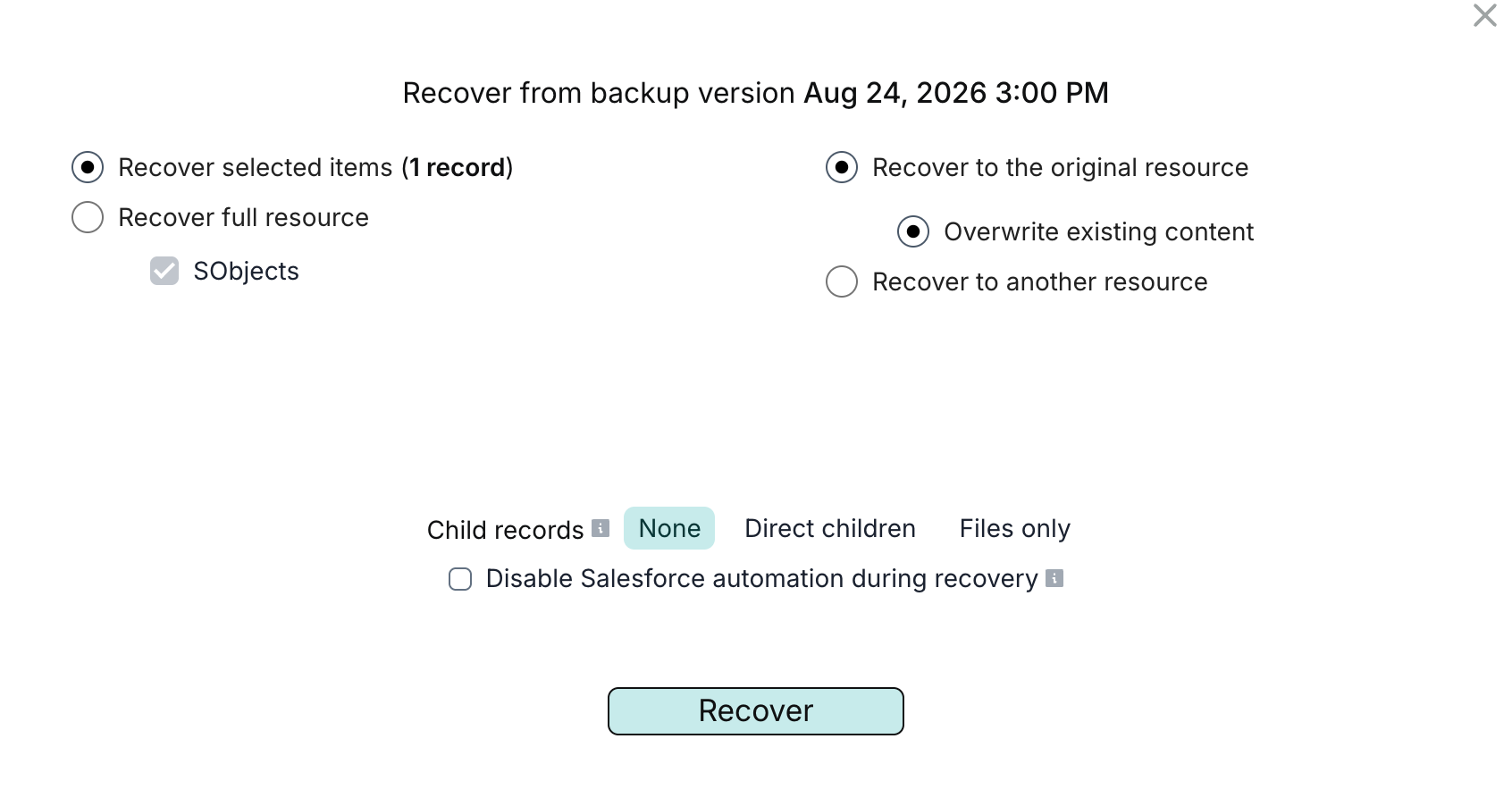
You can track recovery progress on the Activity → Tasks tab, and Afi will notify you via email once the recovery is complete. See Recovery for options, permissions, and recovery behavior.