Overview
Afi backup for Salesforce protects records and their field values from standard and custom SObjects, along with Salesforce Files and attachments and object and field metadata. This article describes how to browse, search, export, and recover backups of Salesforce production organizations and sandboxes.
Before you begin, add the Salesforce data source and protect your data in the production organization or sandbox.
How Salesforce backup and recovery work
During onboarding, a Salesforce administrator installs the Afi managed package and authorizes Afi. This user becomes the integration user, whose Salesforce permissions determine which objects and field values Afi can read for backup and which records and fields it can write during recovery.
Afi treats a production organization and each onboarded sandbox as a separate resource. For each protected resource, Afi backs up records and their field values from queryable standard and custom SObjects exposed to the integration user through supported Salesforce APIs. Objects from installed managed packages follow the same coverage rules as other custom objects. See What's supported for Salesforce data and metadata coverage.
Afi also backs up binary field contents and object and field metadata. The metadata is used to display records, recreate custom objects that are missing from the recovery destination, and provide object definitions for XML export.
Afi Salesforce backups are forever incremental: after an initial full data synchronization, the service synchronizes only records added or changed since the previous backup. This reduces both backup time and the amount of data added to each backup. Afi resynchronizes an object when incremental change tracking is not provided by Salesforce APIs or protection has been interrupted for an extended period. This approach together with using bulk API operations helps Afi to reduce Salesforce API quota consumption.
During recovery, Afi uses Salesforce APIs to write data according to the destination's current object schema and permissions. Afi updates matching records or recreates records that are missing, while preserving relationships between recovered records.
How to view backup data and navigate across snapshots
To open a Salesforce backup, go to Service → Protection, locate the production organization or sandbox, and click Recover. Opening the backup with this button doesn't start a recovery task.
You can browse backed-up standard and custom objects on the SObjects tab. Select an object to browse its records and click a record to view its details. You can optionally choose which backed-up fields appear as table columns.
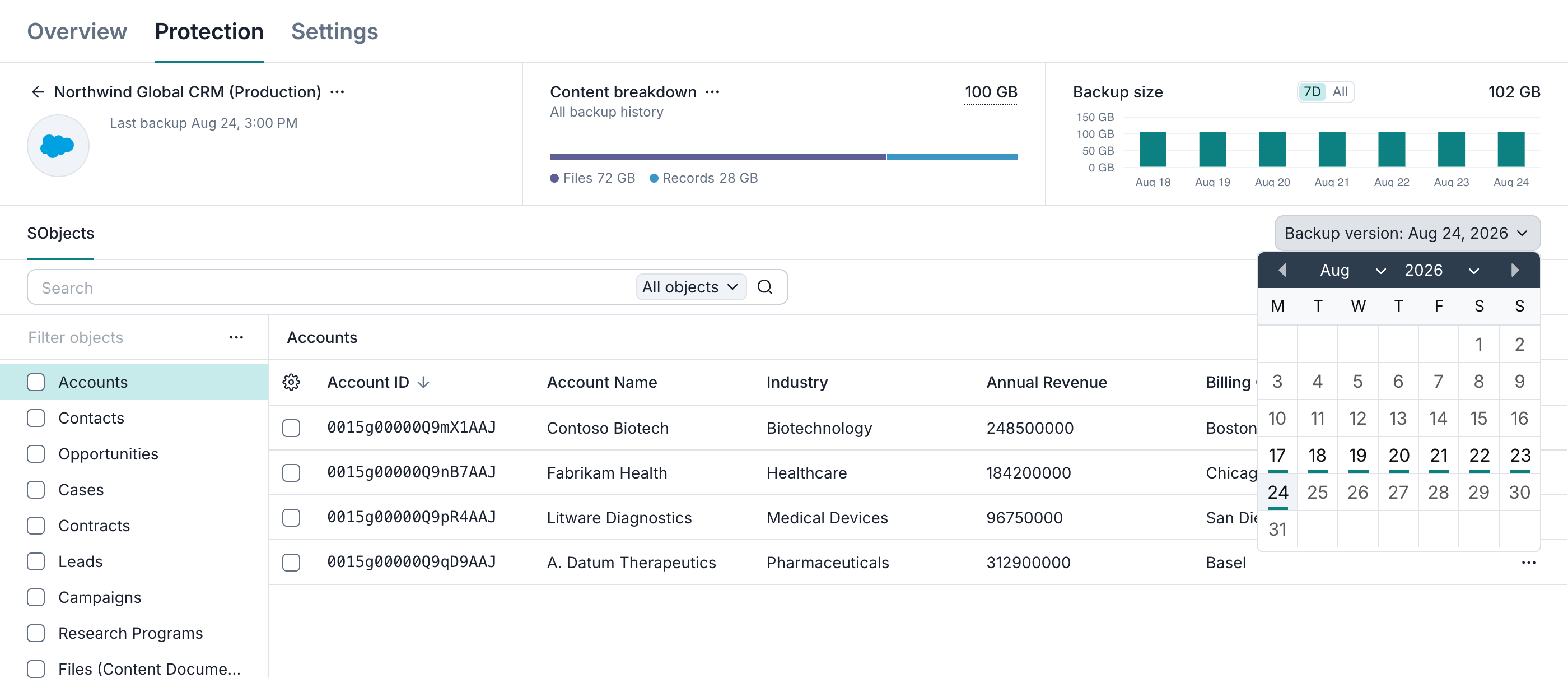
For detailed instructions, see Browse.
Backup snapshots
By default, Afi opens the most recent successful backup snapshot. Use the Backup version control to select another date and, if more than one backup was created on that date, the required backup time. The selected snapshot is used when you browse records and start an export or recovery.
Each snapshot represents the state of your protected Salesforce data at the time of the backup. If a record is later changed, deleted, or archived in Salesforce, you can still browse, search, export, and recover its earlier version from a retained snapshot. Retention settings in the assigned SLA policy determine how long backup snapshots are kept.
Afi currently does not capture records already in the Salesforce Recycle Bin or archived activities. A record created and deleted between consecutive backups may never be captured.
Search
Afi lets you search indexed record fields in each resource's backup. Open the production organization or sandbox backup you want to search, enter a query, and select a matching SObject to view its records.
By default, Limit to current backup version restricts results to the selected snapshot. Turn it off to search record versions across all retained snapshots for that resource. You can select matching records for export and recovery. Records selected for one recovery task must come from the same snapshot.
See Search for searchable content and workflow details.
Export
You can export the full resource's backed-up record data, all backed-up records of one or more selected SObject types, or individual records selected in the browse view or search results.
Afi supports the following export formats:
- CSV for SObject record data;
- JSON for SObject record data, in JSON Lines (
.jsonl) format with one record per line; - XML for available backed-up object metadata.
Record-data exports include supported binary field contents. When exporting selected records, you can also include their backed-up files and direct child records.
See Export for format and selection details.
Recovery
From a selected backup snapshot, you can recover:
- The full Salesforce resource;
- All backed-up records of one or more selected SObject types, such as all Accounts or all Contacts;
- Selected individual records, including records selected from search results.
Read-only SObjects can be browsed, searched, and exported, but cannot be selected for recovery.
You can recover records with or without their backed-up child records. To include supported direct child records, linked files, and attachments, select Direct children under Child records.
Afi updates matching records and recreates missing or deleted records. It doesn't remove destination records that were created after the selected snapshot. If a supported custom object is missing from the destination, Afi automatically recreates it from its backed-up metadata before restoring its records. Afi preserves supported relationships by recovering required records in dependency order and updating lookup and master-detail references to the corresponding record IDs in the destination.
You can recover data to the original Salesforce resource or another connected resource. This way, you can restore a part of production organization's data to a sandbox.
The recovery dialog leaves Salesforce automation enabled by default. Select Disable Salesforce automation during recovery to temporarily deactivate active flows, workflow rules, and validation rules throughout the destination organization. With this option selected, Afi reactivates the previously active automation after a successful recovery.
See Recovery for detailed instructions and recovery options.
Choose a recovery approach
| Your situation | Suggested approach |
|---|---|
| A few records were deleted or overwritten by an import | Browse or search a snapshot from before the incident, inspect the saved values, and recover the affected records. Recovery writes the eligible backed-up fields on each selected record. |
| An Account and its related data were lost | Select the Account and choose Direct children to recover its backed-up Contacts and other eligible direct child records. |
| A file or attachment was lost | Download the saved content, or recover the file by selecting its ContentDocument record and Direct children under Child records. Afi then restores its backed-up links to destination records automatically. For a legacy attachment, select its Attachment record; Afi restores the parent relationship automatically. |
| Historical data is needed for testing or investigation | Recover selected data to a connected sandbox. |
| A custom object was deleted | Recover its records from a snapshot that includes its object metadata. Afi uses that metadata to recreate the object automatically before restoring its records. |
| Custom fields were deleted, but the SObject type still exists | Afi doesn't recreate these fields during record recovery, even when you recover all records of that type. Restore or recreate the fields in Salesforce with their original API names before recovering their values. |
Data access security
Afi uses explicit access roles to control who can list, preview, download, and recover backup data and who can recover data to another resource. See Salesforce access management for configuration guidance.
Afi audits data browse, search, export, and recovery activity. Administrators can review these events on the Activity → Audit tab. Recovery events identify the initiating user and the relevant source and destination.